Product
CommonLook PDF Desktop Version
Feature
Table of Contents
Document Element
Tables of Contents that span multiple pages
Overview
When a Table of Contents continues onto more than one page, tagging each page on its own creates several separate TOC structures in the Tags tree, one per page. Assistive technology expects a Table of Contents to behave as a single, continuous structure, so these separate pieces need to be combined into one TOC before the document is finished.
This article walks through merging those separate TOCs into one continuous TOC.
Prerequisites
Before you start, make sure you:
1. Know how to tag a Table of Contents in CommonLook PDF, including nesting entries correctly. See How to Tag a Table of Contents in CommonLook PDF Desktop and How to Tag a Nested Table of Contents in CommonLook PDF Desktop if you need a refresher.
2. Have identified every page where the Table of Contents continues.
Steps to Follow
1. Tag each page's portion of the Table of Contents on its own, following the same steps you'd use for a TOC. Double check each one for proper assembly and correct nesting before moving on. You'll end up with one separate TOC element per page.
2. In the Tags tree, select the TOC elements in the order they should appear, starting with the first page of the Table of Contents.
3. Right-click one of the selected TOCs to open the context menu, then choose **Merge tags**. You can also merge them with the keyboard shortcut Ctrl+M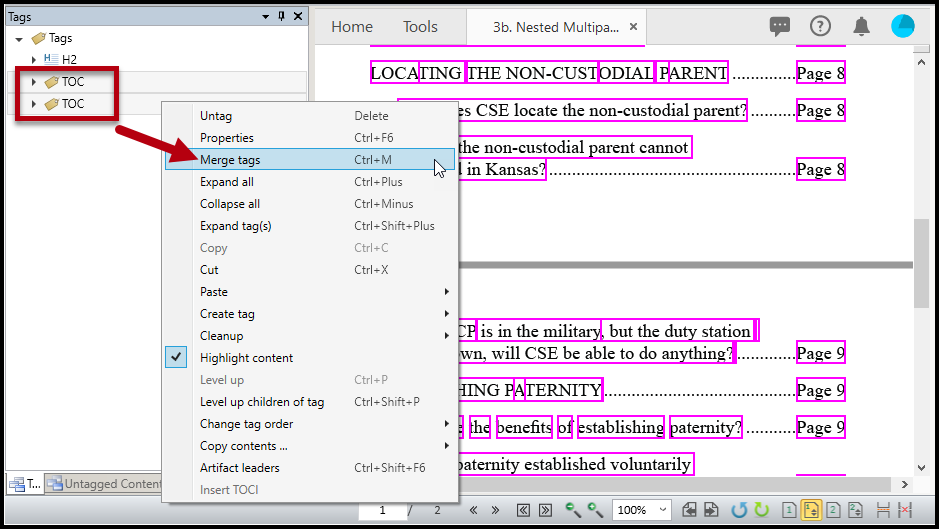
Once merged, the separate TOCs combine into a single, continuous TOC element in the Tags tree.
Was this article helpful?
That’s Great!
Thank you for your feedback
Sorry! We couldn't be helpful
Thank you for your feedback
Feedback sent
We appreciate your effort and will try to fix the article