Many documents have repeating information that needs to be untagged, or artifacted, so that assisstive technology does not share the information multiple times. Common examples of this situation are headers, footers, or page numbers. In most cases, it is not necessary to read these document elements on each page, so we untag the information to prevent repetition.
Highlighting content in the physical view is an easy way to artifact elements that do not need to be tagged. However, some things, like headers and footers, can all be artifacted at once as opposed to having to select and delete the tags on each page individually.
The steps that follow are for artifacting all of the footers (page numbers, etc.) in a document however the same concept applies to headers as well.
- In the physical view, highlight the footer at the bottom of the page.
- In the Insert tag tab, on the far right side, click the Pagination button.

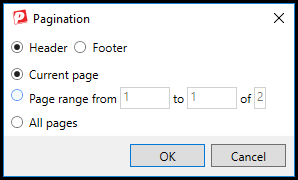
- When the Pagination dialog window opens, make the necessary decisions.
- Choose Header or Footer. Change the automatically selected radio button if needed.
- Choose Current page to artifact the footer on just the one page, choose a Page range if you want to artifact most of the footers but leave one page tagged (for example to read the footer information once in the document but not on every page), or choose All pages. When done, click Ok.
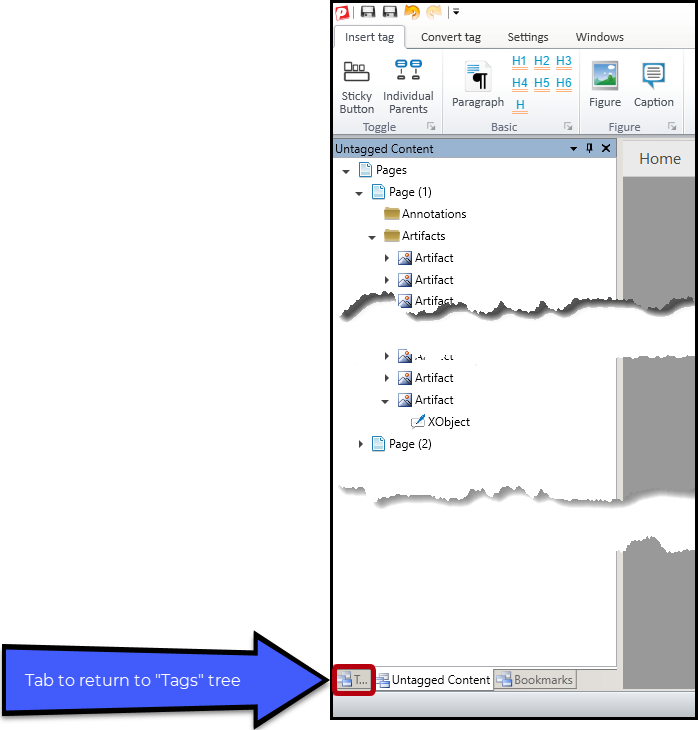
- After clicking Ok, on the left, CommonLook will show the Untagged Content panel. Click the tab at the bottom left corner of that panel to return to the Tags tree.
Didn't find what you're looking for? Navigate to our "Tagging (or Untagging) Content" section for more related articles that may help!
Was this article helpful?
That’s Great!
Thank you for your feedback
Sorry! We couldn't be helpful
Thank you for your feedback
Feedback sent
We appreciate your effort and will try to fix the article