Overview
Tags provide the structure that allows assistive technologies to interpret the content of a PDF. All meaningful content—including text, images, charts, and other informational elements—must be properly tagged.
This article explains how to create new tags, convert existing tags to a different tag type, and merge multiple tags into one.
Prerequisites
Before working with tags:
- Open the document in CommonLook PDF Desktop or Advanced Editor.
- Determine whether the content should be tagged, converted to a different tag type, or merged with another tag.
- Ensure you understand the intended document structure before making changes.
Steps to Follow
Creating Tags (Highlight, Tag, Push, Clean)
- In the physical view of the document, highlight the content you want to tag.
- Use the options in the Insert Tag tab to create the appropriate tag. This is typically referred to as tagging the content.

If you're interested, hover over a tag type in the Insert Tag tab to view the available keyboard shortcut. You can also refer to the CommonLook PDF Keyboard Shortcuts article. - Verify that the new tag appears in the Tags tree. If the selected content was already inside a tag, the existing tag will also be highlighted in the Tags tree. If the content was not previously tagged, the selected element will appear in the Untagged Content panel until a new tag is created.
- If the new tag is created inside an existing tag, right click the new tag and select Level Up, or use the keyboard shortcut Ctrl + P, to move the tag out of the parent tag. This is typically referred to as pushing the tag up one level in the Tags tree.
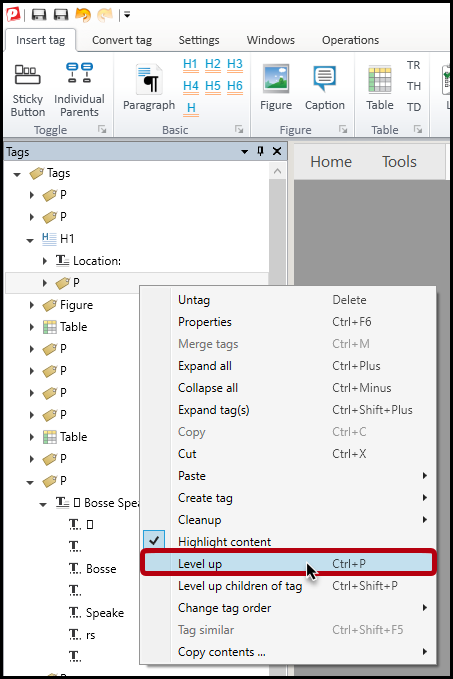
- Review the reading order and make any necessary adjustments.
- As a final step and good habit, we typically Cleanup the Tags tree to ensure that no empty tags are left behind. This can be done using the Ctrl+E keyboard shortcut and is explained in more detail in our "Cleaning Up Empty Tags" article.
Converting Tags
Use tag conversion when the content is already correctly tagged, but the tag type needs to change.
- Select the tag you want to convert in the Tags tree.
- Use the Convert Tag tab in the ribbon to select the correct tag type.
 Be sure to select the tag itself in the Tags tree, not the text or other content inside the tag. If content is selected instead of the tag, the conversion options may not be available.
Do not use the Insert Tag tab when changing an existing tag type. Using Insert Tag creates a new tag instead of converting the existing tag, which can result in incorrect tag nesting.
Merging Tags
Use tag merging when content that belongs in a single tag has been split across multiple tags.
- Select the tags you want to merge. Select the tags in the correct order. Content will be merged in the order the tags are selected. Selecting the tags in the wrong order can reverse the content after merging.
- Right-click one of the selected tags and choose Merge Tags, or use the keyboard shortcut Ctrl + M.
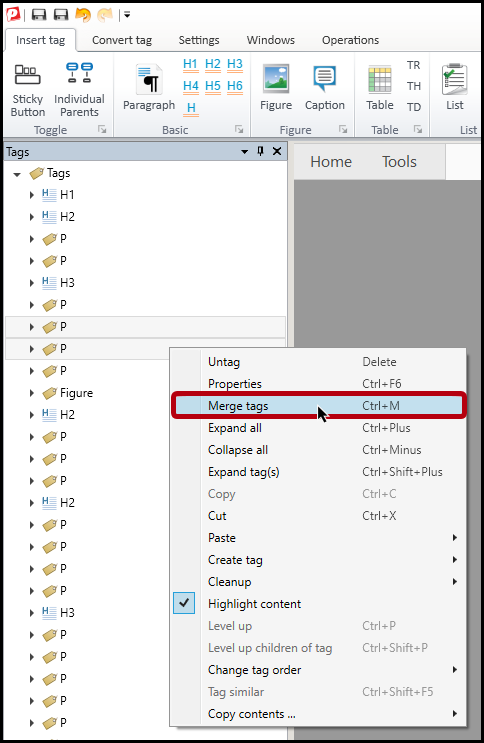
- Verify that the merged tag has the correct tag type. When merging different tag types, the resulting tag uses the tag type of the first tag selected. For example, selecting an H2 tag first and a P tag second creates a merged tag using the H2 tag type. Convert the tag if needed.
- Review the reading order and make any necessary adjustments. When merging tags located in different areas of the document, the content moves to the location of the first selected tag in the Tags tree.
Common Problems
The Convert Tag options are unavailable.
Make sure you selected the tag in the Tags tree, not the text or content inside the tag.
A newly created tag is placed inside another tag.
Right-click the new tag and select Level Up, or use Ctrl + P, to move the tag out of the parent tag.
The merged content appears in the wrong order.
Tags are merged according to the order in which they are selected. Undo the merge and select the tags in the correct order before merging again.
The merged tag has the wrong tag type.
The merged tag uses the tag type of the first selected tag. Use Convert Tag to change the tag type if necessary.
The reading order changes after merging tags.
Creating, converting, or merging tags can affect the reading order. Review and adjust the reading order as needed.
Frequently Asked Questions
When should I create a new tag instead of converting a tag?
Create a new tag when content is untagged or when replacing an incorrect tag structure is easier. Convert a tag when the content structure is correct, but the tag type is incorrect.
When should I merge tags?
Merge tags when content that belongs in one structural element has been split across multiple tags.
Why did my merged tag become an H2?
When tags with different types are merged, the resulting tag uses the type of the first tag selected.
Why are the Convert Tag options unavailable?
The Convert Tag options are only available when a tag is selected in the Tags tree.
Do I need to check reading order after creating or merging tags?
Yes. Creating, converting, or merging tags can affect the document reading order. Review the reading order and make adjustments as needed.
Related Articles
- CommonLook PDF Keyboard Shortcuts
- Cleaning Up Empty Tags
- How to Fix the Reading Order of a PDF
- Tagging Untagged Content
Was this article helpful?
That’s Great!
Thank you for your feedback
Sorry! We couldn't be helpful
Thank you for your feedback
Feedback sent
We appreciate your effort and will try to fix the article