Overview
Switching the selection tool to Text Selection gives users the ability to copy text and paste text that is in the physical view of the PDF. Most of the time we are operating in CommonLook selection as CommonLook Selections as it give the user the ability to move, manipulate, and generate new tags with content.
Prerequisites
Text selection can be used to copy and paste text from the physical view to be used as alternative text in the tags tree.
Steps to Follow
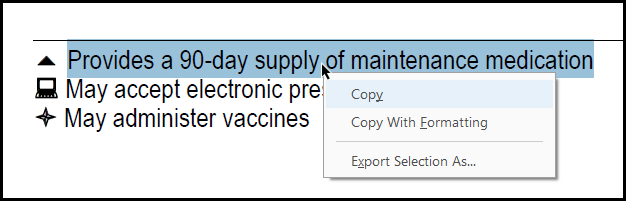
In the following example, a remediator can copy information in a symbol key to be used for alternative text wherever that symbol appears in the document.
To copy text in the physical view to then use as Alternative text, follow these steps:
- Click the Settings tab and, in the Selection Tool group, choose “Text Selection.”

- In the physical view of the document, highlight the text to copy, right-click (or otherwise open the context menu), and choose “Copy.”
- Paste the copied text in the needed location.
Frequently Asked Questions
What should my default remediation selection tool be set to?
When remediating, the default selection tool should be set to "CommonLook Selection" and adjusted whenever the user wants to copy literal document text.
Was this article helpful?
That’s Great!
Thank you for your feedback
Sorry! We couldn't be helpful
Thank you for your feedback
Feedback sent
We appreciate your effort and will try to fix the article