Overview
- Form tags are inline elements, meaning they cannot be at the root level and instead need to be nested inside of a structural tag.
- Form tags must contain the "Form" X-Object"/annotation (the interactive part of the form)
- Form tags require tooltips
Tooltips are
- Intended to describe the purpose, expected input, or instructions for that field
- Exposed to screen readers as part of the field’s accessible name or description
Standards
The following standards apply to the use of tooltips for Forms:
- WCAG 2.2 Success Criterion 4.1.2 – Name, Role, Value
- WCAG 2.2 Success Criterion 4.1.2 requires user interface components, including form fields, to have a programmatically determinable name.
For PDF forms, the Tool Tip is commonly used to provide that name.
PDF/UA
PDF/UA requires form controls to have an accessible name. In most PDF authoring workflows, the Tool Tip fulfills this requirement.
Steps to Follow
To create a Form tag:
- In the physical view, highlight the “question” to be tagged in a Form. Be sure to select both the text and the Annotation.
- In the Insert tag tab, on the ribbon, select the button to create a Form tag (or use Ctrl + 8).

- Level up if needed (Ctrl+P or right-click (or otherwise open the context menu)
- Open the Form tag to make sure that it contains the text for the form and the Annotation.
CommonLook will automatically tag the Form correctly when a Paragraph tag is created.
To create a Paragraph tag with a Form tag inside:
- In the physical view, highlight the “question” to be tagged in a Form. Be sure to select both the text and the Annotation.
- Create a new Paragraph tag (in the Insert tag tab on the ribbon or keyboard shortcut Ctrl+7).
- Level up if needed (Ctrl+P or right-click (or otherwise open the context menu) and choose level up from the context menu).
- Open the Paragraph tag. Make sure that the Form tag is inside it
- Open the Form tag to make sure that it contains the text for the form and the Annotation.
Adjusting Tab Order
Regardless of if a user is tagging a Form manually or automatically, a remediator must still update the document tag order. You can do so manually or allow the fix wizard when running a verification fix it automatically. For more information, refer to the article, "Tab Order."
Screenshots
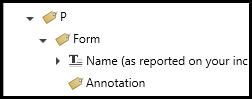
Below is a screenshot of a properly structured Form Tag with the Annotation and the text inside
Form tags will always be placed inside a structural tag and never at the root level on the Tags tree.
Common Problems
If the form annotation is missing in the tags tree, it may either be:
untagged - if so adjust your selection settings to include untagged content.
or missing - meaning there is no real form element, if so you will need to add a form field with a different software.
Frequently Asked Questions
What if I have Path's inside my form tag?
You will need to remove or artifact paths that may be present inside of form tags. In this case the path do not convey inofrmation.
Related Articles
What is a properly tagged Form?
Was this article helpful?
That’s Great!
Thank you for your feedback
Sorry! We couldn't be helpful
Thank you for your feedback
Feedback sent
We appreciate your effort and will try to fix the article