Overview
Language settings within a document fall into two important distinctions: Document-wide languages, and tag or section-specific languages.
- Document-wide languages: This is sometimes referred to as a document's "primary language." This reflects the language that is used in the entirety of the document or the majority of the document. For example, if the document is entirely English or all but one section of the document is in English, the primary language should be set to English. This field needs to be set in the document Metadata.
- Tag-specific or section-specific languages: This is used with a section or tag uses a language that is different from the primary language. This change needs to be set in the properties of the relevant tag. For example, if the document is in English, but there is one section in Spanish, the primary language should be set to English in the document Metadata, and the tags that are written in Spanish should be set to Spanish in their tag properties.
Prerequisites
The Language of every PDF needs to be set for assistive technology to read the PDF correctly to someone
Steps to Follow
For Document-wide Languages
- Ensure that the Document-wide Language is set in the Metadata. (See Question about Language selection below)
For Tag-specific or Section-specific Languages
- Select the tag or tags that contain the different languages.
- In the properties panel, change the Language and Country drop-down to match the language.
Protip: You can use an organizational tag like "Sect" or "Part" and place all of the tags of the language change inside of it. Then, you would only have to change the organizational tag's language to ensure that the other tags inside of it will be announced in that language.
For a word or phrase within a sentence or paragraph
- Open the Text element that contains the word or phrase in the tags tree.
- Select the word or phrase in the text run that has the language change (checl out this article on how to split text runs if you need to isolate the words or phrases further).
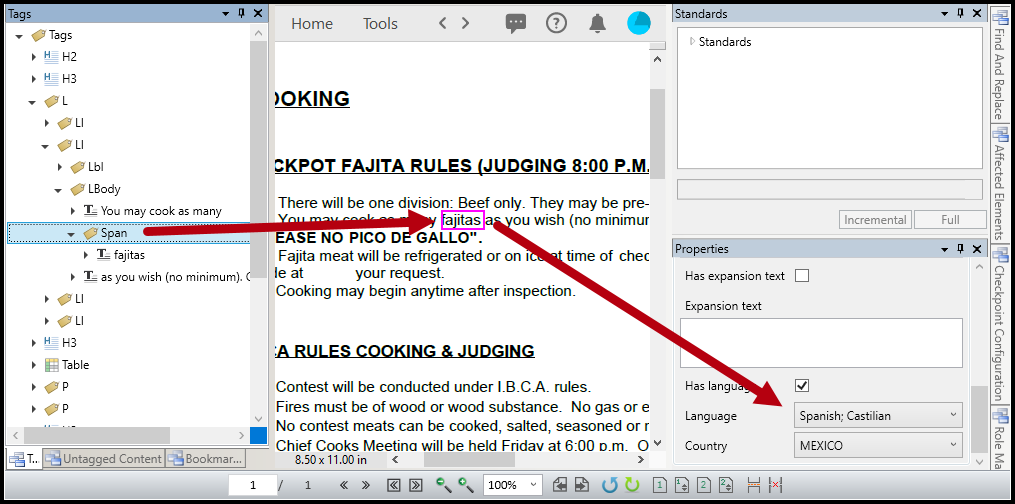
- Place the text in a Span tag and then, in the Properties panel for that tag, scroll down to the bottom and select the correct language.
Screenshots
The screenshot below shows the word “fajitas” placed in a Span tag. In the Properties panel, the language has been set to Spanish and the country has been set to Mexico.
Frequently Asked Questions
What are verifications related to Language?
When verifying a document for compliance, CommonLook will ask you to set and/or verify the language is correct for the document and its parts. When the language has been changed for a tag, a section, etc., CommonLook will also ask you to verify that the change in language is correct.
What to do if a Needed Language is not an Option?
In some scenarios, a needed language is not listed in the language drop-down. For example, if you are working on a document with the Hmong language in it, that is simply not an option in the tag properties. It is important to understand that the languages listed in this menu are all of the languages that are supported by PDF. Here are two possible solutions if the language of your document is not listed:
- Use a custom language code in Adobe Acrobat. All languages have custom codes that can be used to identify and indicate language use. In the case of Hmong, the language code is "hmn." These language codes can usually be found with a quick internet search or by visiting the following Wikipedia pages that list all needed codes (Hmong is on the second page of codes):
- Use a parent-language and country in CommonLook PDF
Why is there an option to add the Country in addition to the Language?
In some scenarios, creatively using languages and countries can help better share the needed language properties. For example, a document from Australia would be technically written in English, but changing the country to Australia could make a screen reader share the information with an Australian accent. In a situation like this, it is valuable to indicate the parent language and the country of the spoken language.
Note: Please understand that both of these solutions can be viable, but that in some situations, one of these will offer a better experience to the audience using assistive technology. For our example with the Hmong language, there is no easily identifiable parent language, so using the language code would be the ideal solution. Additionally, these solutions are always at the mercy of the assistive technology's functionality. To put it plainly, if we use the correct custom language code for Hmong but the screen reader doesn't have the capability of sharing Hmong, the coding is not going to change that.
Related Articles
Was this article helpful?
That’s Great!
Thank you for your feedback
Sorry! We couldn't be helpful
Thank you for your feedback
Feedback sent
We appreciate your effort and will try to fix the article