Creating Links in Word and PowerPoint
- Type the text to be hyperlinked. (Refer to the Link-authoring best practices section below.)
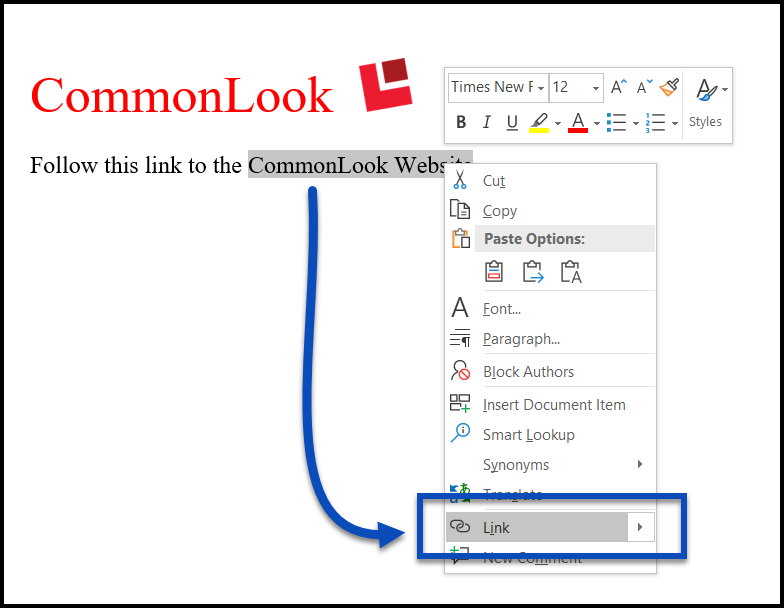
- Select the text to be linked.
- Right-click on the text (or otherwise open the context menu).
- From the context menu, choose Link.
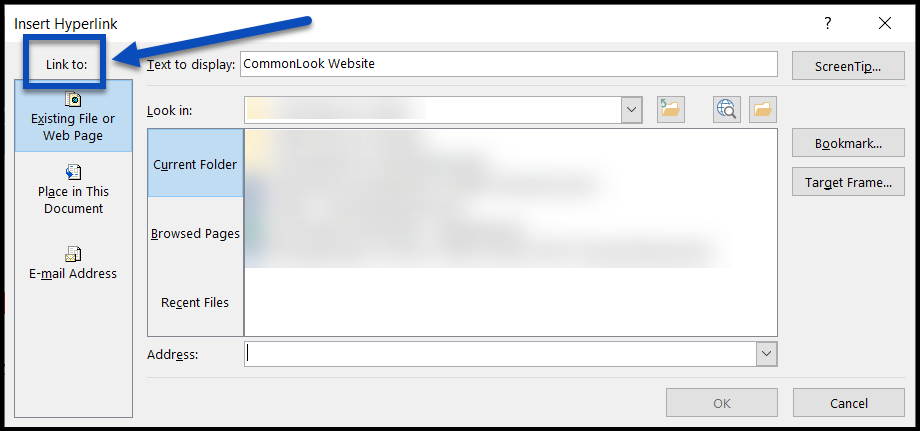
- In the Insert Hyperlink window, choose the type of link target (or function). Choose from Existing File or Web Page, a Place in the Current Document, or an Email Address.
- Complete the required information as needed. The options in this step will vary based on the type of link target selected in the previous step (to open a web page, email, etc.). Make sure to enter all information accurately. For websites, it may be helpful to go to the site, copy the URL, and paste it in the Address box. The screenshot below shows setting the link target as the CommonLook website.
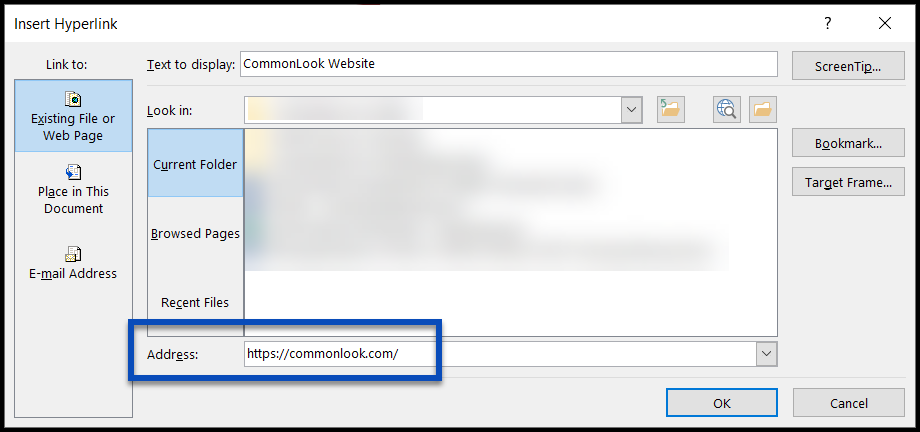
- Select the OK button. The link will automatically be structured and tagged correctly in the PDF when using CommonLook Office. (Keep in mind that there are two checkpoints in CommonLook that will run when documents contain links. For more information, read the "Links in CommonLook Office" article.)
Link-Authoring Best Practices
The general guideline to keep in mind is that people should be able to read the hyperlinked text and know where that link will take them. So, if your hyperlinked text is "click here," that's not sufficiently informative. Similarly, avoid providing a long URL that could be difficult to listen to (or even look at) and know where it points to.
Finally, it's best to author content so that the hyperlinked text for a particular link appears on one line.
This is directly related to the checkpoint in CommonLook Office for links "In Context." For more information, read the "Links in CommonLook Office" article.
Was this article helpful?
That’s Great!
Thank you for your feedback
Sorry! We couldn't be helpful
Thank you for your feedback
Feedback sent
We appreciate your effort and will try to fix the article