Product
Simplified Editor (Web-based CL PDF)
Feature
Lists
Document Element
Identifying & Marking Lists
Overview
A list in your document needs to be identified as a List container in the Simplified Editor. This tells assistive technology that the content is a list, which changes how it is read aloud. If a list is sitting inside the wrong type of container, like a Text container, a screen reader will just read the items as plain text with no indication that they are part of a group.
Prerequisites
Do this any time your document contains bulleted, numbered, or similar list content. You should complete this step before finalizing your remediation.
Lists typically fall under two list-type categories:
- Ordered Lists
- Numbers (Decimal)
- Letters
- Roman Numerals
- Unordered Lists
- Bullets - These could realistically be any shape, such as a circle, square, dash, star, etc.
Steps to Follow
First, look at the content in the page view. If it looks like a list, it should be marked as a List element. You have a different set ot steps to follow based on how the content was marked by the Simplified Editor.
Option 1: Convert the existing container
Use this when the content has already been detected but placed in the wrong container type.
- Select the container holding the list content.
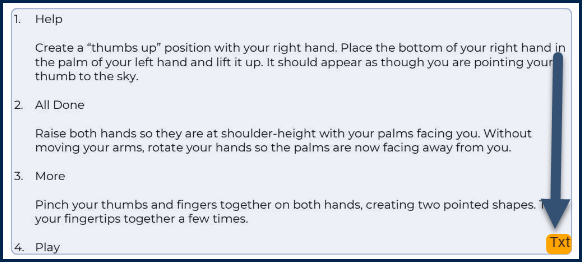
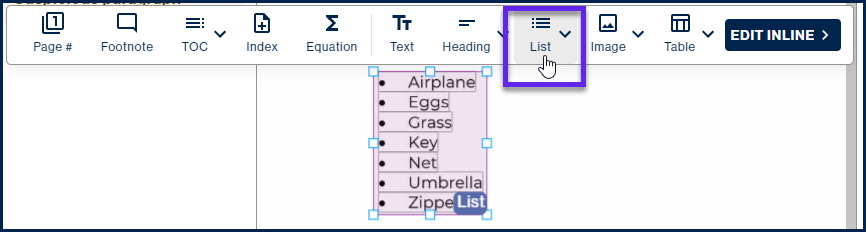
- In the toolbar, select "List."
Option 2: Create a new List container manually
Use this if converting does not produce the right result.
- Select the incorrect container and delete it (do so with the Delete key on your keyboard).
- Draw a new box around the list content in the page view.
- In the toolbar, select "List."
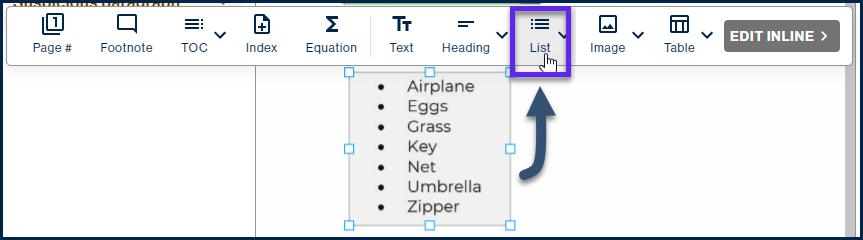
Once your List container is in place, check that each item inside it is detected as a List Item within that container. This will be shown with smaller boxes marking the boundary of each item.
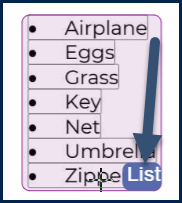
If you need to adjust the boundaries of List Items or fix issues with how the List item was detected, check out this article about verifying and fixing Lists in the Simplified Editor.
Common Problems
The list looks fine visually but still seems wrong after converting
If converting the container gives you an unexpected result, do not keep adjusting it. Delete the container and start fresh with Option 2 above. Creating a new container from scratch is often cleaner than trying to fix one that was misidentified. It is possible that further, manual correction will be needed, but taking a quick moment to try a new element creation will frequently save time and effort.
Some items are outside the List container
After creating or converting your container, scroll through the list carefully. If any items appear to be sitting outside the container, resize the container so it fully wraps all of the list content.
Frequently Asked Questions
Why does it matter if a list is in the right container?
Screen readers announce list content differently from regular text. When a list is properly tagged, the user hears something like "list of four items" before the content begins. This gives important context. If the list is inside a Text container, that announcement never happens, and the structure of the content is lost. Most importantly, we want to give the audiance a posibive experience navigating the list as the author created it.
What if my document has nested lists?
The Simplified Editor allows for Nested Lists, but we must confirm and verify that the leveling of these lists are accurate. This is explained much more thoroughly in our article about verifying and fixing Lists in the Simplified Editor.
Related Articles
Was this article helpful?
That’s Great!
Thank you for your feedback
Sorry! We couldn't be helpful
Thank you for your feedback
Feedback sent
We appreciate your effort and will try to fix the article