How can I tell which users have access to what?
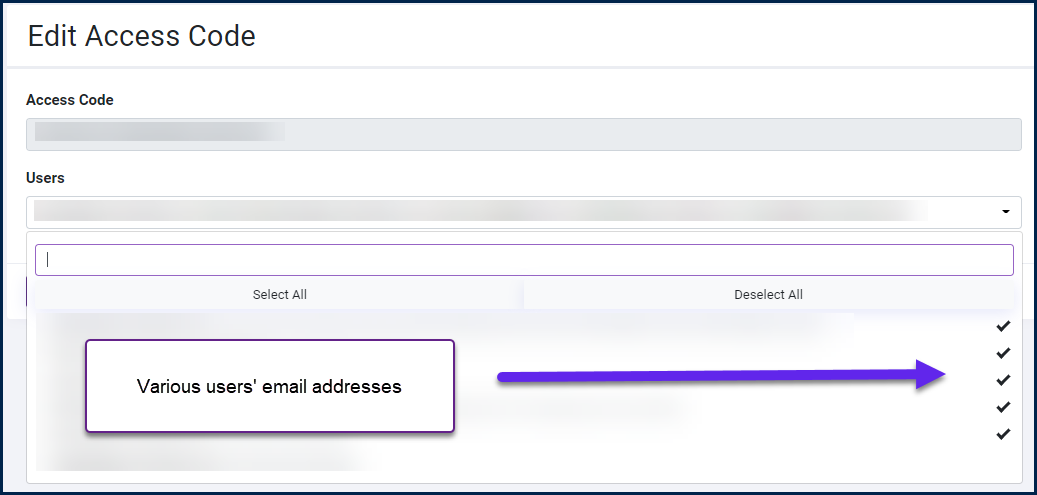
When looking at Users, CommonLook University doesn’t show which training (CL Office Modules or CL PDF Modules) the user has access to. To figure this out, navigate to Access Codes and select Edit users. This will show who has access to which specific access code and for which modules.
On the "Edit Access Code" screen, what do the checkmarks next to someone's name indicate?
Navigate to the Access Code screen. Then, in the table, select "Edit users." Expand the menu showing the users' email addresses. There, you will find checkmarks. The checkmarks indicate who is allowed to use that Access Code (and the training modules that the Access Code "opens up" for people). You can uncheck them to remove or not allow the use of the particular Access Code. If you adjust access via checking or unchecking these boxes, selecting "Save Changes" will update that access.
How can I add a user, in my organization?
The easiest way to add users to to let them add themselves! To do that, send them this information:
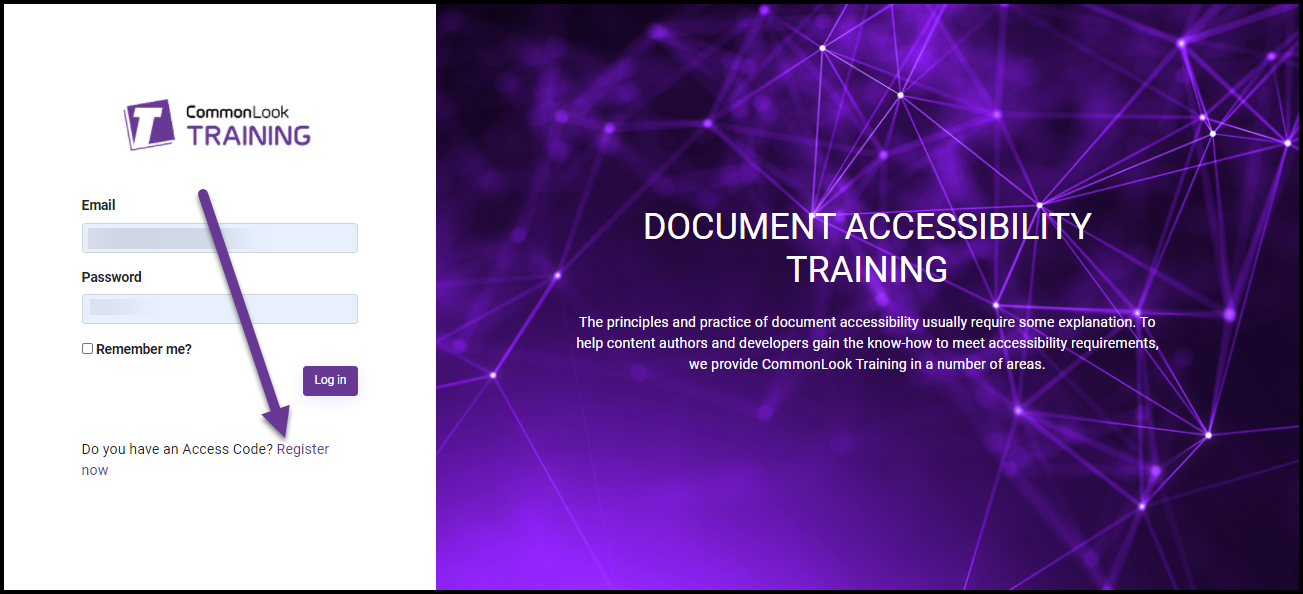
- Browse to https://training1.commonlook.com (we recommend you bookmark this page)
- Select "Register now"
- Enter the access code that was sent to you (or provided by your organization)
- Enter your email address,
- Create a password (Note: Your password must be at least 6 characters and must contain at least one non-alphanumeric character),
- Provide your first and last name,
- Select "Register."
How can I remove a user from my organization or change/remove their training access?
There are a few options here. You can delete them from the system, or simply remove their access to the training. If you delete the user from the system then they will no longer have access to any of the training. In contrast, if you navigate into a particular Access Code and uncheck them (refer to the section and screenshot above), the user will still be in the system but they will not have the ability to use that Access Code (or take its "related" training). The decision is entirely situational. For example, if you want to completely remove someone, you can delete them from the system. If you want to take away CL PDF training access, but make sure they can still take the CL Office training, then you would uncheck them from the CL PDF Access Code.
Why are people listed as Organization users, who I haven't shared my access code(s) with?
There may be several Org Admins overseeing different branches or departments within a single organization. As such, you may find that there are people listed under Organizational users with which you are unfamiliar. Please do not delete these users. You can check to see the names of people who are using a specific access code by navigating to Access Codes and selecting Edit users. This will show who has access to specific access codes.
How can I verify people in my organization have taken training?
All of the modules in the module-based training are capable of creating certificates of completion when someone passes the module with a score of 80% or better.
As the Org Admin for training, in your organization, you could choose to implement a policy such that, when people complete a module, they send you the certificate of completion.
It’s important to note that the certificate needs to be generated at the time the module is completed. Users cannot go back into a module and create their certificate later, without having to retake the test questions. (They can go back into the modules at any time to review course content, etc. They just cannot go back into the module solely to get their certificate.)
I have additional questions - where can I go to learn more?
There is an article in the Knowledge Base on "Finding your way around the Training Portal, CommonLook University" which has some information for Org Admins. If you are looking for additional help, you can email us at training@allyant.com.
Was this article helpful?
That’s Great!
Thank you for your feedback
Sorry! We couldn't be helpful
Thank you for your feedback
Feedback sent
We appreciate your effort and will try to fix the article