Thank you for purchasing Allyant Training. We hope you find the classes useful and beneficial.
Please Note: If you are an administrator in your organization and you need to give access to others for training, please provide the users in your organization the following information on how to create an account with your access code
First-time Login – (if you are not an Organizational Administrator)
- Browse to https://training1.commonlook.com (we recommend you bookmark this page)
- Select "Register now"
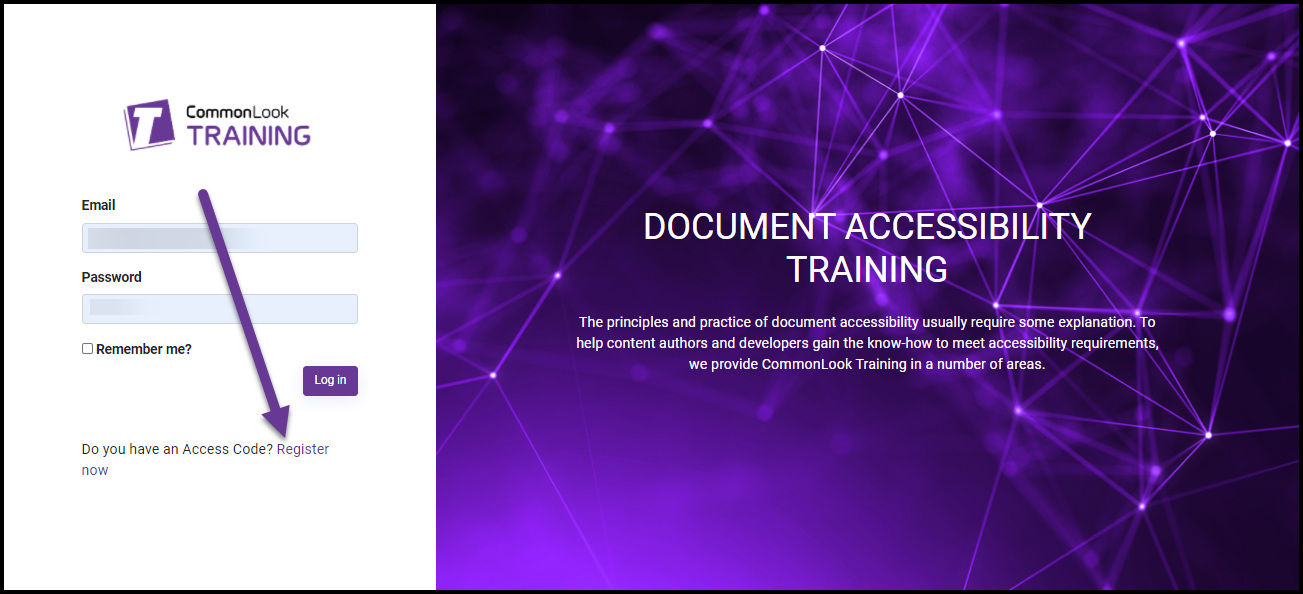
- Enter the access code that was sent to you (or provided by your organization)
- Enter your email address,
- Create a password (Note: Your password must be at least 6 characters and must contain at least one non-alphanumeric character),
- Provide your first and last name,
- Select "Register."
After logging in
After you log into the Training portal, you’ll be taken to the dashboard screen. Shown on this dashboard screen are the CommonLook products that have training courses or modules associated with them.
(Please Note: From this screen, you do not need to choose "Add Access Code." If you've just registered, to get here, you've already added your access code!)
Follow the steps below to take training.
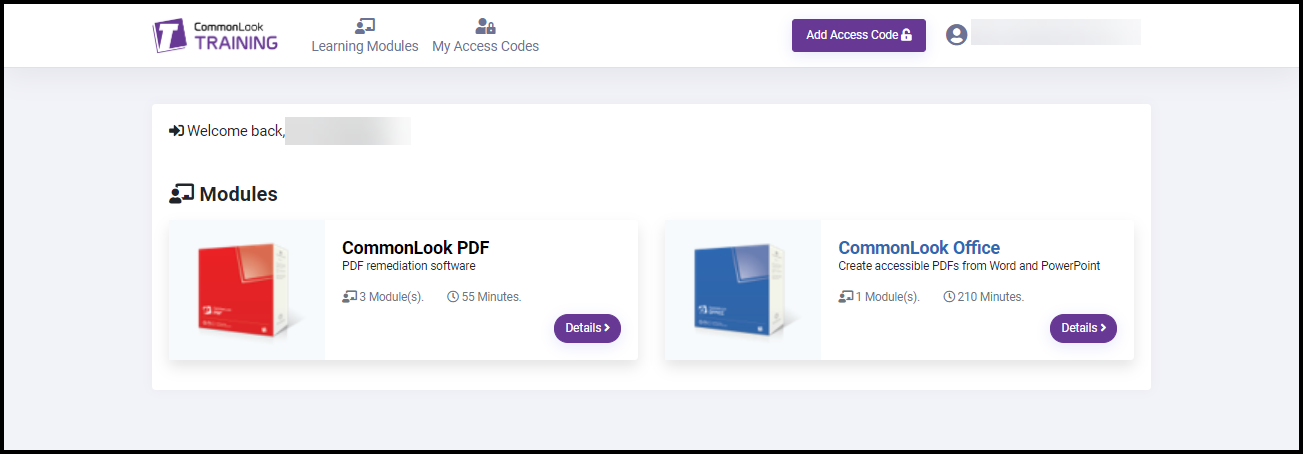
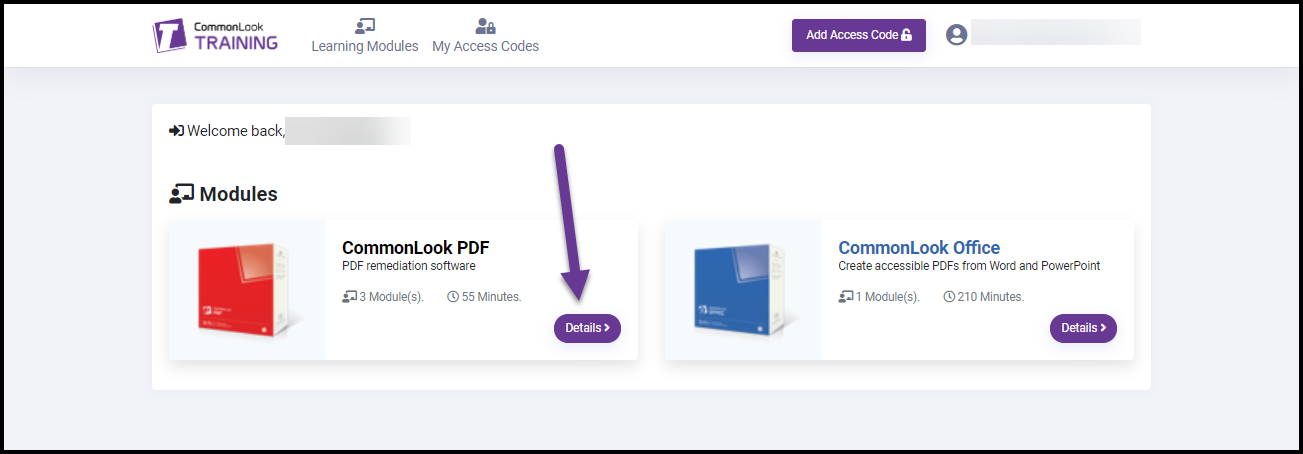
Step one for Training: Select the “Details” button next to a product to go to a screen that lists all of the training modules associated with that particular application.
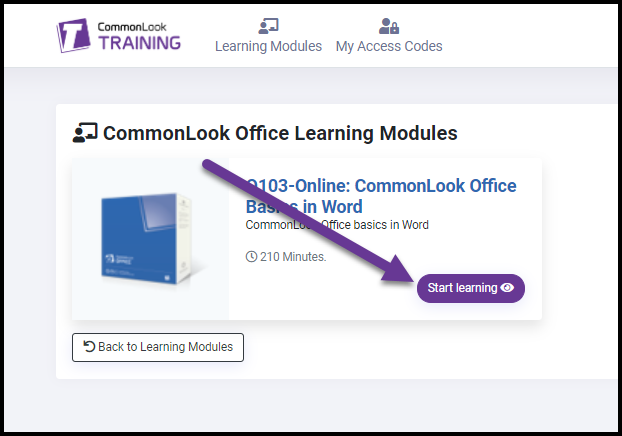
Step two: Within that “Details” screen, any module that you have access to will have a “Start Learning” button next to it. Use that "Start Learning" button to begin taking the course/ module.
Navigating from Module to Module (or Course to Course)
If you're taking training in one of the PDF modules, for example, and you want to quickly navigate to a different module to check on something, the easiest way is probably to:
- Select "Learning Modules" in the toolbar
- Select "Details" for the product (either CommonLook PDF or CommonLook Office, depending on which software you want to learn more about)
- Choose the module you want to go take (or review)
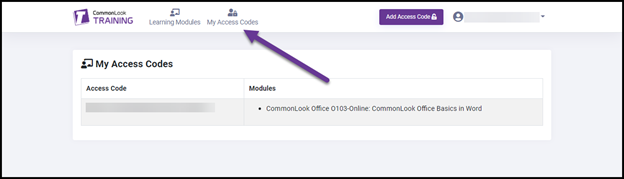
The “My Access Codes” Screen
Use the button in the toolbar to navigate to the “My Access Codes” screen. There, you can find your access code(s) and what module(s) the code(s) will let you take.
Organizational Administrators Who Will Also Take Training:
As an administrator in your organization, overseeing the training of others, you have been sent a username (your email address) and a password. Use that information to login (not to "register").
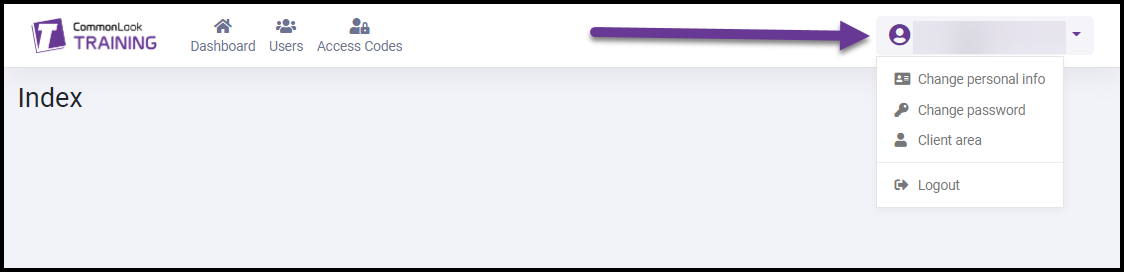
Once you have logged in, navigate to where your name is, in the top right corner.
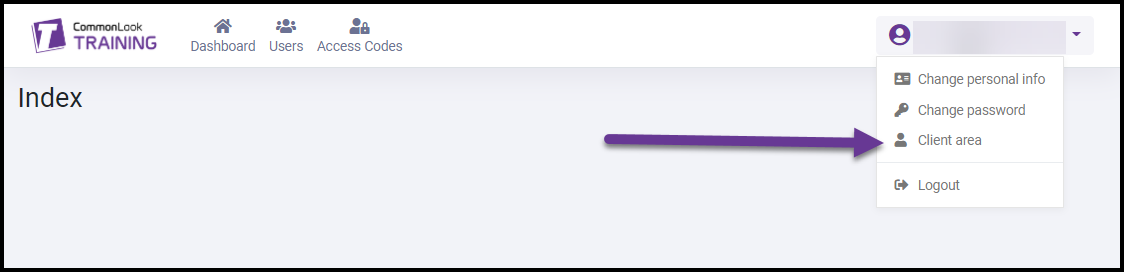
In the drop-down menu, select “Client area.”
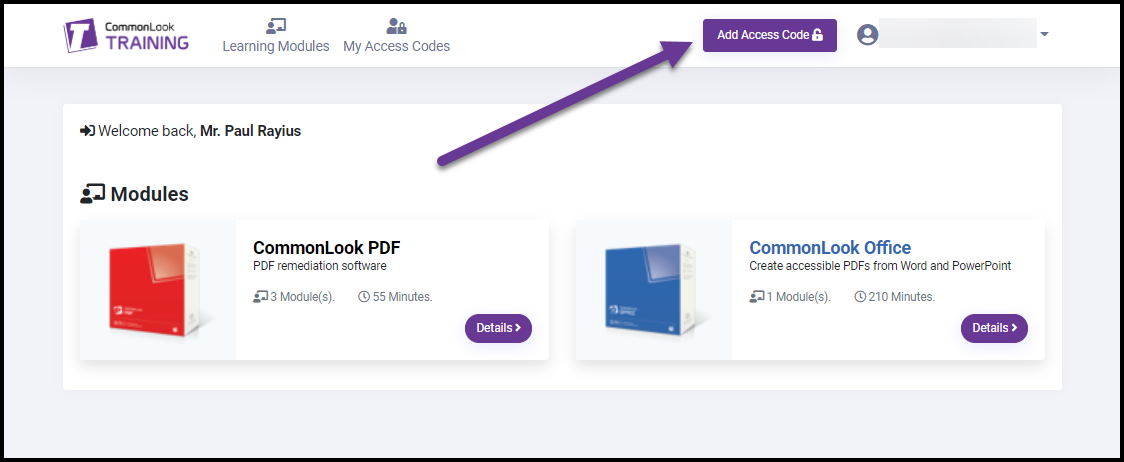
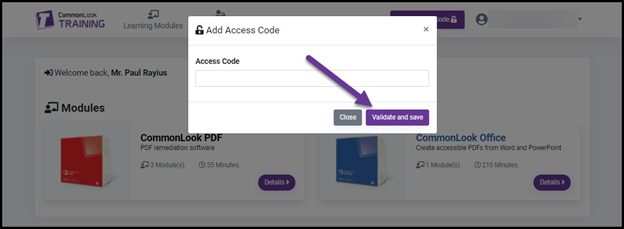
Next, navigate to the “Add Access Code” button and select it.
Enter the access code provided in the email you received and then select “Validate and save.”
Then, follow the instructions, in the previous section, for navigating to the particular training you'd like to take.
I'm an administrator in my organization, how do I give other people access to training?
Please ensure that the following instructions are provided to all user(s) authorized to access the training modules:
- Browse to https://training1.commonlook.com (we recommend you bookmark this page)
- Select "Register now"
- Enter the following Access Code: [Access Code that we've previously sent]
- Enter your email address
- Create a password - Note: Your password must be at least 6 characters and must contain at least one non-alphanumeric character
- Select "Register."
Was this article helpful?
That’s Great!
Thank you for your feedback
Sorry! We couldn't be helpful
Thank you for your feedback
Feedback sent
We appreciate your effort and will try to fix the article