Product
Simplified Editor (Web-based CL PDF)
Feature
Tables
Document Element
- Table Type Identification
- Table Structure Accuracy
Overview
A table in your document needs to be identified as a Table element in the Simplified Editor. This tells assistive technology that the content is structured data, which changes how it is read aloud. It is also important to make sure that what is marked as a table is actually a data table. If a table was only used in the source document to make formatting easier, it needs to be handled differently, most commonly not marked as a table at all.
Prerequisites
Do this any time your document contains a data table. You should complete this step before finalizing your remediation. If you are not sure whether something is a data table or a layout table, ask yourself, "does this content need rows and columns to make sense, or is the table just being used to arrange text on the page?" Another helpful question to ask is "does this table show a relationship between data content?" If not, the table might be more of a presentation or formatting tool, which does not need to be marked as a Table element.
Steps to Follow
First, look at the content in the physical view of the page. If it is a genuine data table, it should be inside a Table element. If it is in the wrong type of element, you have three options.
Option 1: Convert the existing element
Use this when the content has already been detected but is placed in the wrong element type.
- Select the element holding the table content.
- In the toolbar, select "Table."
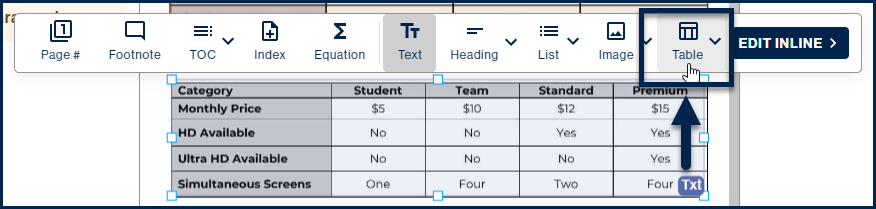
When you convert an element to a Table, the Simplified Editor will try to automatically detect rows, columns, and header cells.
Option 2: Create a new Table element manually
Use this if converting does not produce the right result.
- Select the incorrect element and delete it. (Select it and press the Delete key on your keyboard.)
- Draw a new box around the table content in the page view.
- In the toolbar, select "Table."
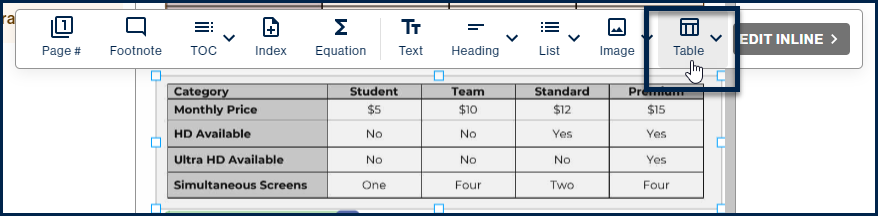
The Simplified Editor will then display the table structure it has created.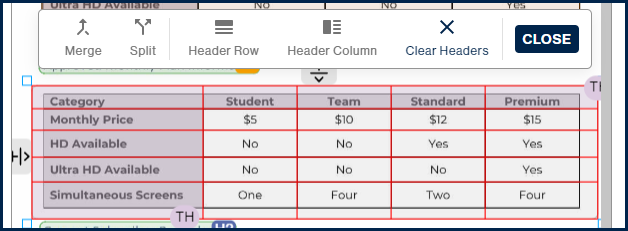
Option 3: Convert a Table element to another type
Use this if something has been marked as a table but is not actually a data table.
- Select the Table element.
- In the toolbar, select the correct element type for the content. For example, if the content is just text, select "Text."
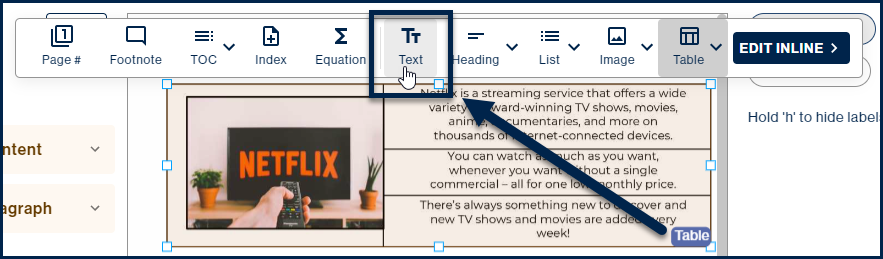
If the content you are converting includes more than just text, for example, an image alongside text, each piece of content may need to be handled separately after converting.
Common Problems
The table has the wrong number of rows or columns
After marking your table, you may notice that the Simplified Editor has detected too many or too few rows and columns. This is common and can be fixed. See Verifying and Fixing Data Table Formatting for step-by-step guidance.
Cells that should be merged are split, or cells that should be split are merged
If the cell structure inside your table does not match what you see in the page view, you will need to merge or split cells manually. See Verifying and Fixing Data Table Formatting for step-by-step guidance.
The table was marked correctly, but the structure still looks off
If your Table element is in place but something about the internal structure seems wrong, resizing the element or adjusting the table structure may be needed. See Verifying and Fixing Data Table Formatting for step-by-step guidance.
Frequently Asked Questions
What is a Presentation or Layout table, and why does it matter?
A presentation table, sometimes called a layout table, is a table that was created in the source document purely for visual formatting, not to organize data. A screen reader will treat a Table element as structured data, announcing rows, columns, and headers as it goes. If the content is not actually a data table, that announcement will not make sense to the user. This is why it is important to convert layout tables to the correct element type before finalizing.
What happens if I do not mark a data table as a Table element?
If a data table is sitting inside a Text element, a screen reader will read the content as plain text with no awareness of the row and column structure. The relationships between the data will be lost entirely.
Related Articles
Was this article helpful?
That’s Great!
Thank you for your feedback
Sorry! We couldn't be helpful
Thank you for your feedback
Feedback sent
We appreciate your effort and will try to fix the article