Overview
The Generate Alt Text feature provides a suggested description for images during PDF remediation in the Simplified Editor. The suggestion serves as a starting point and can help reduce the time spent creating alt text for images.
You are responsible for reviewing each suggestion and ensuring the final alt text is accurate, complete, and appropriate for the document. You may edit, replace, expand, or disregard the suggested alt text before continuing.
Prerequisites
Use this feature anytime that you are working with graphical elements in the Simplified Editor. Before generating alt text:
- Open the document in the Simplified Editor.
- Navigate to an image element that requires alt text.
- Verify that the image communicates meaningful information. If the image is decorative, use Ignore Image instead.
Steps to Follow
- Select an image element that requires alt text.
- If the image is detected automatically, a suggested alt text description will be generated.
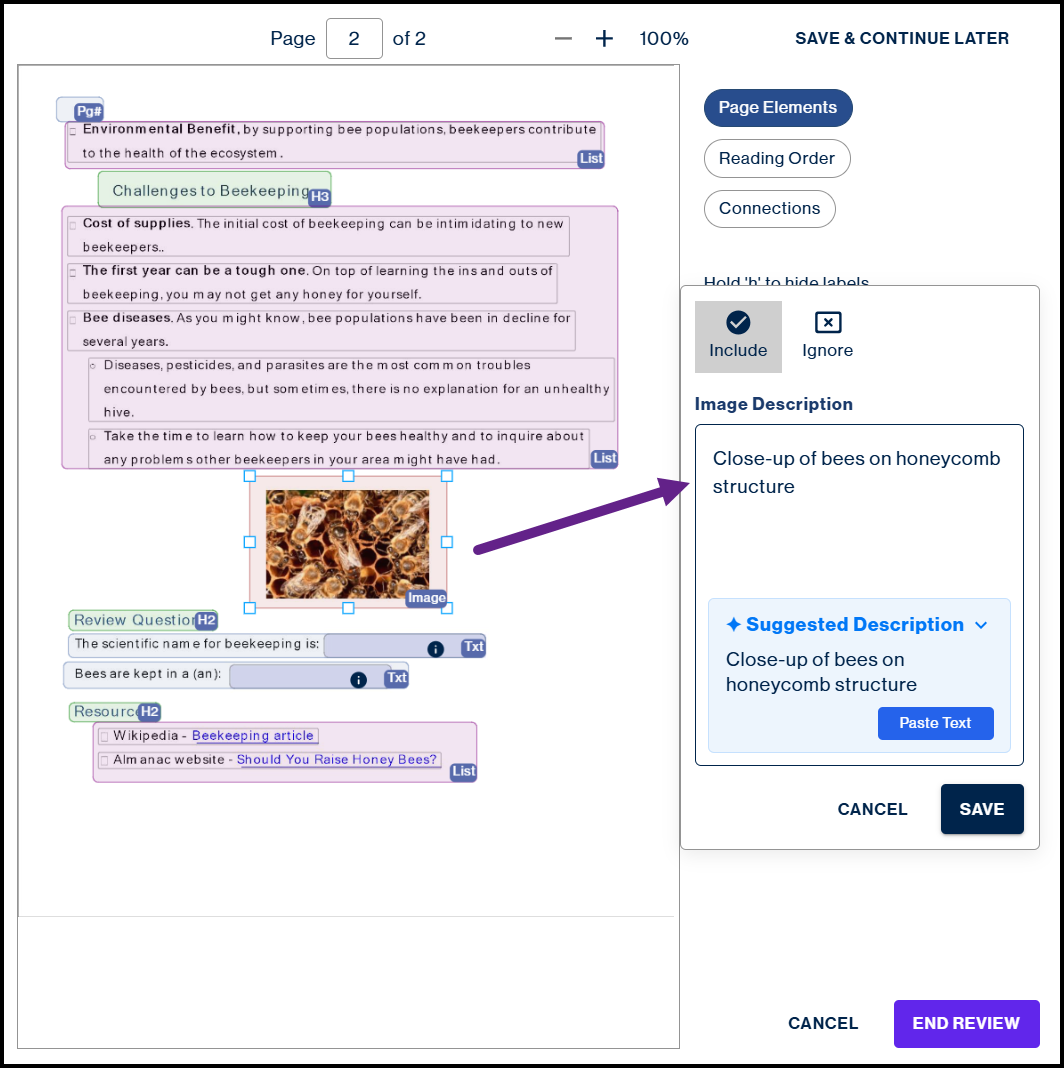
- If the image is not detected, draw a boundary box around the image to enable alt text generation.
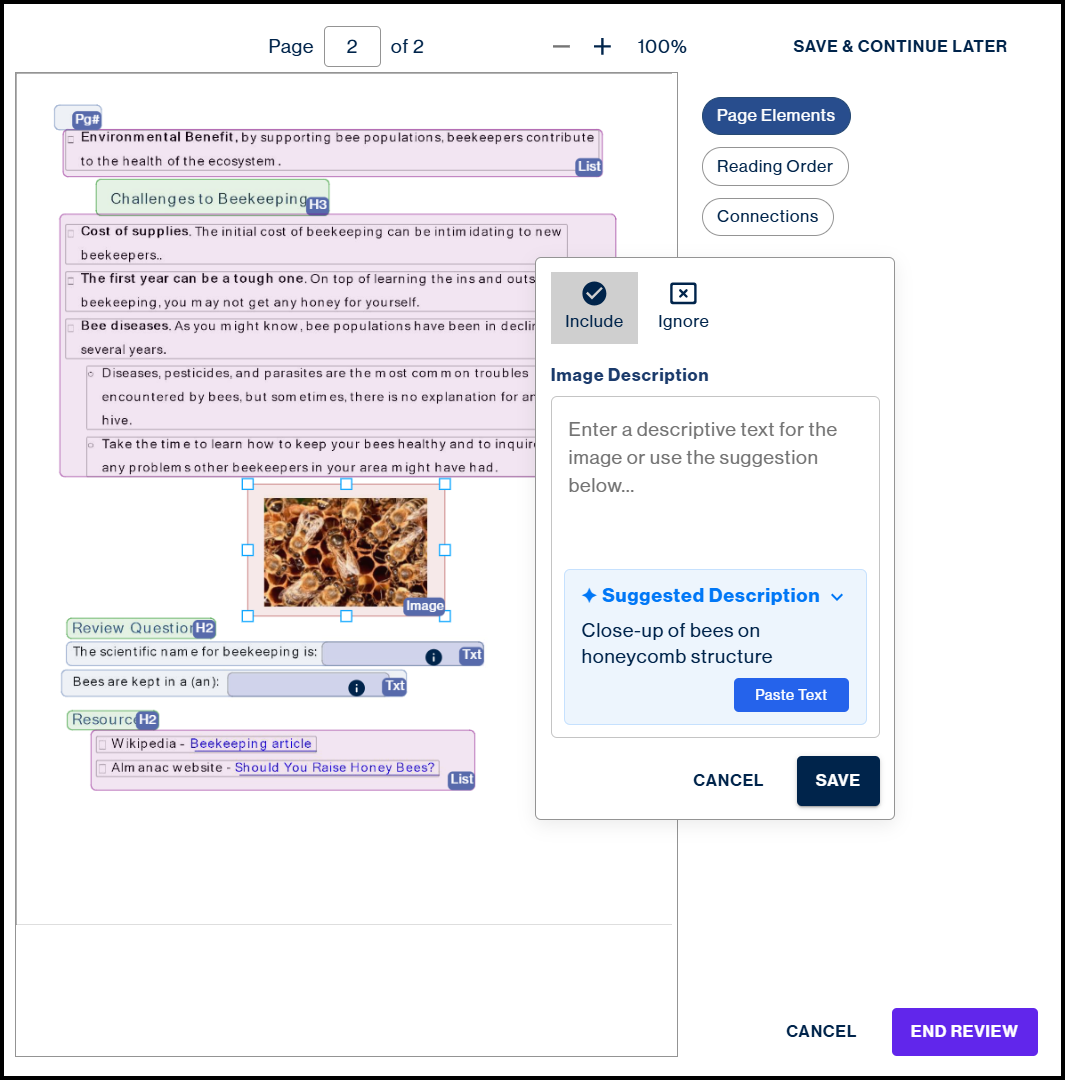
- Review the suggested alt text for accuracy, relevance, and completeness.
- Apply the suggested alt text to the Alt Text field.
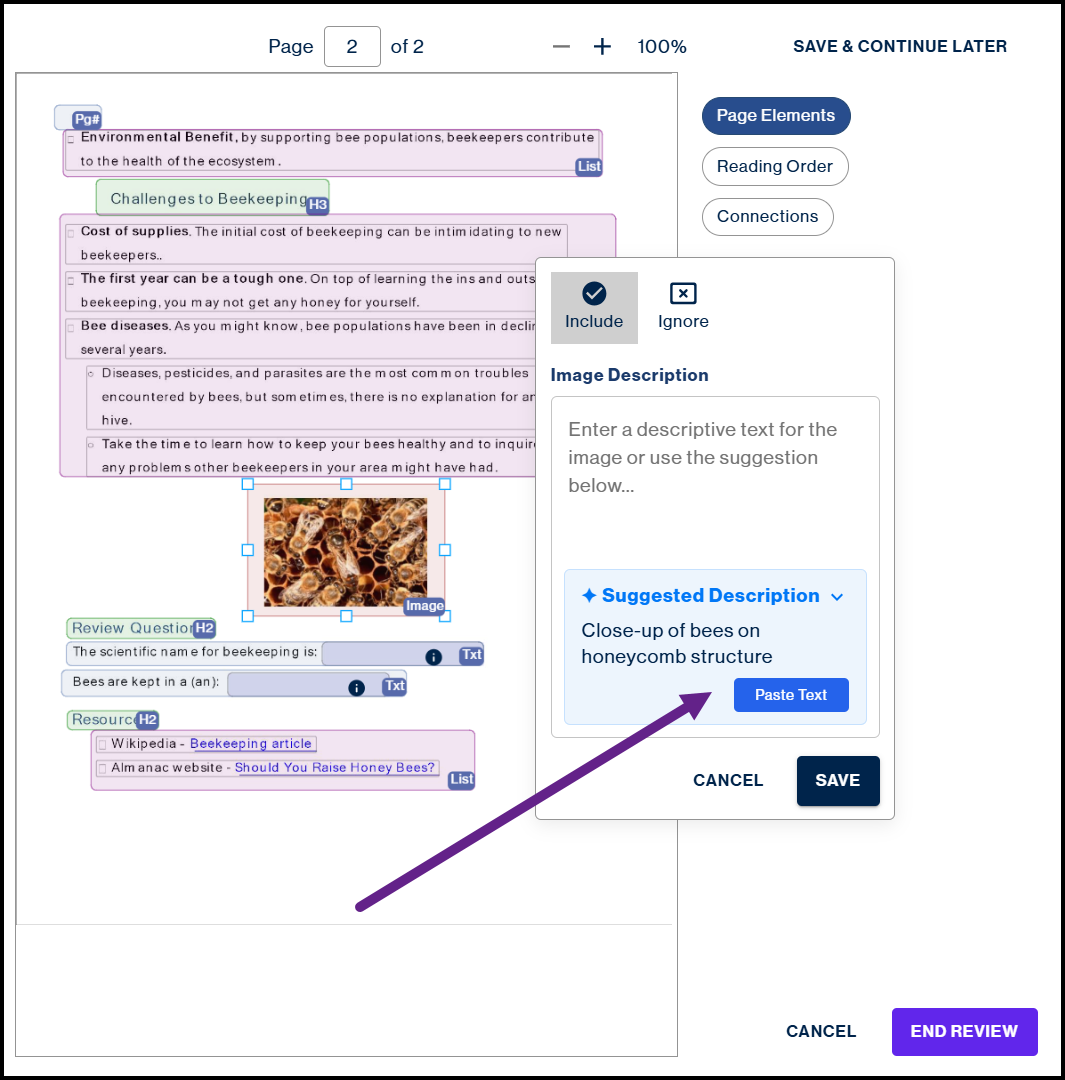
- Edit or expand the alt text as needed to accurately describe the image.
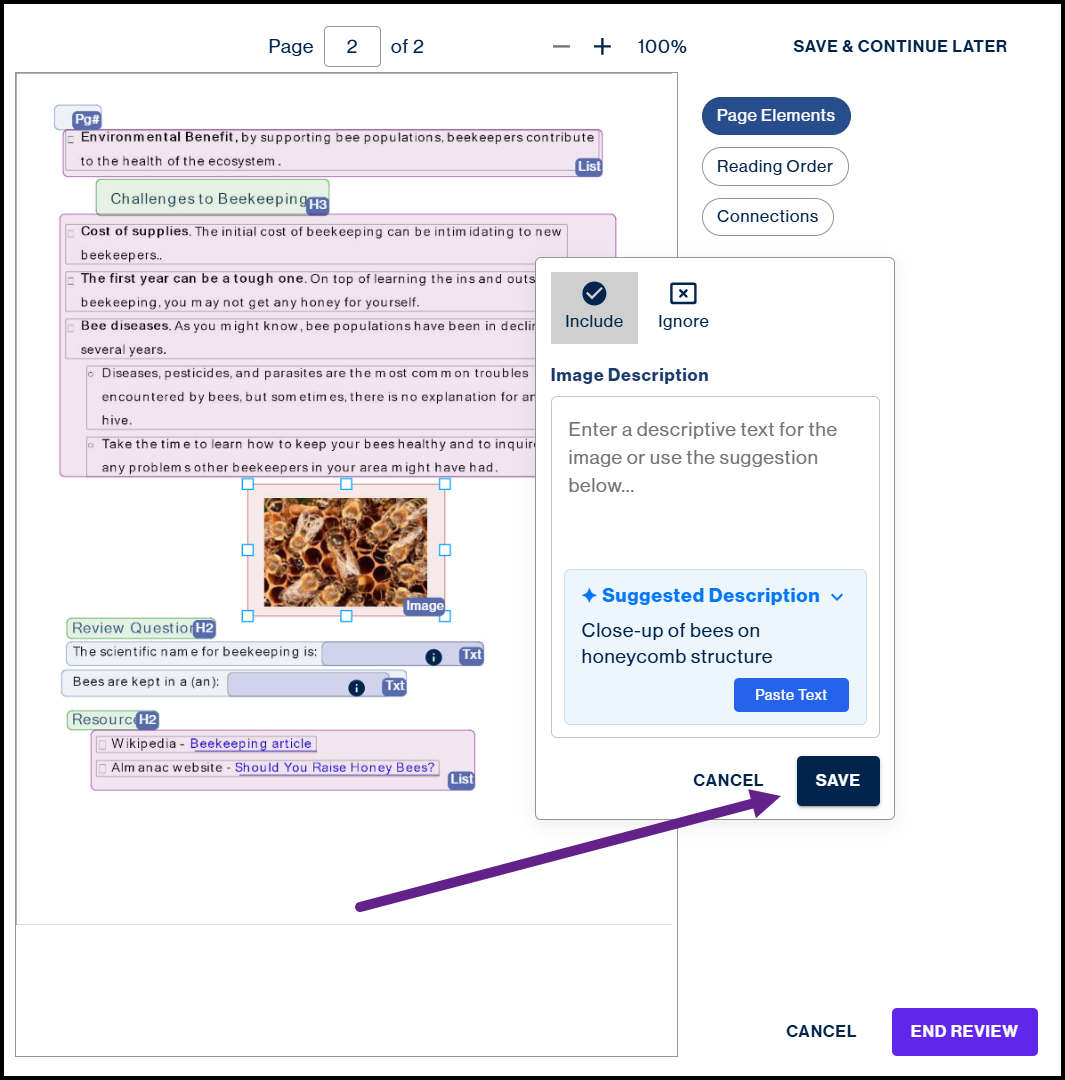
- Hit the "Save" button when youre happy with the description
Common Problems
No alt text suggestion is generated.
If the image was not detected automatically, draw or adjust the image boundary and try again. If a suggestion is still not generated, enter the alt text manually.
The suggested alt text is inaccurate or incomplete.
Review the suggestion and edit it as needed. The generated text is intended to provide a starting point and may not fully describe the image or its purpose within the document. Sometimes, resizing the element will help, but sometimes manual editing/adding, changing is necessary.
I need to generate a new suggestion for an image that already has alt text.
Open Full Document Review, remove the existing image boundary, then redraw the boundary around the image to generate a new suggestion.
Frequently Asked Questions
What types of images work best with Generate Alt Text?
This feature works well for many common image types, including photographs, illustrations, drawings, diagrams, maps, charts, graphs, and other informational images.
Does the generated alt text need to be reviewed?
Yes. Review every suggestion to ensure it accurately describes the image and is appropriate for the document.
Can I edit the generated alt text?
Yes. You can edit, expand, replace, or disregard the suggested alt text before continuing.
Does Generate Alt Text work for every image?
No. Some complex charts, infographics, or highly contextual images may require additional editing or manually written alt text.
Does the feature consider surrounding page content when generating alt text?
No. The feature analyzes each image individually and does not use the surrounding page content or the rest of the document when generating a suggestion.
Related Articles
- How to Properly Mark Images (Simplified Editor)
Was this article helpful?
That’s Great!
Thank you for your feedback
Sorry! We couldn't be helpful
Thank you for your feedback
Feedback sent
We appreciate your effort and will try to fix the article