Product
CommonLook PDF Desktop Version
Feature
Forms
Document Element
Tags structure for different form questions
Overview
A Form tag in a PDF is a structural tag used to identify an interactive form control that a user can interact with, such as entering information, making selections, or activating a button.
Examples of Form Elements
- Text input fields
- Checkboxes
- Radio buttons
- Combo boxes (drop-down lists)
- List boxes
- Push buttons (Submit, Reset, Print, etc.)
- Digital signature fields
In the tags tree, the form elements will appear as form annotations (the interactive part of the Form) and need to be placed inside of a Form tag.
Most Form Tags contain two elements:
- The text (as shown in the physical view)
- The form Annotation.
What a Form Tag Does
The Form tag tells assistive technologies:
- This is an interactive control.
- The control has a specific role (text field, checkbox, button, etc.).
- The control has a name or label.
- The control may have a current value or state.
Prerequisites
All Form annotations in a PDF are required to be tagged in a Form tag and given a ToolTip
Steps to Follow
Stand-Alone and Grouped Forms are tagged differently:
Stand-Alone Form
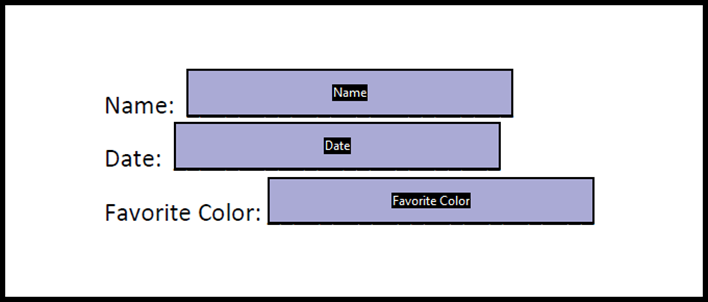
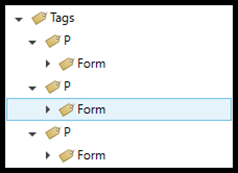
This scenario contains three questions that are independent of each other. Because these questions don't contextually rely on each other, we can confidently classify them as "stand-alone" forms. As a result, each form will go in its own respective paragraph tag.
Grouped Forms
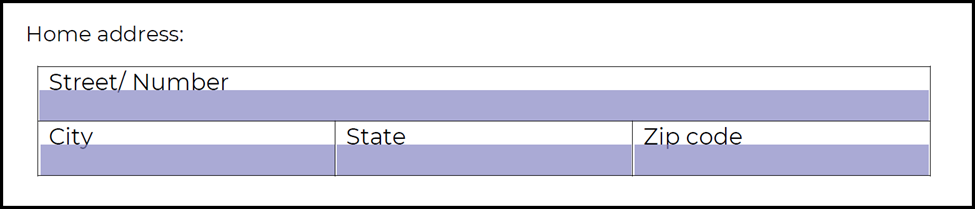
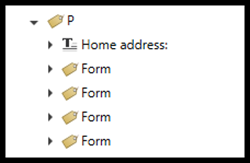
This scenario contains four questions that are related to each other. Because these questions contextually rely on each other and provide the full information only when offered collectively, we can confidently classify them as "grouped" forms. As a result, all four of the related forms will go inside of one paragraph tag.
Screenshots
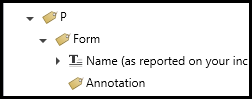
Below is a screenshot of a properly structured Form Tag with the Annotation and the text inside
Form tags will always be placed inside a structural tag and never at the root level on the Tags tree.
Common Problems
Decorative Content Should Not Be Tagged as Form Elements. Examples that should not be form tags:
- Decorative boxes
- Underlines used to simulate forms
Frequently Asked Questions
What if there is no text associated with a form field? How should the Form be tagged?
In this case, the Form tag will only contain the Annotation. The following are two examples in which this may occur:
- If a question is a checkbox for “Other” with the instructions to “provide specific information below,” it may be followed by a blank text field in which the user can provide necessary details.
- There is a data table where the text for the "questions" is in the column and/or row header cells and the data cells, in the "body" of the table, only contain the form annotations.
What if the forms are inside of a table that really isn't a data table?
If a table was used to format the form section of a document, in addition to linearizing the table, artifact the lines so that they are not also placed in the Form tags.
Related Articles
How to create properly tagged forms (Desktop)
How-To Create Properly Tagged Forms (Advanced Editor)
Was this article helpful?
That’s Great!
Thank you for your feedback
Sorry! We couldn't be helpful
Thank you for your feedback
Feedback sent
We appreciate your effort and will try to fix the article