Product
Simplified Editor (Web-based CL PDF)
Feature
Tables of Contents (TOC)
Document Element
- Multi-Column TOCs
- Multi-page TOCs
- Seperated TOCs
Overview
When a Table of Contents (TOC) spans multiple pages, CommonLook will not automatically recognize that the connection needs to be made. We need to manually connect them using the Connections tool during Full Document Review in order for the accessible PDF to have one complete TOC, rather than several, incomplete, and smaller ones.
Prerequisites
We must connect separated TOC components whenever we have a TOC that spans multiple columns or pages, or more broadly, whenever TOCs are separated and need to be combined. Before connecting TOC elements:
- Open the document in Full Document Review.
- Verify that each section of the TOC is contained within a TOC container.
- Ensure all TOC Items, TOCI levels, and marked page numbers are correct.
In short, you must make sure the separate TOC elements are accurate before combining them.
For instructions on creating and editing TOCs, see "How to Properly Mark Tables of Contents (Simplified Editor)."
Steps to Follow
- In Full Document Review, select Connections in the upper-right corner of the interface, below Page Elements and Reading Order.

- Locate the first TOC container and check the checkbox in its lower-right corner.
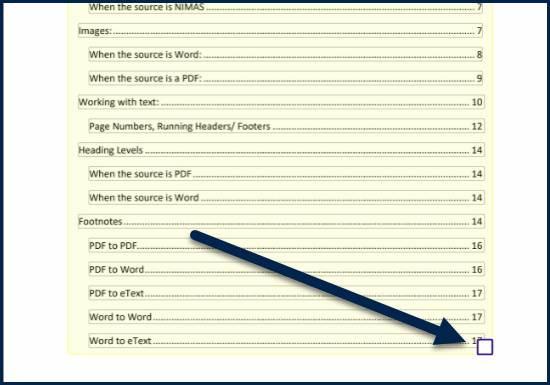
- Select Next Page to navigate to the page where the Table of Contents continues.
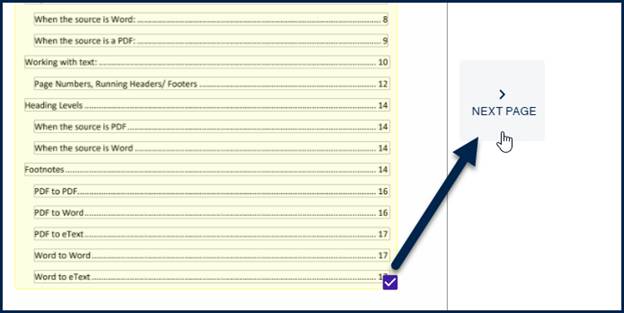
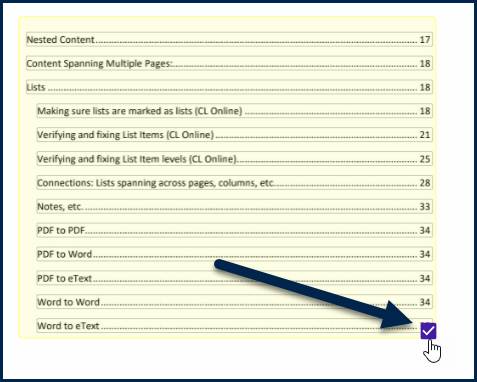
- Check the checkbox in the lower-right corner of the TOC container on the next page.
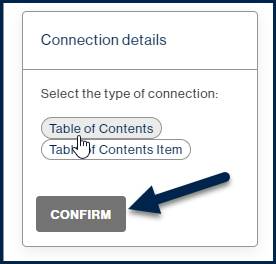
- In the Connection details panel, select Table of Contents.
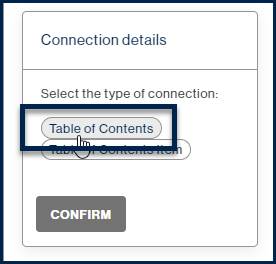
If a single TOC Item continues onto the next page, select Table of Contents Item instead.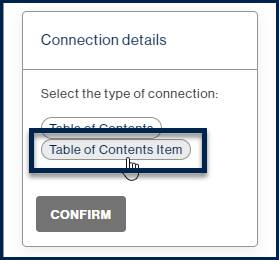
- Select Confirm to create the connection.
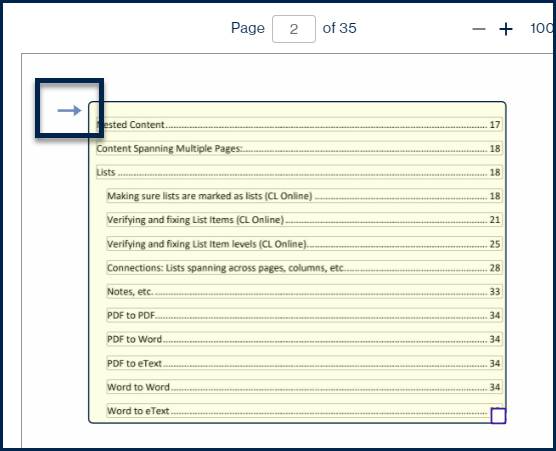
- Verify that a blue arrow appears in the page view, indicating that the TOC is connected to the previous or next TOC container.
Common Problems
The TOC containers cannot be connected.
Make sure both sections are contained within TOC containers before opening the Connections tool.
The blue arrow does not appear after selecting Confirm.
Verify that both TOC containers are selected and that Table of Contents is the selected connection type before confirming.
The TOC reads incorrectly after connecting.
Verify the TOC Items, TOCI levels, and marked page numbers before reconnecting the containers. If the leveling is not aligned or the connection cannot logically be made because of the leveling discrepancies, you will not be able to accurately connect them.
Frequently Asked Questions
When should I use Table of Contents instead of Table of Contents Item?
Select Table of Contents when connecting two TOC containers that belong to the same Table of Contents. Select Table of Contents Item only when a single TOC entry continues onto the next page.
Do I need to manually connect every multi-page TOC?
Yes. CommonLook does not currently connect multi-page content automatically.
Where can I find the Connections tool?
The Connections button is located in Full Document Review, below Page Elements and Reading Order. If you are still working through the "Clarify Page Elements" step, the connections button will not yet be visible.
Related Articles
Was this article helpful?
That’s Great!
Thank you for your feedback
Sorry! We couldn't be helpful
Thank you for your feedback
Feedback sent
We appreciate your effort and will try to fix the article