Product
CommonLook PDF Desktop Version
Feature
Tables
Document Element
Tables Spanning Multiple Tables
Overview
When a table spans multiple pages, whether it continues onto the next page or is too wide to fit on one page, it still needs to be tagged as a single table. Tagging software often creates a separate Table tag for each page instead, so you'll usually need to merge those tags together. This article covers both situations: tables that continue vertically onto the next page, and tables that are split across pages side by side.
Prerequisites
Before you begin, make sure you have:
- A table that's already tagged, but split into two Table tags because it spans multiple pages. See "How to Tag a Data Table in CommonLook PDF Desktop" if the table hasn't been tagged yet.
- Access to the Tags tree and the Table Editor.
Steps to Follow
Remediate Each Table Part on its Own First
Before merging a multi-page table, treat each part, meaning each separate Table tag on its own page, as if it were already a complete, standalone table. Tag it, correct its layout, and set the header scope for that part on its own, using the same steps you'd use for any other data table. See "How to Tag a Data Table in CommonLook PDF Desktop" and "How to Correct a Generated Table in CommonLook PDF Desktop" for those steps.
It's technically possible to merge the tables first and remediate the combined result afterward instead, but this tends to be more confusing for newer users, since you end up troubleshooting one larger, already merged table instead of two simpler ones. The more consistent and repeatable workflow is:
- Tag and remediate each table part separately.
- Merge the tables together.
- Check the merged result to confirm everything still looks and reads correctly.
The rest of this article picks up at step 2, merging the tables, since step 1 is covered by the articles linked above.
Merge a Table that Continues onto the Next Page
When a table continues vertically onto the next page, the Tags tree usually ends up with two separate Table tags, with a header, footer, or other content tagged in between them. If that's the case, and each part has already been remediated on its own, you're ready to merge those two Table tags into one.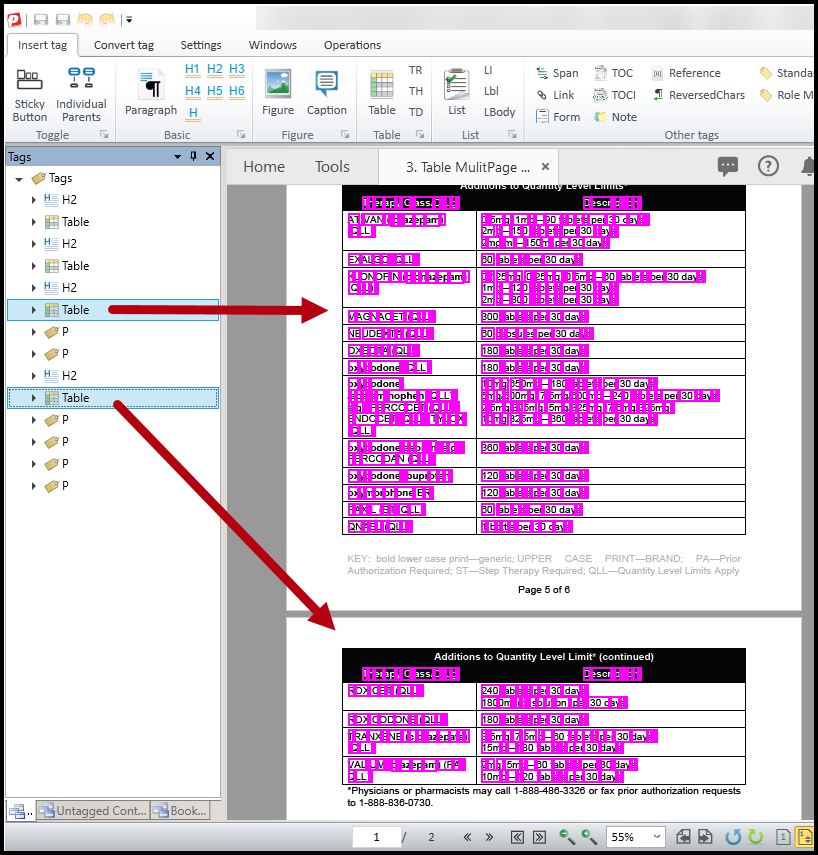
- Delete any tags between the two Table tags that don't need to stay, like a footer, a header, or a "continued" label. As a general rule, if something says "continued," it can be artifacted, since a screen reader will keep reading the table content regardless.
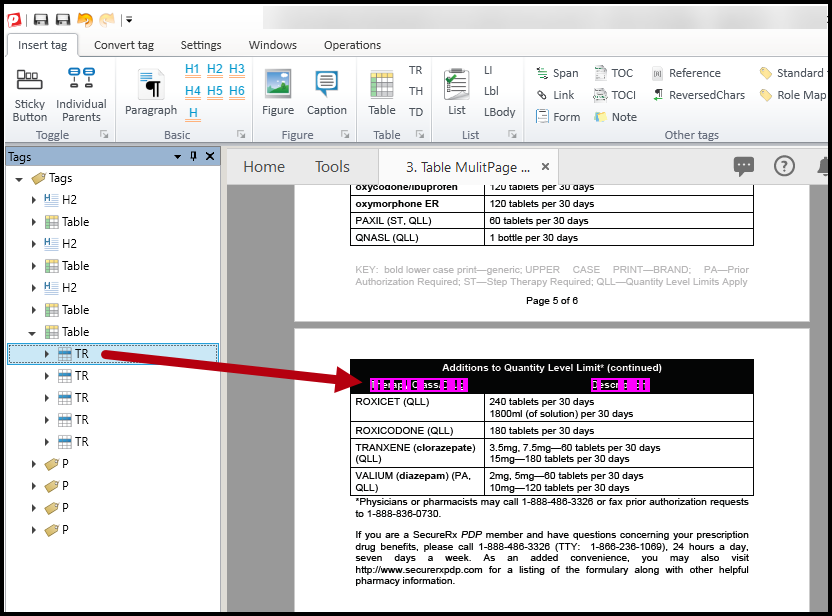
- Open the Table tag on the second page.
- Select the first TR (table row) that contains the column header cells, and delete it. This keeps the headers from being read again in the middle of the table once the screen reader works its way down the merged rows.
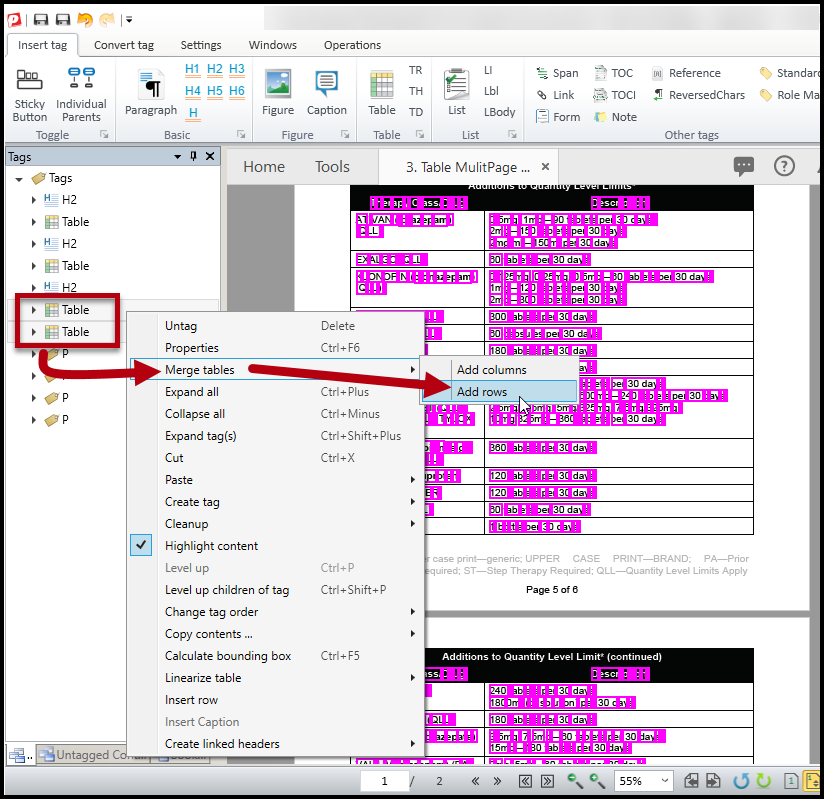
- In the Tags tree, select the first Table tag, then hold Shift (or Ctrl) and select the second Table tag. Selection order matters here.
- Right-click, or otherwise open the context menu, on one of the selected Table tags, navigate to Merge Tables, and choose Add rows. The TR tags from the second table move to the bottom of the first Table tag.
- After merging, open the Table Editor to confirm the column headers are at the top of the table where they belong. Fix any other formatting or tagging issues you notice, for example, making sure your TH tags have the correct scope, and link the data and header cells if needed. This is your check on the merged result.
Merge a table that spans multiple pages side by side
Some tables are too wide to fit on one page and continue onto the next page side by side instead. When that happens, the Tags tree usually ends up with two separate Table tags, one for the left side of the table and one for the right. If each part has already been remediated on its own, you're ready to merge those two Table tags into one.
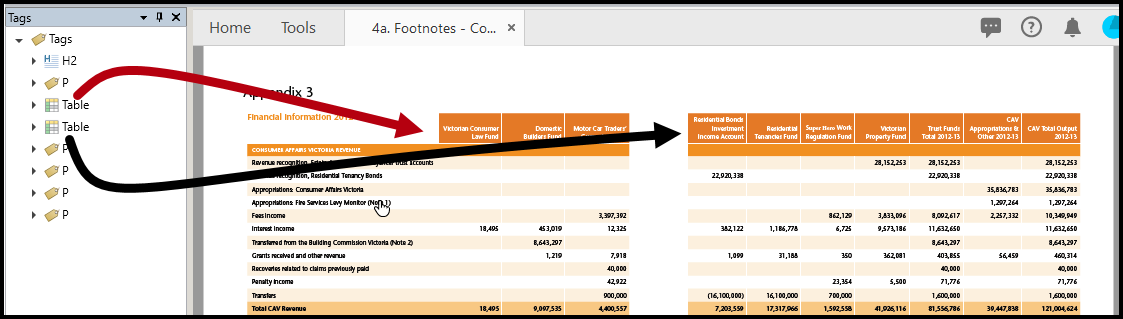
- Open the Table Editor for each Table tag to confirm the layout is correct and that both tags contain the same number of TR tags. If the table is complex enough that it needs to be redrawn, it's usually easier to do that first, then merge the tables afterward. See "How to Redraw Complex Tables in CommonLook PDF Desktop" if you need to redraw the table first.
- In the Tags tree, select the Table tag for the left side of the table, then select the Table tag for the right side. Selection order matters here too.
- Right-click, or otherwise open the context menu, on one of the selected Table tags, navigate to Merge tables, and choose Add columns.
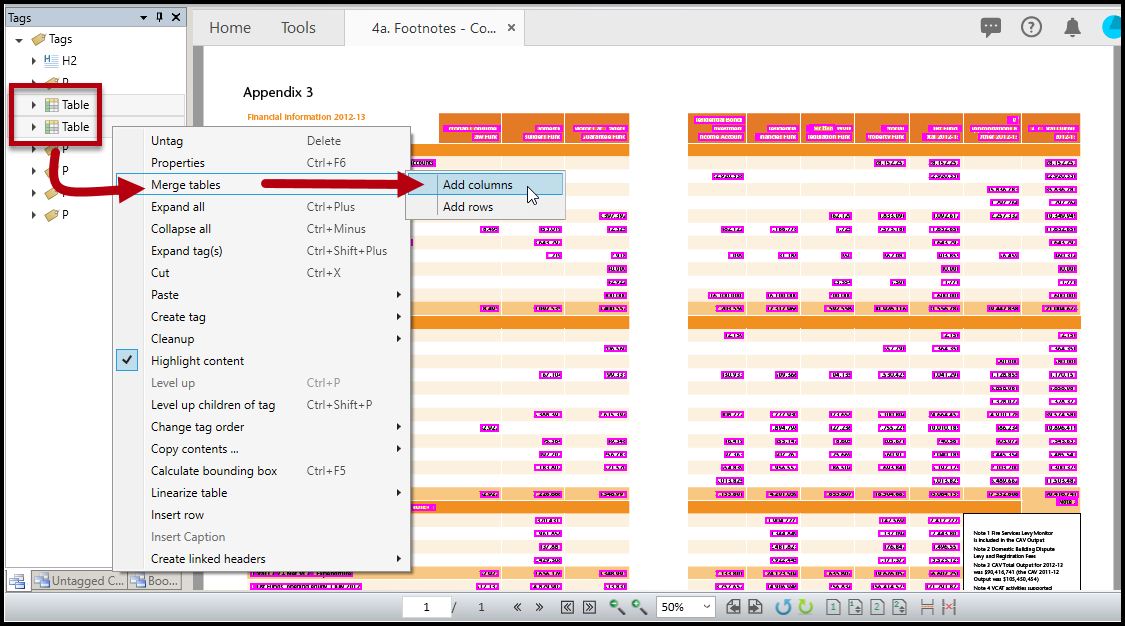
- Use the Table Editor to check that the table layout is correct. Pay attention to cell span, make sure every header is tagged as a TH cell, and verify the headers have the correct scope. This is your check on the merged result.
- Link the data cells to the header cells if needed.
Common Problems
After merging, the column headers show up in the middle of the table instead of just at the top.
This usually means the header row wasn't deleted from the second table before merging. Delete that row and merge the tables again, or delete that TR after merging.
The merge didn't come out in the order I expected.
The order you select the tags in determines how their content combines. Redo the merge, selecting the tags in the order you want them to appear.
Headers aren't linking to data correctly after merging.
In general, you want to link cells after the merging has occurred. Simply re-linking will solve that problem. See "How to Correct a Generated Table in CommonLook PDF Desktop" for more information.
Frequently Asked Questions
Why does a table end up as two separate Table tags in the first place?
Tagging software often creates a new Table tag for the content on each page, even when the table is meant to be continuous. Merging combines them into the single Table tag they should have been.
What does "artifacting" a tag mean?
Artifacting untags content, indicating it is decorative or redundant, so assistive technology skips over it instead of reading it aloud. This is appropriate for things like a "(continued)" label, since the table's actual content keeps being read regardless.
What happens if I select the tables in the wrong order before merging?
The selection order determines how the tables' content combines. If the merge comes out wrong, redo it, selecting the tags in the order you want them to appear.
Do I still need to check header scope after merging?
Yes. Always open the Table Editor after merging to confirm headers are tagged correctly, have the right scope, and are linked to their data cells if needed.
Was this article helpful?
That’s Great!
Thank you for your feedback
Sorry! We couldn't be helpful
Thank you for your feedback
Feedback sent
We appreciate your effort and will try to fix the article