Overview
Redundant form fields in a PDF are fields that collect the same information more than once or present multiple controls that perform the same function.
Accessibility Standards
WCAG 2.2, Success Criteria 3.3.7
Information previously entered by or provided to the user that is required to be entered again in the same process is either:
- auto-populated, or
- available for the user to select.
Prerequisites
If someone is required to answer the same question multiple times in a PDF document with forms, the repeated fields should be auto-populated or made.
Steps to Follow
In acrobat set fields up to auto-populate
- In Adobe Acrobat, with the PDF open, navigate to the “Prepare Form” tool.
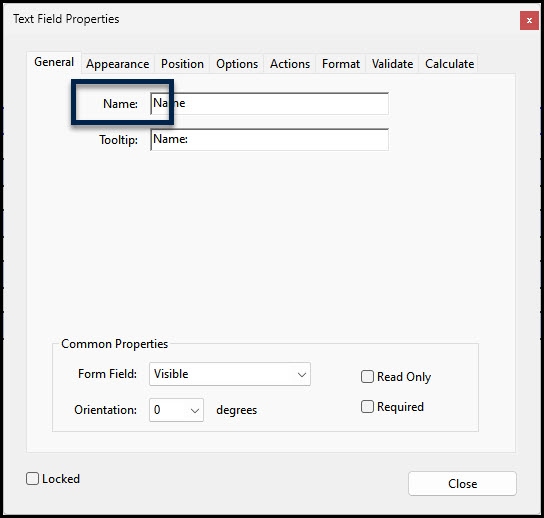
- Select the fields that need to auto-populate with the same information, open their “Properties,” and give them the same name in the “Name” field. Note: You’ll need to do this to each field, individually.
Using duplicate PDF fields with the same field name will make the value automatically appear everywhere it is needed.
Screenshots
The screenshot below shows the “Text Field Properties” dialog box for a text field. The “Name” field, in that dialog box, is highlighted.
Related Articles
What is a properly tagged form?
Was this article helpful?
That’s Great!
Thank you for your feedback
Sorry! We couldn't be helpful
Thank you for your feedback
Feedback sent
We appreciate your effort and will try to fix the article