Product
CommonLook PDF Desktop Version
Feature
Headings
Document Element
Tag Similar
Overview
Tag Similar quickly assigns the same heading level to other text that shares similar attributes, like font, color, and size, once you've tagged one example. It only works on content that's already tagged. If your document is completely untagged, Tag Similar won't detect any matches, so auto-tag the document first before using it.
Prerequisites
Before you begin, make sure you have:
- At least one heading already tagged with the correct tag type, to use as the reference for Tag Similar.
- The rest of your document already tagged. If it's completely untagged, auto-tag it first.
Steps to Follow
- Tag the first instance of the heading level you want to apply, for example, tag one H2.
- Right-click the heading tag, or otherwise open its context menu, and choose Tag Similar. Or use the keyboard shortcut Ctrl+Shift+F5.
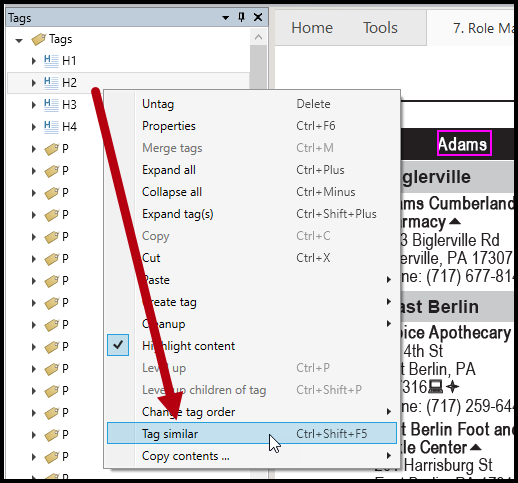
- Choose the page range, or all pages, as needed.
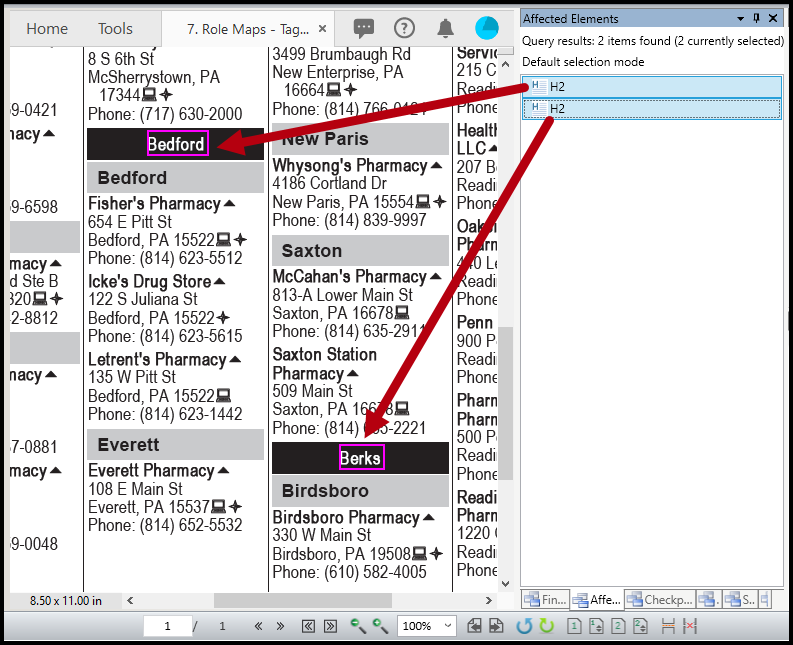
- Go to the Affected Elements panel and click, or arrow down, through the list of heading tags to confirm the text was tagged correctly. If something that isn't actually a heading got tagged because it shares similar font characteristics, convert the tag or move the text as needed.
Common Problems
Tag Similar isn't finding any matches.
Tag Similar only detects matches in already-tagged content. If the document is largely untagged, auto-tag it first, then try Tag Similar again. Alternatively, if nothing matches the style of the selected content perfectly, you would also receive no matched results.
Some non-heading text was tagged as a heading.
This can happen when other text shares similar font characteristics to your tagged example. Check the Affected Elements panel, and convert or remove any incorrectly tagged text.
Frequently Asked Questions
What does Tag Similar actually match on?
It looks for text sharing similar attributes to your tagged example, like font, color, and size, and applies the same heading level to matching text.
Why isn't Tag Similar finding matches in my untagged document?
Tag Similar only works on already-tagged content. If your document is completely untagged, auto-tag it first so Tag Similar has tagged elements to compare against.
Can I limit Tag Similar to part of the document instead of the whole thing?
Yes. When you run Tag Similar, you can choose a specific page range instead of applying it to the entire document.
What if Tag Similar tags something that isn't actually a heading?
Check the results in the Affected Elements panel. If something was tagged incorrectly because it shares similar font characteristics, convert its tag or move the text as needed.
Was this article helpful?
That’s Great!
Thank you for your feedback
Sorry! We couldn't be helpful
Thank you for your feedback
Feedback sent
We appreciate your effort and will try to fix the article