Issue
Many documents have repeating information that needs to be untagged and placed in Pagination type artifacts so that assistive technology does not share the information multiple times. Common examples of this situation are headers, footers, or page numbers. because these specific elements are a part of the page's presentation and not the document's reading order.
Caues
When headers, footers, and page numbers appear on every page and are tagged, Screen readers will announce these elements on every page, making navigation tedious and confusing. Headers, footers, and page numbers, when tagged, can interrupt the logical flow of the content of a document.
Affected Users
Assistive technology users, including screen reader and braille display users.
Accessibility Guidelines
PDF/UA-1 (ISO 14289-1:2014), Clause 7.8 Running headers and footers: requires running headers and footers to be tagged as Pagination artifacts with Header or Footer subtypes. While page numbers are not expressly called out in the clause, they are typically artifacted as Pagination elements because they are part of the document's running page furniture, a practice supported by PDF/UA and Matterhorn guidance.
This is not explicilty required by WCAG 2.2, it is a reccomended practice to place repeating headers, footers, and page numbers into pagination artifacts.
Resolution Steps
- In the physical view, highlight the header, footer, or page number.
- In the Insert tag tab, on the far right side, click the Pagination button.

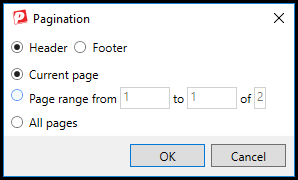
- When the Pagination dialog window opens, make the necessary decisions.
- Choose Header or Footer. Change the automatically selected radio button if needed.
- Choose Current page to artifact the footer on just the one page, choose a Page range if you want to artifact most of the footers but leave one page tagged.
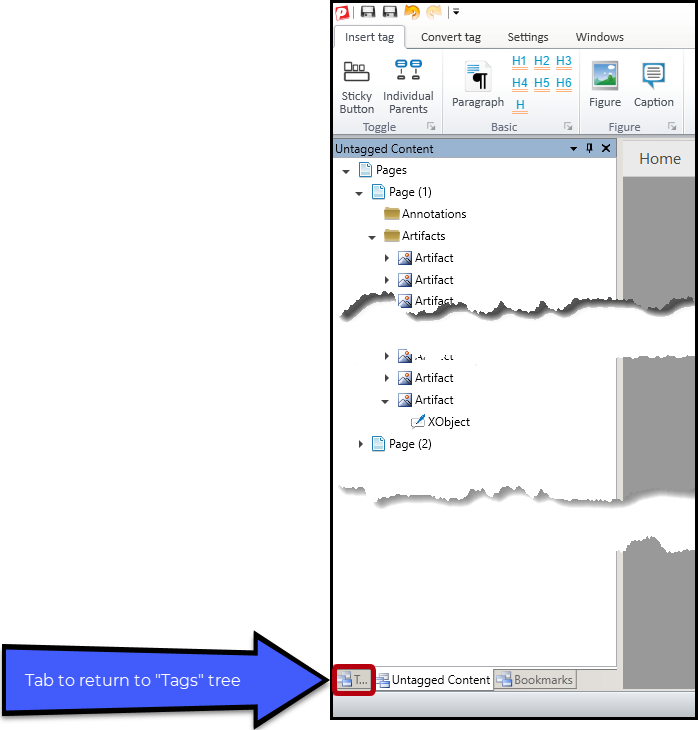
- After clicking Ok, on the left, CommonLook will show the Untagged Content panel. Click the tab at the bottom left corner of that panel to return to the Tags tree.
- Clean up any empty tags left behind.
Verification
You can verify that page numbers, headers, and footers have been made into pagination artifacts by checking your untagged content panel to see that these artifacts have been changed to the type of "pagination" in the properties.
Upon running a verification, you will encounter a checkpoint that will present a warning for you to ensure that headers, footers, and page numbers have been correctly artifacted as pagination artifacts.
Frequently Asked Questions
Why Not Just Use a Regular Artifact?
A regular artifact simply indicates that content should be ignored by the logical structure.
A pagination artifact provides additional semantic information that the artifact is associated with page navigation and page presentation.
This distinction can be useful for:
- PDF/UA compliance
- Future assistive technology support
- Preservation of page-related information without cluttering the tag tree
Related Articles
Didn't find what you're looking for? Navigate to our "Tagging (or Untagging) Content" section for more related articles that may help!
Was this article helpful?
That’s Great!
Thank you for your feedback
Sorry! We couldn't be helpful
Thank you for your feedback
Feedback sent
We appreciate your effort and will try to fix the article