Product
CommonLook PDF Desktop Version
Feature
Highlight
Document Element
Fixing the Highlight Issue (Adobe Acrobat Overprint Preview setting)
Overview
CommonLook PDF Desktop uses Adobe Acrobat to render the physical view of a document, so the fix for the highlight issue lives in Acrobat's own display settings rather than in CommonLook. Turning on Acrobat's "Use Overprint Preview" option under Page Display, and setting it to Always, resolves the issue.
Prerequisites
- You're seeing the highlight issue while working in CommonLook PDF Desktop's physical view.
- You have access to Adobe Acrobat's Preferences dialog box on the same machine.
Steps to Follow
- In Adobe Acrobat, go to Edit > Preferences. This opens the Preferences dialog box.
- On the left side of the Preferences dialog box, select Page Display.
- Locate the "Use Overprint Preview" option and set its dropdown to Always.
Screenshots
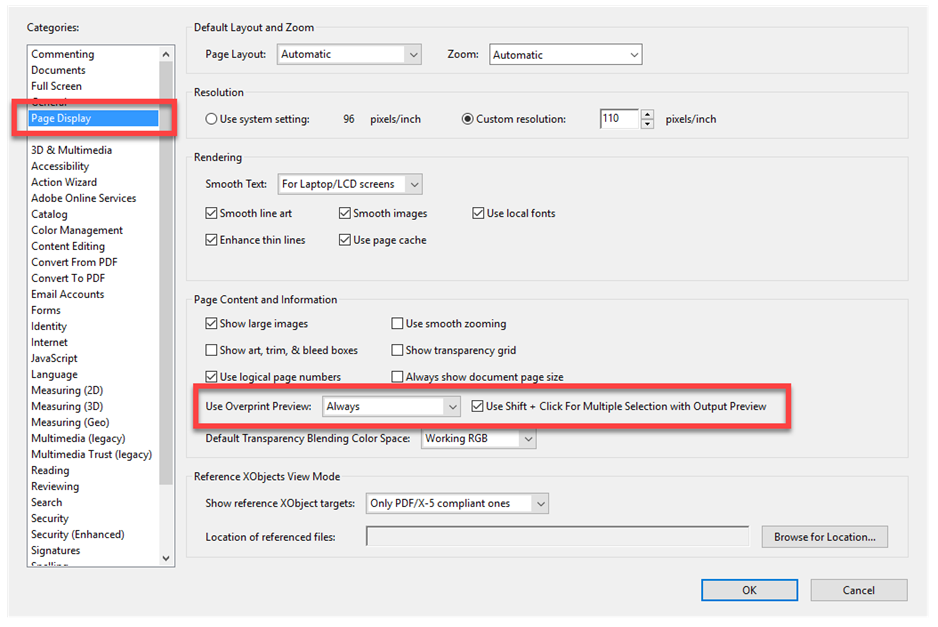
Common Problems
- Looking for this setting inside CommonLook PDF Desktop itself — it's an Adobe Acrobat display setting, not a CommonLook one.
- Leaving the "Use Overprint Preview" dropdown set to something other than Always (for example, Never or Automatic), which can leave the highlight issue unresolved in some documents.
Frequently Asked Questions
Why does an Adobe Acrobat setting affect CommonLook PDF Desktop?
CommonLook PDF Desktop uses Adobe Acrobat to render the physical view of a document, so some display issues — including this one — are fixed through Acrobat's own Preferences rather than a CommonLook setting.
Where do I find the Overprint Preview setting?
In Acrobat, go to Edit > Preferences > Page Display, and look for "Use Overprint Preview."
What should I set the Overprint Preview dropdown to?
Always.
Does this fix apply to the Advanced Editor too?
No — this fix is specific to CommonLook PDF Desktop, since it relies on Acrobat to render its physical view. The Advanced Editor (Web-based CL PDF) renders pages differently and isn't affected by this Acrobat setting.
Was this article helpful?
That’s Great!
Thank you for your feedback
Sorry! We couldn't be helpful
Thank you for your feedback
Feedback sent
We appreciate your effort and will try to fix the article