Product
CommonLook PDF Desktop Version
Feature
Resizing panels in the CommonLook PDF Desktop interface
Overview
Sometimes it's necessary to resize panels depending on your needs while you're working in CommonLook PDF.
Prerequisites
When you need to see more or less of the various panels in the interface.
Steps to Follow
To Resize Panels:
Navigate to the panel that you want to resize.
Put your mouse to the side of the panel if you want to make it wider (or narrower). Similarly, move your mouse to the top or bottom of the panel if you want to make it taller (or shorter).
Tip: When you’re in the right spot to be able to resize the panel, your mouse pointer will become resizing arrows.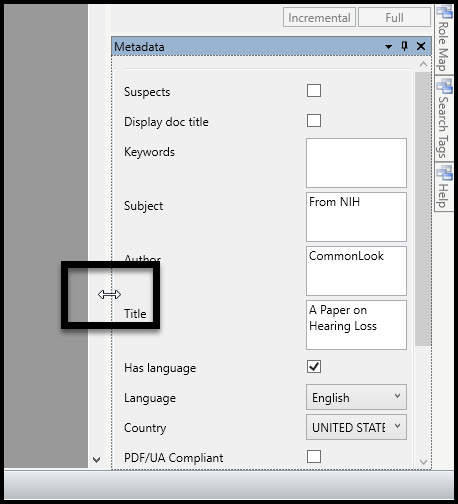
- Click and hold the mouse button.
- Drag the panel’s edge to the desired width (or height).
- Release the mouse button.
To Move Panels (Desktop version only):
Let’s say, for example, you want the Untagged Content panel to be open, next to the Tags panel.
To move the Untagged Content panel, follow these steps:
- Click on the Untagged Content panel’s tab located at the bottom left of the CommonLook PDF user interface.
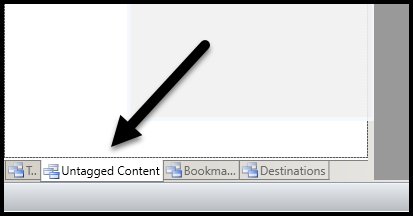
- Click and hold the mouse button down.
- Still holding the mouse button down, drag your mouse up on the screen. A sort of plus sign will appear.
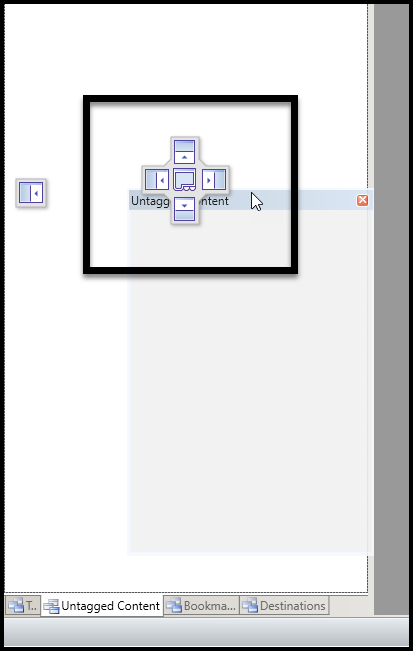
- Move the mouse over the right “arm” of the plus sign.
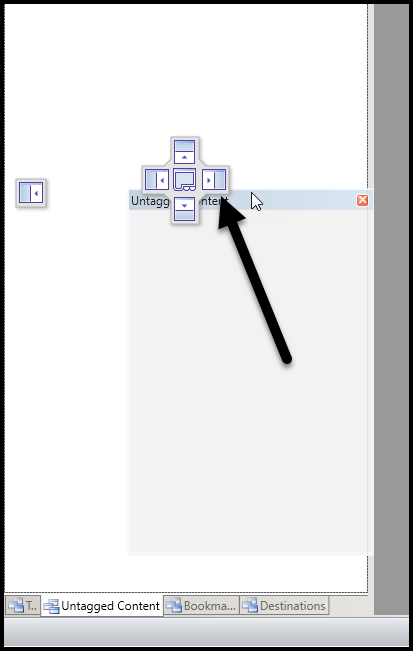
- As you hold your mouse over the right “arm” of the plus sign, the panel will “float” over the position where it’ll end up.
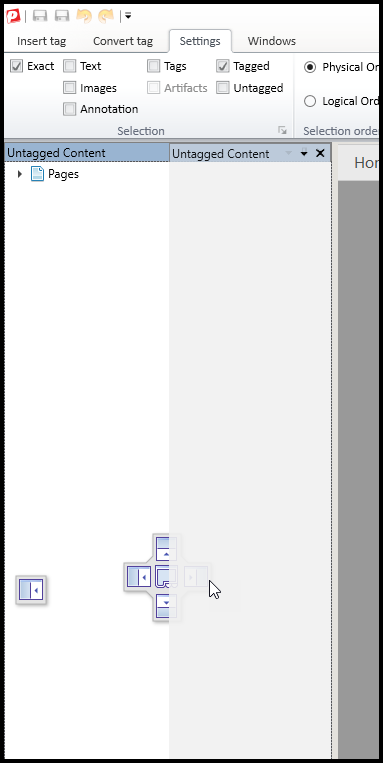
- Release the mouse button to place the panel where you want it.
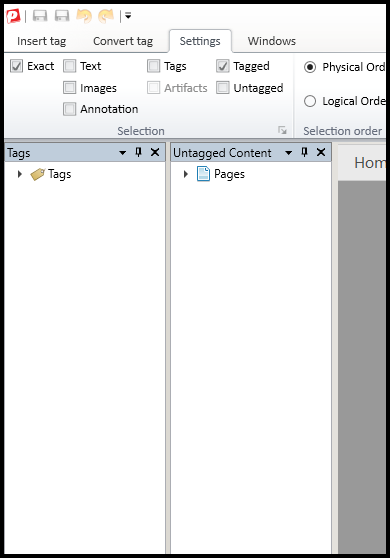
To Put Everything Back:
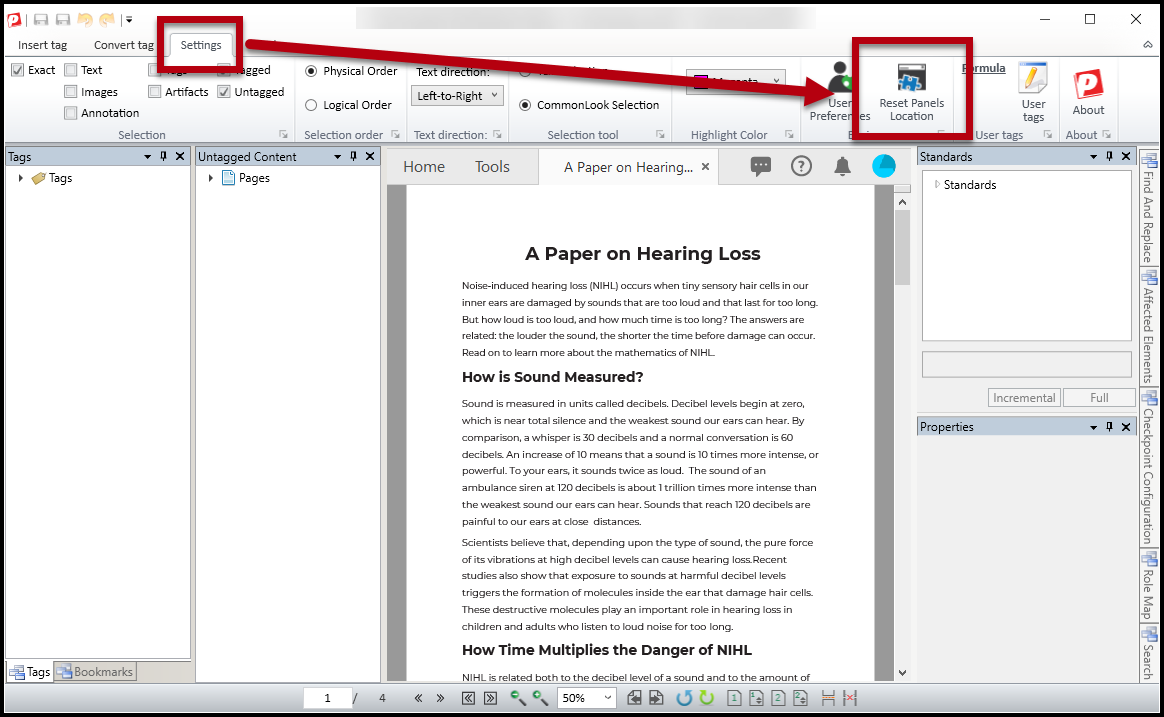
Use the Reset Panels Location button in the ribbon from the Settings tab.
Common Problems
Sometimes you may "lose" a panel and are unable to open it, even when you select the button in the Operations tab. To fix this, use the Reset Panels Location button in the ribbon from the Settings tab (see screenshot above).
Was this article helpful?
That’s Great!
Thank you for your feedback
Sorry! We couldn't be helpful
Thank you for your feedback
Feedback sent
We appreciate your effort and will try to fix the article