Product
CommonLook PDF Desktop Version
Feature
Keyboard Navigation
Overview
CommonLook PDF is a completely accessible software that is intended for use by all audiences. The software allows individuals who are using assistive technology, such as a screen reader or Braille keyboard, to remediate PDF documents. There are certainly challenges associated with remediating with these limitations - a blind user, for example, would have difficulty remediating a complicated table layout because of their lack of vision, but technically not because of the CommonLook's inaccessibility. In a situation like this, it is not uncommon for a remediator using assistive technology to partner with a colleague who can help them understand the appearance of the document for things like reading order, tagging headings and lists, and verifying the accuracy of Alternative text.
CommonLook has keyboard shortcuts for every single command within the platform. Everything from adding or removing tags to adjusting metadata can be done without ever using the mouse. These shortcuts include both simultaneous and sequential commands and allow a user to move throughout the CommonLook interface as needed.
Steps to Follow
Shortcuts & Navigation
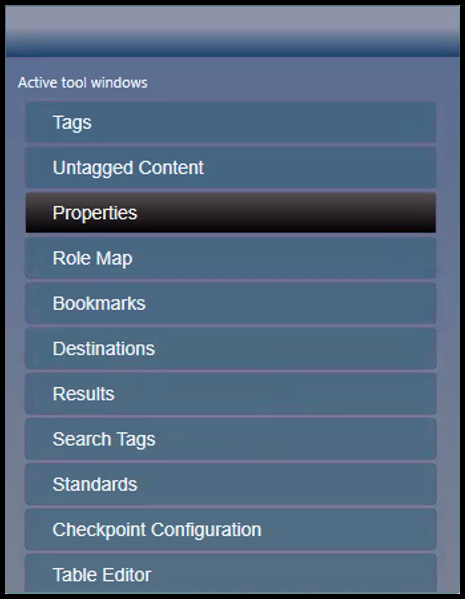
The Active Tool Window will allow a user to navigate to other panels within the interface. This allows remediators to quickly jump back and forth between document tags, bookmarks, or even verification results, and opens up complete navigation capabilities.
Hold down the Control key and Tab key to open the menu.
Keep the Control key held down and either use Tab or the up and down arrow keys to navigate to choose and navigate to various panels as needed.
The Quick Access Toolbar
The Quick Access Toolbar is located at the top left corner of the screen.
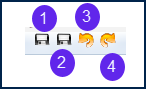
- Quick Save – Saves changes made to the document.
- Save and Close – Saves the changes and closes CommonLook PDF. It also compresses the file back down as sometimes the file size can get a little “inflated” during the remediation process.
- Undo – Reverses the previous remediation step(s) up to the most recent save.
- Redo – will redo remediation steps that have been incorrectly undone.
Toolbars and Ribbons
Use the Alt key, and then the corresponding letters (or numbers) on your keyboard, to navigate to the various tabs on the toolbar and the options in the ribbon for each tab.
The Operations Tab
When content is selected (whether it's a tag, the contents of a tag, untagged content, etc.), the Operations tab will become available (in the desktop version, use Alt+O to navigate to it). On the ribbon will be all of the options that you have available for the element that you selected. Note: These are the same options that are available by right-clicking or otherwise opening the context menu for the content that you've selected.
Common Problems
If you are using a Mac Computer, the keyboard shortcuts listed in this article and the CommonLook PDF Keyboard Shortcuts article may be different.
Related Articles
For a complete list of keyboard shortcuts available within CommonLook PDF, visit the following knowledge base article: CommonLook PDF Keyboard Shortcuts
Was this article helpful?
That’s Great!
Thank you for your feedback
Sorry! We couldn't be helpful
Thank you for your feedback
Feedback sent
We appreciate your effort and will try to fix the article