Overview
When using the Simplified Editor to remediate your documents, there are three different steps to the process depending on the type of content in your document.
- Add Image Descriptions
- Clarify Page Elements
- Full Document Review
Steps to Follow
Depending on your preference, you can sequentially work through each of the three different steps or proceed to the full document review where you can add image descriptions, clarify page elements, establish reading order and make connections.
When in the Full Document Review:
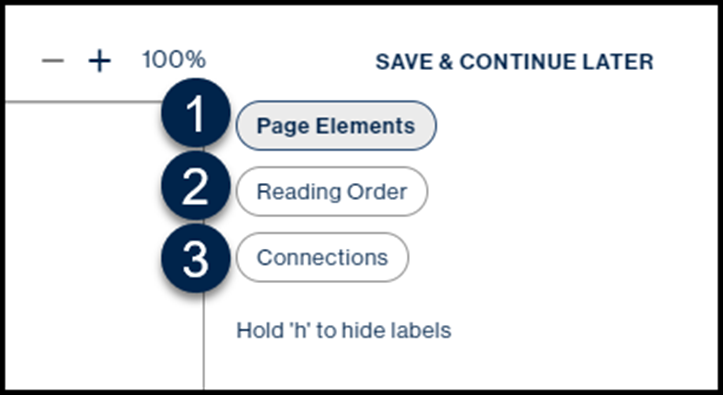
- Starting on the first page of the document, First, check the Page Elements. Verify the containers are correct, create any containers that may be needed, check inline elements, if necessary, etc.
- Second, verify the Reading Order and make corrections as needed.
- Proceed through all the following pages in the PDF, checking and fixing page elements and reading order.
- Finally, make any necessary Connections for lists, tables, and / or Tables of Contents that span across pages, columns, etc.
Important Note: If, for example, you proceed to adjusting the reading order, and then realize you need to go back and fix a container (in Page Elements), you may need to redo any reading order adjustments you’d made.
Frequently Asked Questions
What is the “Add Image Description” step?
If the PDF has images, you will see the “Add Image Description” as a step in the Simplified editor. If you leave this toggled on and hit next, detected images in you document will be listed and you can either choose to ignore the image if it is decorative or add an image description in this step. If you choose to toggle this step off, you will be able to add image descriptions or choose to ignore images in the following steps.
What is the “Clarify Page Elements” step?
The “Clarify Page Elements” step appears for some of the pages in your document that the system has determined need further clarification after automated detection of page elements. Depending on automated findings, all pages may not be displayed in this step. Some of the reasons for a system to seek user's clarification on some pages:
Suspicious Paragraph - CommonLook’s Simplified Editor cannot determine the content was identified and placed in the correct container.
Unidentified Content – CommonLook has detected that there is content on the page that has not been placed in a container.
Verify the form tooltip text - if there are forms in the PDF, CommonLook is asking you to verify the tooltip text is correct.
Note: Not all incorrectly identified elements will be recognized in this step, and it is advised to check and fix all page elements on every page of the document in the "Full Document Review", not only those present in the Clarifying Page Elements step.
What is the "Full Document Review" step?
The final review step allows users to review every page of the document and verify the correctness of identified page elements, reading order and make missed connections between sequential elements. You will be able to add image descriptions, identify unidentified content, as well as fix any element that may not be identified correctly in the entire PDF. It is NOT recommended to skip this step, as this is the final step in which you can fix everything possible in the PDF before generating the remediated PDF.
Related Articles
How to create "Connections" in the Simplified Editor
Was this article helpful?
That’s Great!
Thank you for your feedback
Sorry! We couldn't be helpful
Thank you for your feedback
Feedback sent
We appreciate your effort and will try to fix the article