Product
CommonLook PDF Desktop Version
Feature
Verification (HHS 2018 Standard)
Document Element
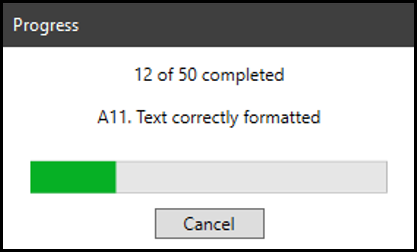
Verification Hanging on Checkpoint A11 (Text Correctly Formatted)
Overview
If a verification run against the HHS 2018 Standard seems to hang, or get stuck, while testing checkpoint A11 (Text correctly formatted), the cause is often the dictionary check that A11 — and the related I3 (Language for words and phrases) checkpoint — run against every word and phrase in the document. On documents with a lot of specialized terminology, that comparison can be slow enough to look like verification has stalled.
If you run into this, you can disable the dictionary check for both A11 and I3 in your Checkpoint Configuration settings.
Prerequisites
Do this when:
- HHS 2018 verification appears to hang or get stuck while testing A11 (Text correctly formatted).
- You're comfortable adjusting Checkpoint Configuration settings, since this changes how verification checks the document.
Steps to Follow
When running a Verification in CommonLook PDF, if it seems to get “hung up” testing text formatting, you might consider making the adjustment below in your Configuration settings.
Caution! Changing your configurations could result in unexpected (or unwanted) verification results. Proceed with care!
Follow these steps:
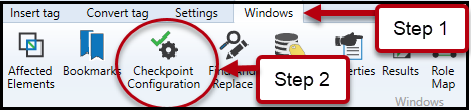
- In CommonLook PDF, Navigate to the Windows tab.
- In the ribbon, choose "Checkpoint Configuration."
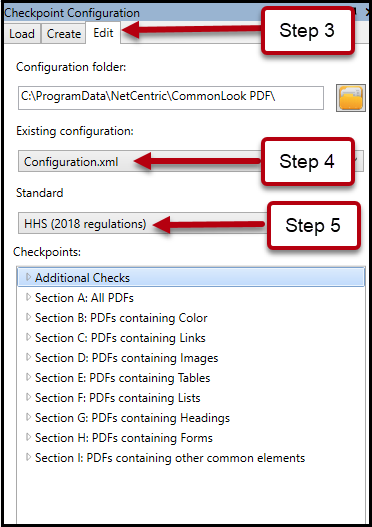
- In the Checkpoint Configuration panel, Chose the Edit tab.
- In the "Existing Configuration" dropdown menu, choose "Configuration.xml."
- In the Standard downtown menu, Choose HHS (2018 regulations).
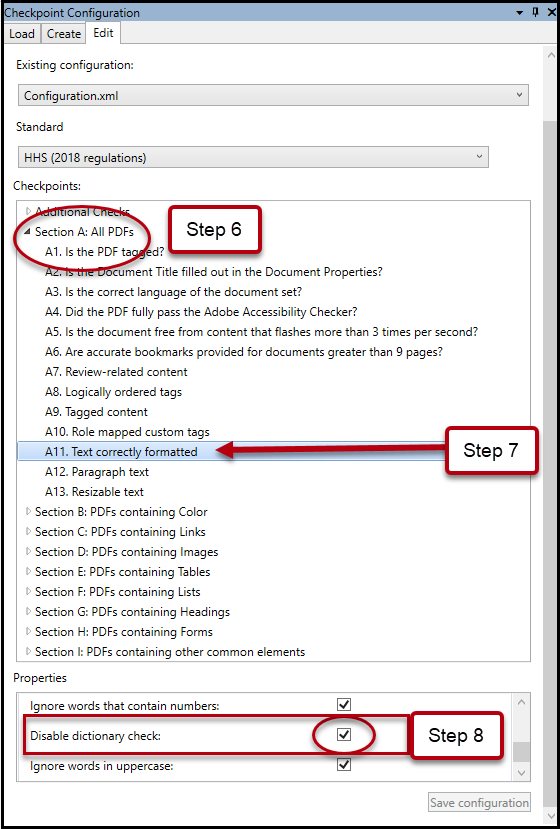
- In the “Checkpoints” section, expand “Section A: All PDFs.”
- Select "A11. Text correctly formatted."
- Scroll down to the Properties section and check the box next to “Disable dictionary check.” Note: You may need to resize the window, making it wider, to more easily find the checkbox.
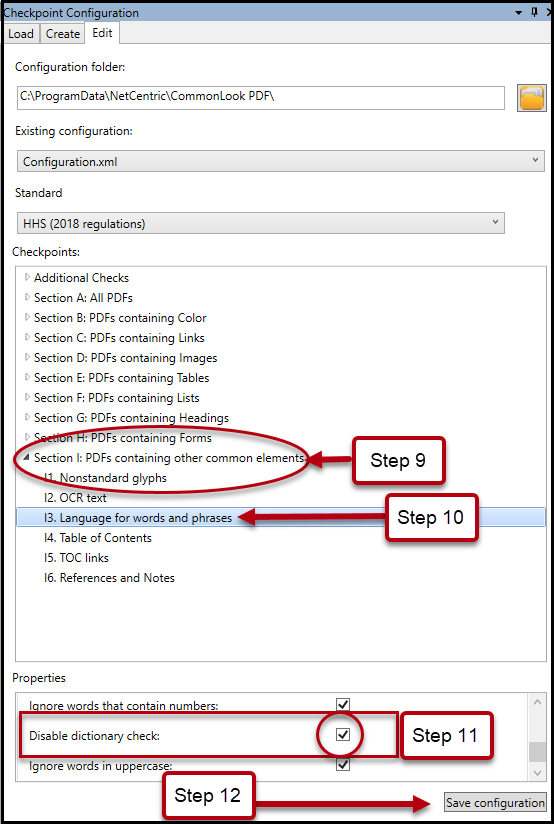
- Next in the “Checkpoints” section, expand “Section I: PDFs containing other common elements.”
- Select "13. Language for words and phrases.”
- Scroll down to the Properties section and check the box next to “Disable dictionary check.”
- Navigate to, to, and select, “Save configuration.”
- Optional: Close the Checkpoint Configuration panel.
- Run the HHS 2018 verification again.
Screenshots
If Testing against the HHS 2018 Standard Makes Your Verification “Hang” on “A11. Text correctly formatted”
Common Problems
- Disabling the dictionary check before confirming that hanging is really the cause of a stuck verification — this change can produce unexpected or unwanted verification results.
- Disabling the dictionary check on only one of the two checkpoints — both A11 and I3 do this comparison, so both need the checkbox set.
- Forgetting to select "Save configuration" after making changes, so the update doesn't take effect on the next verification run.
Frequently Asked Questions
Why do checkpoints A11 and I3 sometimes make verification hang?
Both checkpoints compare the words and phrases in a document against your computer's dictionary. On documents with a lot of specialized terminology, that comparison can be slow enough to look like verification has hung.
What should I do if verification hangs on "A11. Text correctly formatted"?
Disable the dictionary check for A11 and I3 in your Checkpoint Configuration settings — see Steps to Follow above. Proceed carefully, since this can change your verification results.
Is disabling the dictionary check risky?
Yes — changing configuration settings like this can produce unexpected or unwanted verification results, so only do it if verification is genuinely hanging on the dictionary check.
Do I need to disable the check on both A11 and I3?
Yes. Both checkpoints run the same dictionary comparison, so disabling it on only one leaves the other still able to hang.
Was this article helpful?
That’s Great!
Thank you for your feedback
Sorry! We couldn't be helpful
Thank you for your feedback
Feedback sent
We appreciate your effort and will try to fix the article