Product
Advanced Editor (Web-based CL PDF)
CommonLook PDF Desktop Version
CommonLook Edu
Feature
Embedding Fonts
Document Element
Embedding fonts in Acrobat for PDF/UA Accessibility
Overview
If your document needs to meet the PDF/UA accessibility standard, the fonts must be embedded in the PDF. Embedding fonts includes the font information in the file, so the document looks the way the author intended, no matter what device it's opened on.
Prerequisites
If you are running the PDF/UA standard check and receive a failure for fonts not being embedded.
Steps to Follow
Follow these steps to embed fonts in a PDF
- Open the PDF in Adobe Acrobat
- In the "Tools" open Print Production
- If it’s not already in the list of tools on the right side of Acrobat, from the Tools screen, choose “Add” to add it to the right side. (You can also reorder the tools on the right side so you don’t have to search so hard for it every time.)
- In Print Production, choose “Preflight”
- In the Preflight panel, make sure your “Profile” (at the top, in the very center) is set to “Acrobat Pro DC 2015 Profiles
- Navigate down to PDF fixups and expand it
- Navigate to “Embed missing fonts” and select it
- At the bottom right corner of the dialog box, choose “Analyze and fix”
- Save. Note: You might want to save this as a copy, with a different file name, just in case.
- Close the dialog box.
- Close Acrobat and open the PDF with the fonts embedded to continue working.
Screenshots
The screenshot below shows a failure of the PDF/UA 7.21 Fonts Checkpoint, for not having a specific font used in the document embedded.

In the "Tools" open Print Production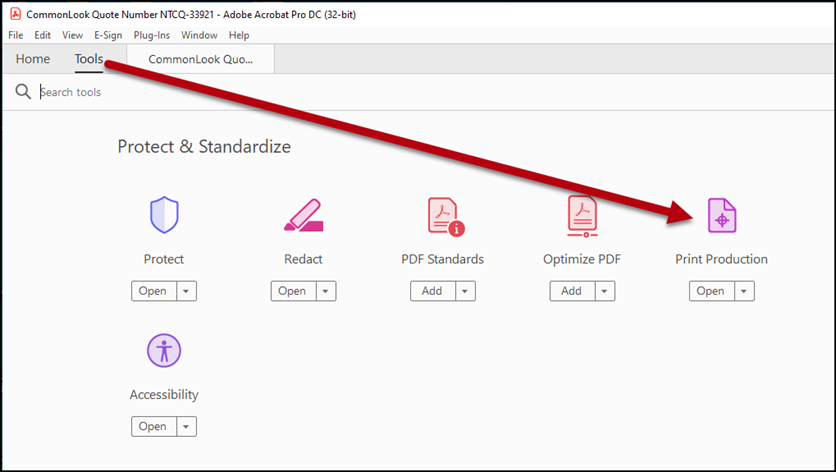
In the Preflight panel, make sure your “Profile” (at the top, in the very center) is set to “Acrobat Pro DC 2015 Profiles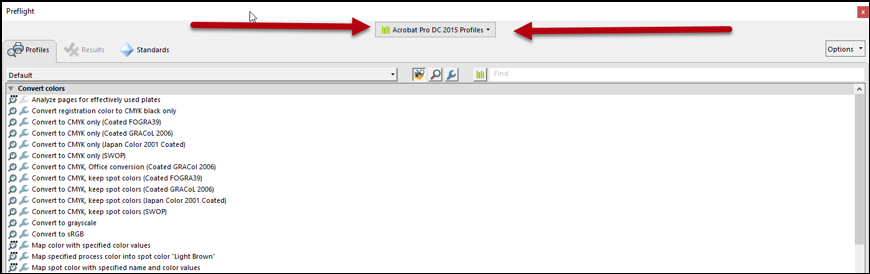
Navigate to “Embed missing fonts” and select it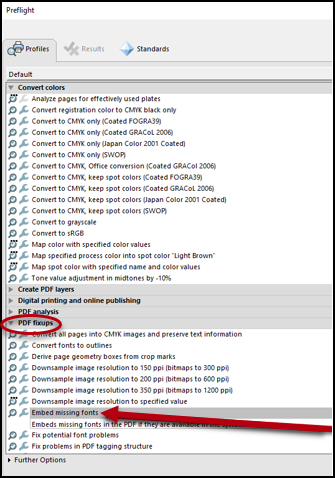
At the bottom right corner of the dialog box, choose “Analyze and fix”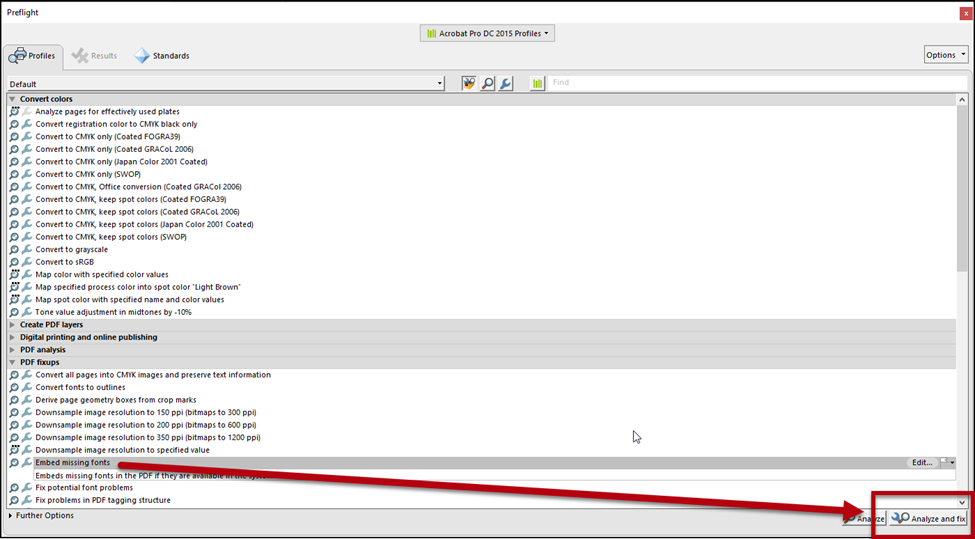
Common Problems
If using Pre-Flight does not work to embed fonts, you may need to return to the orginial document, change the fonts used in the document, and create the PDF.
Was this article helpful?
That’s Great!
Thank you for your feedback
Sorry! We couldn't be helpful
Thank you for your feedback
Feedback sent
We appreciate your effort and will try to fix the article