Product
CommonLook PDF Desktop Version
Feature
Tab Order
Overview
The Tab Order determines the sequence in which keyboard users navigate interactive elements, such as links and form fields, by pressing the Tab key. For an accessible PDF, the tab order should follow the document's tag structure so that keyboard users experience the same logical reading order as users of assistive technologies.
In CommonLook PDF, the recommended approach is to set the tab order to Structure (S). This automatically aligns keyboard navigation with the document's accessibility tag structure, helping ensure a consistent and predictable user experience.
Note: Documents containing interactive elements such as links or form fields should always have the tab order set to Structure. Failure to do so will result in a verification error during the accessibility validation process.
Prerequisites
Use this procedure when:
- The PDF contains links.
- The PDF contains interactive form fields.
- You have completed or modified the document's tag structure.
- You are preparing the document for PDF/UA verification.
Steps to Follow
Method 1: Use the Fix Wizard
If verification reports a tab order failure, you can also correct the issue using the Fix Wizard rather than updating the tab order manually.
The Fix Wizard automatically sets the tab order to follow the document structure.
Method 2: Manually Update the Tab Order
1. Enable Untagged Content Selection
2. Open the Untagged Content Panel
3. Expand the Pages List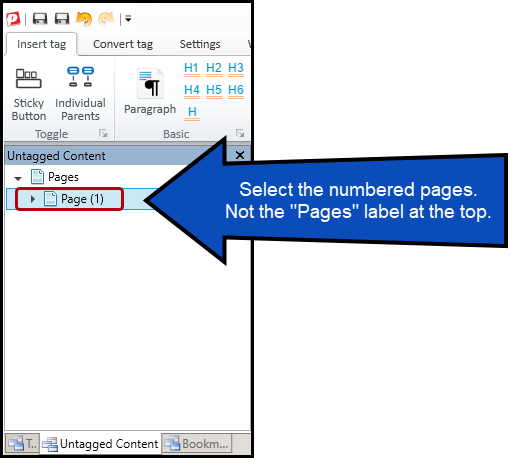
4. Select the Pages
Select the page or pages whose tab order you want to update.
- Hold Ctrl to select multiple individual pages.
- Hold Shift to select a range of pages.
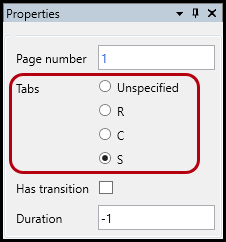
5. Set the Tab Order to Structure
- Locate the Properties panel.
- Select the radio button labeled S (Structure).
6. Save the PDF
Frequently Asked Questions
Which documents require tab order to be set?
Any PDF containing interactive elements, including links and form fields, should have its tab order set to follow the document structure.
Why should the tab order follow the document structure?
Using the document's structure ensures that keyboard navigation matches the logical reading order, providing a consistent experience for keyboard and assistive technology users.
What does the "S" option mean?
The S radio button stands for Structure. Selecting this option instructs the PDF to use the accessibility tag structure as the tabbing sequence.
Can I update the tab order for multiple pages at once?
Yes. You can select multiple pages using the Ctrl or Shift keys before applying the Structure (S) setting.
Can the Fix Wizard correct tab order issues?
Yes. If the accessibility checker reports a tab order failure, the Fix Wizard can automatically set the tab order to follow the document structure.
Was this article helpful?
That’s Great!
Thank you for your feedback
Sorry! We couldn't be helpful
Thank you for your feedback
Feedback sent
We appreciate your effort and will try to fix the article