Product
CommonLook PDF Desktop Version
Feature
Languages
Document Element
Right-to-Left Languages
Overview
Some documents include text that reads right to left, like Arabic or Hebrew. Tagging this correctly takes an extra step beyond normal tagging, since PDF structures otherwise assume left-to-right reading. The ReversedChars tag reorders the characters within a run of text so it displays correctly, without changing the order of the text runs themselves. That's why you select text from right to left when tagging it, rather than left to right as you would for normal content.
Prerequisites
Before you begin, make sure you have:
- Text in the document that reads right-to-left.
- Access to the Settings tab, the Physical View, the Insert Tag tab, and the Properties panel.
Steps to Follow
- In the Settings tab, set Text direction to Right to Left.

- In the Physical View, highlight the text to be tagged, selecting it from right to left.
- Go to the Insert Tag tab, and in the Other tags group, choose ReversedChars.

- Don't Level Up the ReversedChars tag. Leave it inside its parent tag, like a P or LBody tag, whichever fits the content. The ReversedChars tag isn't a standard PDF tag. Don't run Remove Role Maps after creating these tags, since doing so will remove them.
- In the Properties panel for the ReversedChars tag, change the language as needed. See "Changing Languages" for more on this.
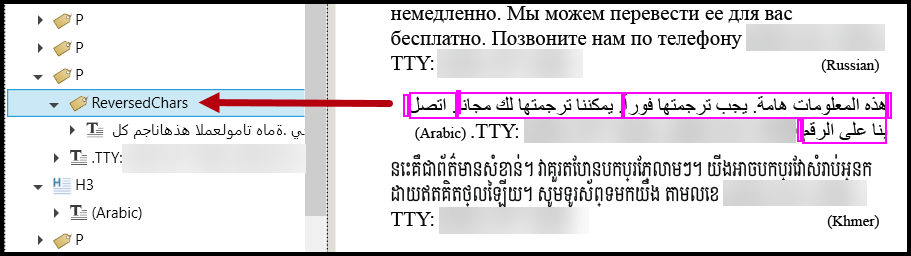
If a paragraph contains both right-to-left and left-to-right text, make sure the left-to-right portion stays in its correct reading order, and that the language is assigned correctly for each part.
Common Problems
The right-to-left text in my document is actually an image, not real text.
This happens when text is written in another program and a screenshot of it is placed into the document as a picture. Images of text fail HHS accessibility standards. Ask for the text itself, in the correct font encoding, so it can be tagged properly instead. Otherwise, actual text can be used.
I ran Remove Role Maps and now my ReversedChars tags are gone.
Since ReversedChars isn't a standard PDF tag, Remove Role Maps removes it. You'll need to retag the right-to-left text using the steps above.
Frequently Asked Questions
Why do I select the text from right to left instead of left to right?
The ReversedChars tag reorders the characters within a text run, not the text runs themselves. Selecting the text in right-to-left order is what makes sure it's tagged and reordered correctly.
Why shouldn't I Level Up the ReversedChars tag?
It needs to stay nested inside its parent tag, like a P or LBody tag, to keep the surrounding structure correct. Leveling it up would move it out of that structure.
What if my paragraph has both right-to-left and left-to-right text in it?
Make sure the left-to-right portion of the paragraph stays in its correct reading order, and that the language is assigned correctly to each part.
Can I use Remove Role Maps after tagging right-to-left text?
No. The ReversedChars tag isn't a standard PDF tag, so running Remove Role Maps afterward will remove it. Avoid using that feature once you've added ReversedChars tags.
Was this article helpful?
That’s Great!
Thank you for your feedback
Sorry! We couldn't be helpful
Thank you for your feedback
Feedback sent
We appreciate your effort and will try to fix the article