Product
CommonLook PDF Desktop Version
Feature
Tagging Tools
Document Element
Sticky Buttons
Overview
Sticky Buttons is a feature in CommonLook PDF that speeds up tagging when you have several elements in a row that all need the same tag type. For example, imagine a document with three paragraphs of text sitting between an Introduction heading and a History heading. Instead of creating each paragraph tag one at a time from scratch, Sticky Buttons lets you keep the "Paragraph" tag type active so that every highlight you draw creates a new paragraph tag automatically, in the correct order.
Prerequisites
Before you start, you should already know how to:
- Select text in the physical view.
- Find and select a tag in the Tags tree.
Steps to Follow
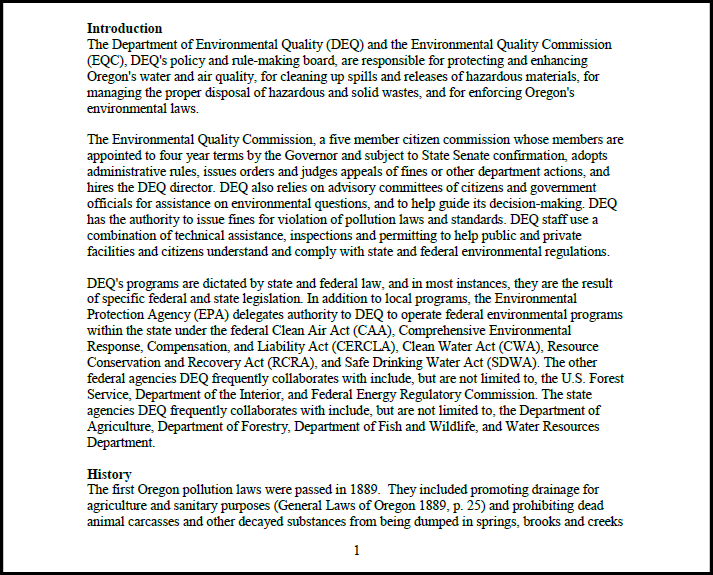
For the example shown above, follow these steps to tag the paragraphs using the Sticky Button functionality.
- Find the tag in the tag tree under which the content about to be tagged will be placed (in this example, that’s the tag containing “Introduction”). Note that when the tag is selected, the text will also be highlighted in the physical view. (An easy way to find the tag for “Introduction” is to highlight that word in the physical view.) It may be helpful to open the tag to use it as a reference point in the Tags tree.
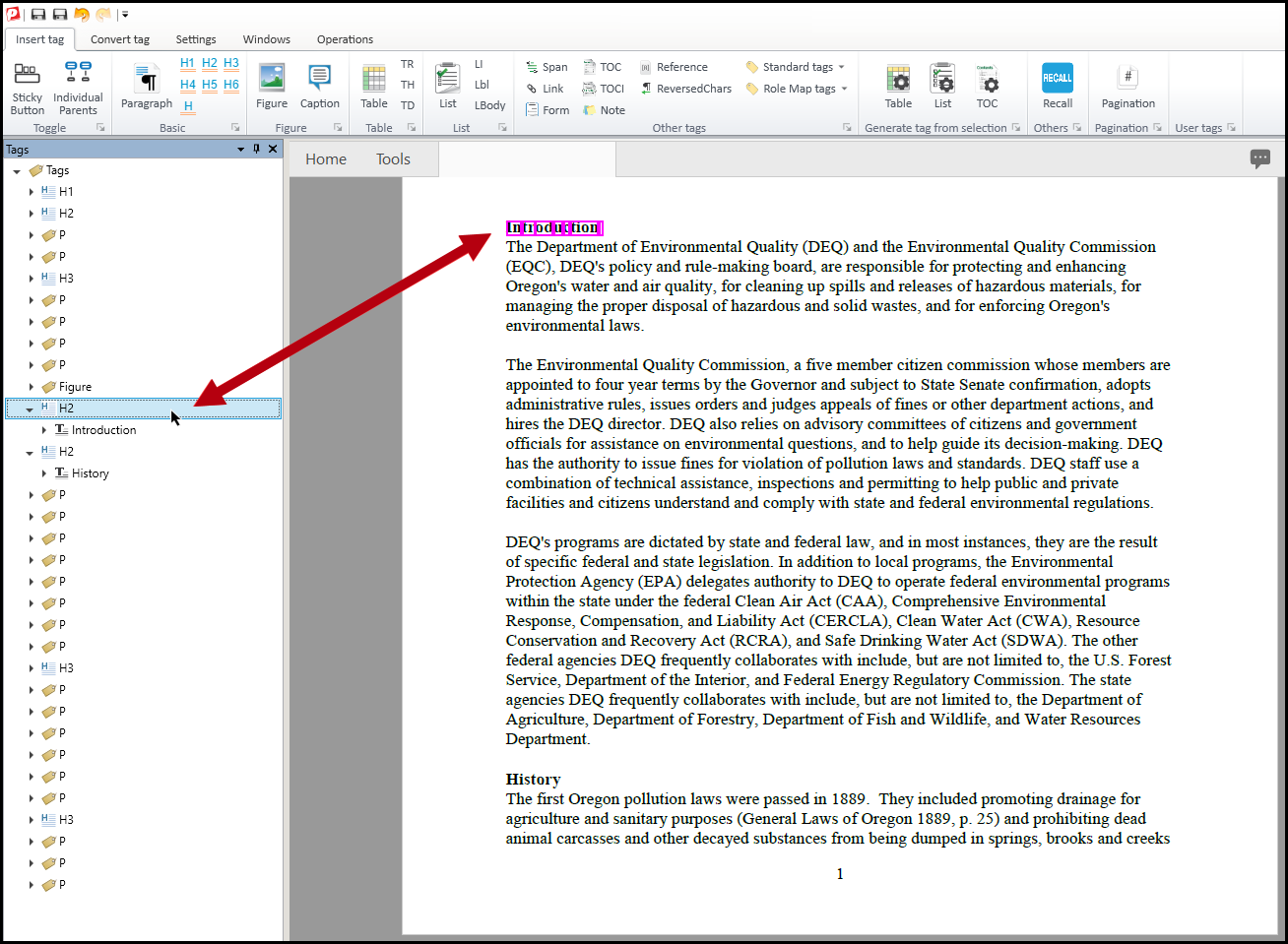
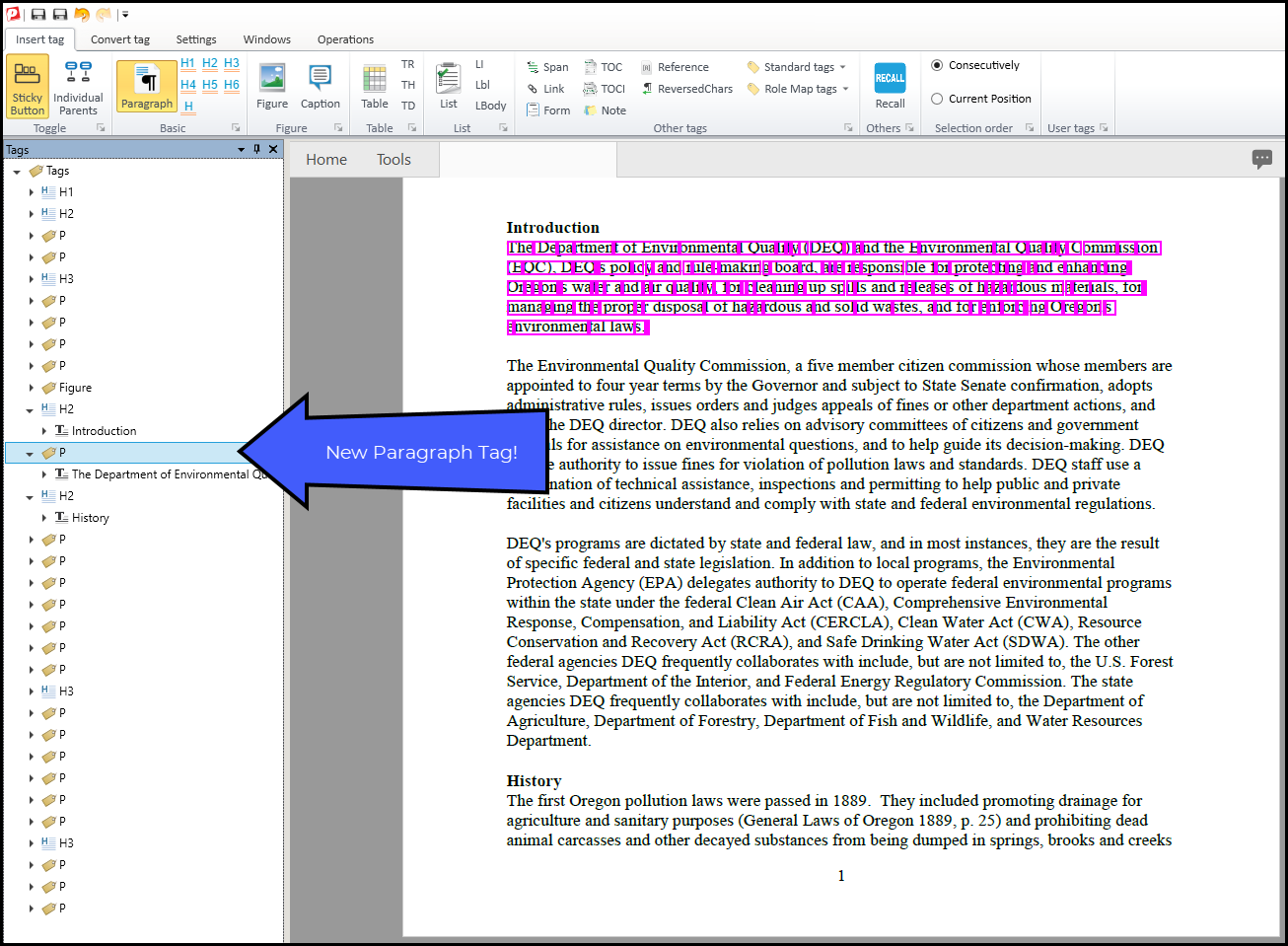
- In the Insert Tag tab on the ribbon, click the “Sticky Button” button to turn on that feature and then choose the Paragraph button to select the type of tag to be created. When these two options are “turned on,” they will turn yellow.
Note: In the ribbon, there will now be a "Selection Order" group. Keep the default selection - "Consecutively."
- Select the tag containing the word “Introduction” again. This step seems redundant but it is necessary so that CommonLook places the newly created tags in the proper reading order. Important Tip: Be sure to select the tag in the Tags tree for “Introduction” and not the text inside the tag. If the text in the tag is selected, the newly created tags (in the next step) will be placed inside the tag containing “Introduction” and this nesting is incorrect!
- Highlight (draw a box around) the text in the physical view that will be placed in the first paragraph tag created. When the mouse button is released, a new paragraph tag will be created in the Tags tree and it will contain the text that was highlighted in the physical view.
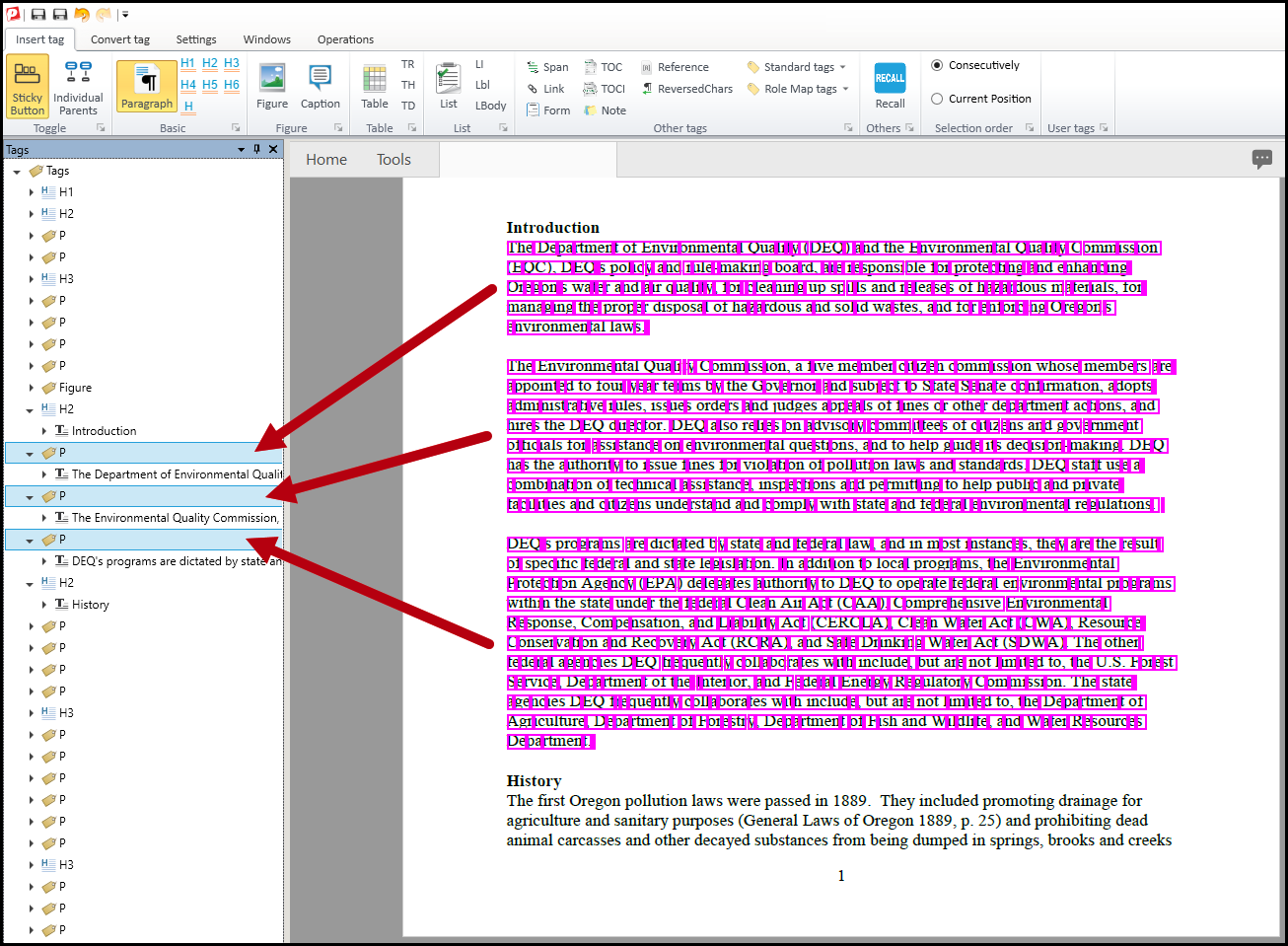
- Repeat Step 4 for the remaining two paragraphs under the Introduction section. The screen shot below shows the three paragraphs highlighted in the physical view and their corresponding tags in the Tags tree.
- When finished using “Sticky Buttons” remember to click that button again in the ribbon to turn off the feature.
Common Problems
The new tags ended up nested inside the Introduction tag
This happens when the text inside the Introduction tag was selected in step 3 instead of the tag itself. Undo the incorrect tags, reselect the Introduction tag in the Tags tree (not its text), and repeat step 4.
Later tags in the document are being created unexpectedly
This usually means Sticky Buttons was left on after you finished tagging the paragraphs you meant to. Every highlight you draw while it's active creates a new tag of the selected type, even outside the section you were working on. Click the "Sticky Button" button to turn it off as soon as you finish a section.
Frequently Asked Questions
What does the "Consecutively" selection order do?
It tells CommonLook to place each new tag directly after the one before it in the reading order, which is what you want when tagging content that appears one item after another, like the paragraphs in this example. Leave it on this default setting unless a specific article tells you otherwise.
Can I use Sticky Buttons with tag types other than Paragraph?
Yes. This example uses the Paragraph button, but Sticky Buttons works the same way with other tag type buttons on the Insert Tag tab, letting you create a run of consecutive tags of whatever type you choose.
Do I need to reselect the reference tag before every paragraph, or just once?
Just once. You select the reference tag again right after turning on Sticky Buttons and the tag type, and after that you can keep highlighting each subsequent paragraph directly.
Was this article helpful?
That’s Great!
Thank you for your feedback
Sorry! We couldn't be helpful
Thank you for your feedback
Feedback sent
We appreciate your effort and will try to fix the article