Product
CommonLook PDF Desktop Version
Feature
Tagging
Document Element
Role Maps and Custom Tags
Overview
Often, a PDF's Tags tree contains tags that don't use standard PDF tag names. This is permissible, as long as those custom tags are "role mapped" — associated — to a standard PDF tag.
When a PDF uses custom tags, you have two options: check the role mapping to confirm it's correct and keep the custom tags as they are, or convert the custom tags to whichever standard tag they've been mapped to.
Prerequisites
Check and address role maps when:
- The Tags tree contains tags that aren't standard PDF tag names.
- You're validating a document and want to confirm custom tags are mapped correctly before remediation is considered complete.
- You want to simplify a Tags tree by converting custom tags to their standard equivalents rather than maintaining custom tag names.
Steps to Follow
Checking and Editing Role Maps
To check (and edit, if needed) the role mapping of custom tags, follow these steps:
- Navigate to the Windows tab and choose the Role Map button.

- In the “Role Map” panel that opens, check that the custom tag (listed in the left column of the panel) is mapped to the correct standard tag (shown in the right column).
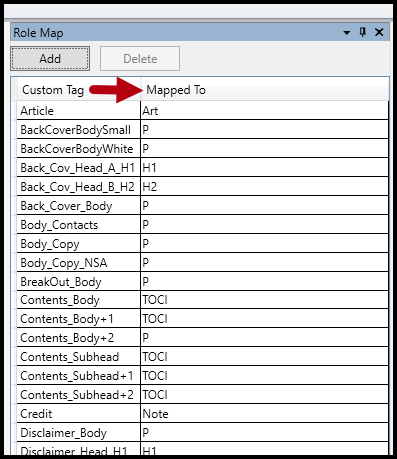
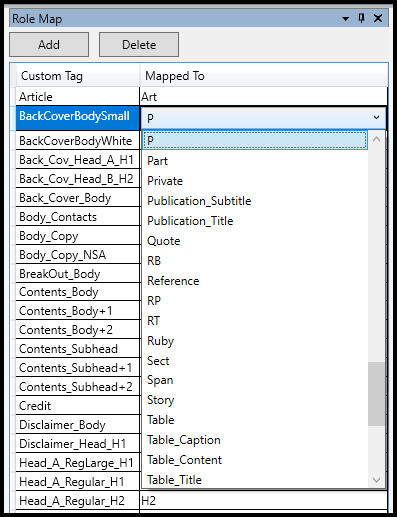
- If the custom tag is not mapped to the proper standard tag, click once in the standard tag field that needs to be changed, click again to provide a dropdown arrow to change the tag, and click a third time to open the menu of tags from which to choose. Then, choose a new tag to which the custom tag should be mapped.
The screenshot below shows the Role Map panel open with a custom tag selected. In addition, the standard tag dropdown menu is visible, showing the tag type options to which the custom tag may be mapped.
Removing Role Maps (Converting to their Standard PDF tag type)
To automatically convert custom tags to their standard tag equivalent:
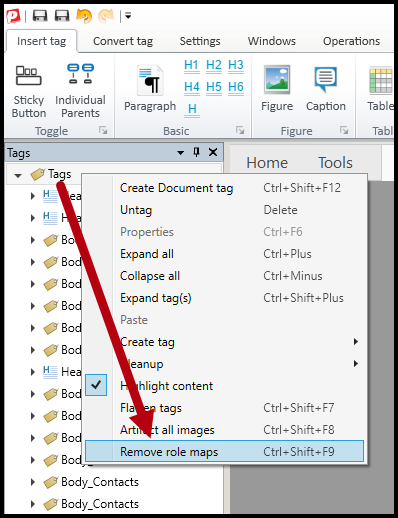
- Select the Tags root,
- Right-click or otherwise open the context menu,
- Choose “Remove role maps.”
Common Problems
When "Remove role maps" didn't work as expected
Here are some different scenarios that can occur in documents and how "Remove role maps" will work:
- If a custom tag is role mapped to a standard PDF tag, when role maps are removed, the custom tag will be converted to its standard tag "equivalent."
- If a custom tag is role mapped to another custom tag, remove role maps will seem to have no effect because CL PDF doesn't know what standard PDF tag to convert the custom tag to.
- If a custom tag is not role mapped at all, remove role maps will seem to have no effect because CL PDF doesn't know what standard PDF tag to convert the custom tag to.
Frequently Asked Questions
What does it mean for a custom tag to be "role mapped"?
Role mapping is the association between a custom tag and a standard PDF tag. A PDF can use custom tag names in its Tags tree as long as each one is mapped to a standard tag, so that assistive technology still knows how to interpret it.
What are my options when a PDF contains custom tags?
You can either check the role mapping to confirm it's correct and keep the custom tags, or convert the custom tags to whichever standard tag they've been mapped to using "Remove role maps."
How do I change what a custom tag is mapped to?
Open the Role Map panel from the Windows tab. Click once in the standard tag field you want to change, click again for the dropdown arrow, and click a third time to open the menu of available tags. Select the new standard tag for the mapping.
How do I convert all custom tags to their standard tag equivalents at once?
Select the Tags root, open the context menu (right-click), and choose "Remove role maps." This converts every custom tag under the Tags root to its mapped standard tag.
Related Articles
How to Flatten Tags in CommonLook PDF Desktop
Was this article helpful?
That’s Great!
Thank you for your feedback
Sorry! We couldn't be helpful
Thank you for your feedback
Feedback sent
We appreciate your effort and will try to fix the article