Product
CommonLook PDF Desktop Version
Feature
Tags Tree
Document Element
Grouping Tags / Flatten Tags
Overview
When opening the Tags tree, you may find grouping tags such as Div, Article, Story, and Part. In general, these grouping tags are unnecessary and can, in fact, make checking and fixing the reading order more difficult.
The Flatten Tags feature provides a quick way to remove unnecessary grouping tags. Flattening "levels up" the tags contained within these grouping tags, moving them to the appropriate level in the Tags tree.
Prerequisites
Use Flatten Tags when the Tags tree contains unnecessary grouping tags that make the document structure more complicated than necessary or make checking the reading order difficult.
Before flattening tags, review your Selection Settings in CommonLook PDF. Incorrect selection settings may prevent Flatten Tags from working as expected.
If the Tags tree contains custom tags, you may also need to review the document's Role Map. CommonLook PDF uses role mapping to determine how custom tags should be treated when flattening the Tags tree.
Steps to Follow
- Navigate to the Tags root at the top of the Tags tree.
- Right-click the Tags root, or otherwise open its context menu.
- Select Flatten tags.
Keyboard shortcut: Ctrl+Shift+F7 - Review the Tags tree to confirm that unnecessary grouping tags have been removed and their child tags have been moved to the appropriate level.
Note: Flatten Tags does not "un-nest" tags that structurally need to remain nested. For example, List Item tags remain within their parent List tags, and Table Row tags remain within their parent Table tags.
Screenshots
Screenshot of an open tags tree showing grouping tags.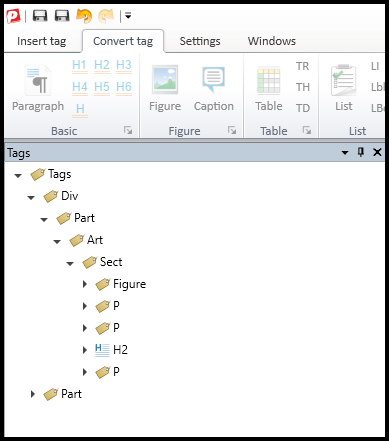
Screenshot showing the Tags root context menu displaying flattened tags.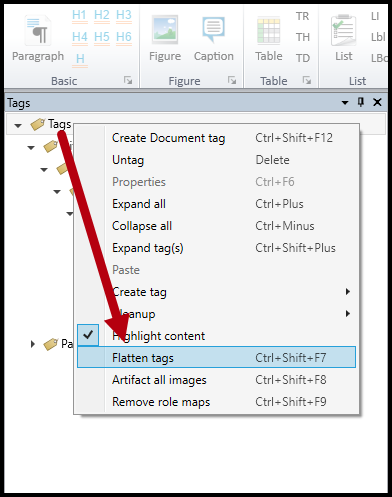
Frequently Asked Questions
What does Flatten Tags do?
Flatten Tags removes unnecessary grouping tags and "levels up" their child tags, moving the child tags out of unnecessary containers.
Will Flatten Tags destroy the structure of my lists or tables?
No. Flatten Tags does not remove structural nesting that is required for properly structured content. For example, List Item tags remain within List tags, and Table Row tags remain within Table tags.
Why didn't my grouping tag flatten?
The tag may not be recognized as a grouping tag. Check its role mapping to determine whether it is mapped to a standard PDF grouping tag.
You should also verify your CommonLook PDF Selection Settings, as these settings can affect the behavior of Flatten Tags.
Why won't a custom tag flatten?
If a custom tag is not role mapped, or is role mapped to another custom tag, CommonLook PDF may not be able to determine whether it is safe to flatten.
Role map the custom tag to the appropriate standard PDF tag and try Flatten Tags again.
Why won't a tag role mapped to a Paragraph flatten?
A <P> tag is not a grouping tag whose contents should be pushed out. If a custom tag is role mapped to <P>, CommonLook PDF treats it as a Paragraph and preserves its contents within the tag.
Was this article helpful?
That’s Great!
Thank you for your feedback
Sorry! We couldn't be helpful
Thank you for your feedback
Feedback sent
We appreciate your effort and will try to fix the article