Product
CommonLook PDF Desktop Version
Feature
Troubleshooting
Document Element
Role Maps — Standard Tags Role Mapped Warning
Overview
DF accessibility standards do not allow a standard PDF tag to be role mapped to another tag. When one or more standard PDF tags have been role mapped in a document, CommonLook PDF displays a Warning dialog box when you open the file.
This matters because role mapping a standard tag to a different tag can cause functionality issues and unintended behavior for assistive technology. For example, a TH tag should never be role mapped to a TD tag. Both are standard tags, and if this mapping exists, every data table in the document will lack proper header cells — and you won't be able to assign the correct column or row header scope to those cells, since scope can't be assigned to a TD.
Prerequisites
Follow these steps when:
- A Warning dialog box appears when you open a document in CommonLook PDF, indicating that one or more standard tags have been role mapped.
- You want to confirm that no standard tags in a document have been mistakenly role mapped to another tag before proceeding with remediation.
Steps to Follow
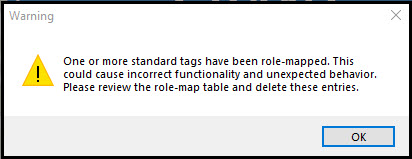
If this warning in the above screenshot appears when opening the document follow these steps:
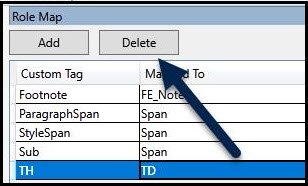
1. Navigate to the Windows tab and choose the Role Map button.
2. In the “Role Map” panel that opens, look in the Custom Tag column for any standard tags.
3. Next, select the standard tags that are role mapped to another tag, and then press the delete button, above the table.
Frequently Asked Questions
What if I ignore this warning and continue working in the Tags tree?
If the Warning dialog is closed without removing the improper role map, the underlying tagging issue remains in the document and will likely cause major issues when you run a standards check of the document.
Was this article helpful?
That’s Great!
Thank you for your feedback
Sorry! We couldn't be helpful
Thank you for your feedback
Feedback sent
We appreciate your effort and will try to fix the article