Product
CommonLook PDF Desktop Plugin
Feature
Empty Tags
Document Element
Cleaning up empty tags
Overview
Cleaning up empty tags is an important step in PDF remediation. Empty tags can confuse assistive technology, create an inaccurate tag structure, and may even cause accessibility issues. Throughout the remediation process—and always before finishing a document—you should remove unnecessary empty tags. CommonLook PDF includes cleanup tools that can remove these tags automatically while preserving important table structures when needed.
Prerequisites
Before cleaning up empty tags:
- Complete most of your remediation work.
- Open the Tags Tree in CommonLook PDF.
- Enable the preference that treats tags containing only spaces as empty.
Steps to Follow
Enable the Empty Space Preference
Before cleaning up empty tags, enable the setting that treats tags containing only spaces as empty.
- Open the Settings tab in the ribbon.
- Select User Preferences.
- In the User Preferences dialog, check Consider elements containing only spaces to be empty.
- Click OK.
Clean Up Empty Tags
- In the Tags Tree, right-click any tag (or open the context menu).
- Select one of the following cleanup options:
Full Cleanup (Ctrl + U)
- Removes all empty tags from the document.
Skip Empty Cells Cleanup (Ctrl + E) (Recommended)
- Removes all empty tags except empty TD and TH table cells.
- Preserves intentionally empty table cells so table structure remains intact.
Pro Tip: If you remember only one cleanup shortcut, use Ctrl + E. It is the safer option because it preserves empty table cells while still removing unnecessary empty tags.
Screenshots
Clean-up in context menu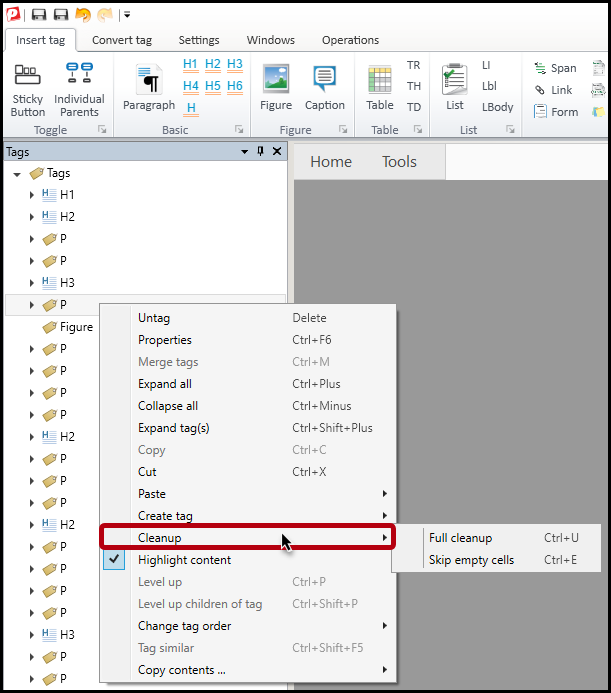
The Settings tab, near the right side, click the button labeled “User Preferences.”
When the User Preferences dialog box opens, check the checkbox to “Consider elements containing only spaces to be empty.”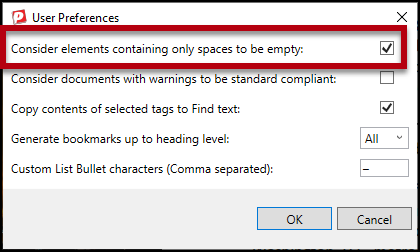
Frequently Asked Questions
When should I clean up empty tags?
It's a good practice to clean them up periodically during remediation and always before completing the document.
Why do empty tags matter?
Empty tags can provide misleading information to assistive technology and may negatively affect document accessibility.
What's the difference between Full Cleanup and Skip Empty Cells Cleanup?
Full Cleanup removes every empty tag. Skip Empty Cells Cleanup removes empty tags while preserving empty TD and TH tags that may be necessary for maintaining a properly structured table.
Why should I enable "Consider elements containing only spaces to be empty"?
Authors sometimes use spaces, tabs, or blank paragraphs for formatting. In a PDF, these can become tagged content. Enabling this setting allows CommonLook PDF to treat those tags as empty and remove them during cleanup.
Which cleanup option is recommended?
For most documents, Skip Empty Cells Cleanup (Ctrl + E) is recommended because it safely preserves table structure while removing unnecessary empty tags.
Was this article helpful?
That’s Great!
Thank you for your feedback
Sorry! We couldn't be helpful
Thank you for your feedback
Feedback sent
We appreciate your effort and will try to fix the article