Overview
Following recent Adobe Acrobat updates, some users have experienced compatibility issues when using CommonLook PDF with the New Acrobat Experience.
One of the reported issues is a black screen, which may be related to the Optimize Page Interactions feature introduced in the updated Acrobat interface.
If you're experiencing this issue, you may notice the following:
The CommonLook viewing window turns completely black or displays visual glitches when opening a PDF.
The blue loading circle keeps spinning without completing.
CommonLook or Adobe Acrobat becomes unresponsive or crashes.
You may need to close Adobe Acrobat through Task Manager.
To help resolve these issues, we've outlined two workarounds you can try:
Option 1: Switch back to the Classic Acrobat Experience.
Option 2: Disable Optimize Page Interactions while continuing to use the New Acrobat Experience.
Steps to Follow
Option 1: Switch Back to the Classic Acrobat Experience
This is the original recommended workaround.
Open Adobe Acrobat.
Select Menu > Disable New Acrobat (or use the toggle if available).
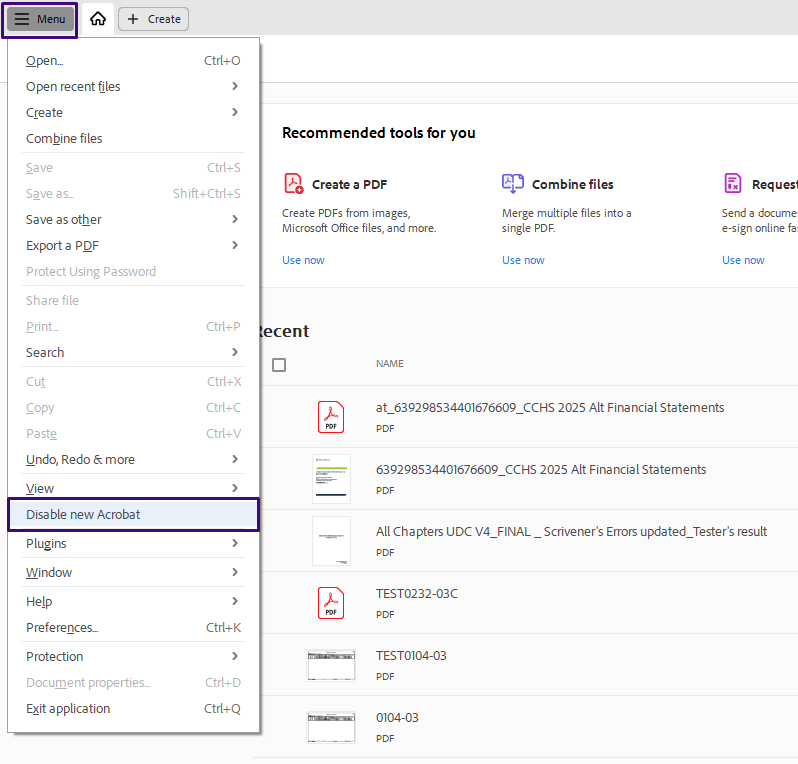
Restart Adobe Acrobat.
Open CommonLook PDF and check whether the issue persists.
Option 2: Disable Optimize Page Interactions
If you prefer to continue using the New Acrobat Experience, you can try disabling the Optimize Page Interactions option instead.
Open Adobe Acrobat.
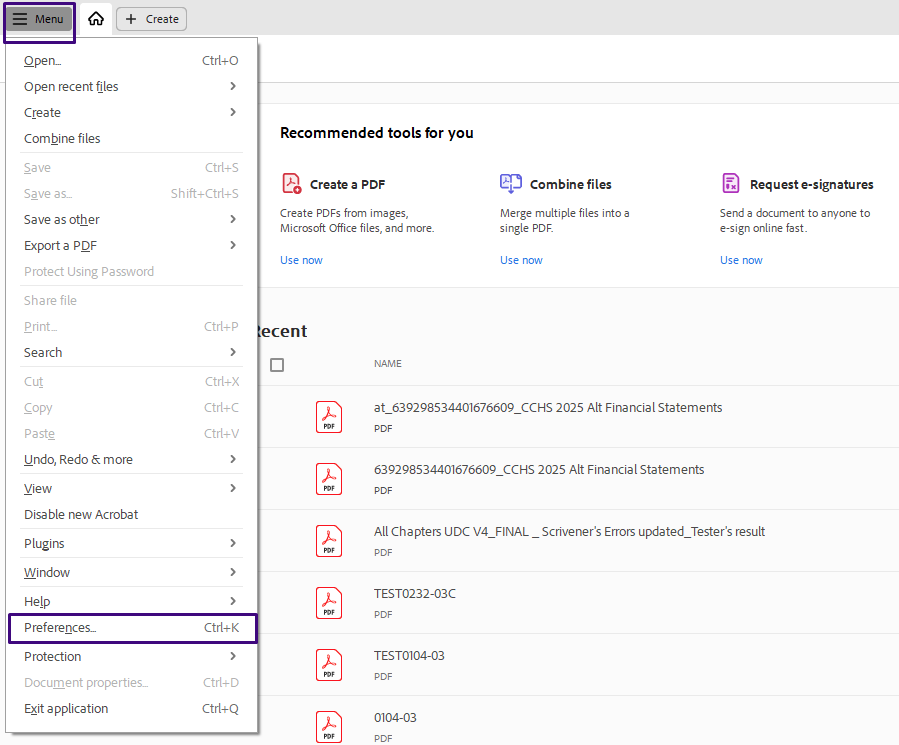
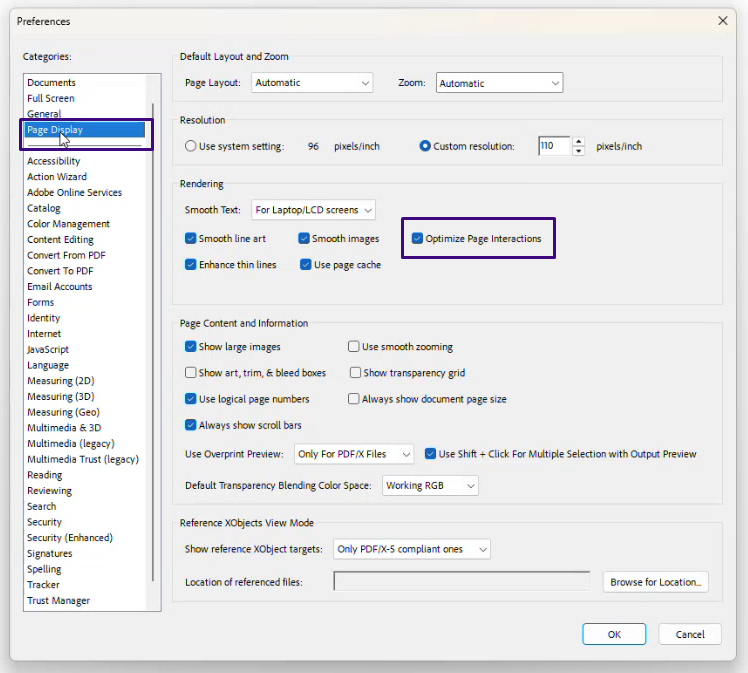
Navigate to Menu > Preferences > Page Display.
Locate the Optimize Page Interactions option.
Disable the option
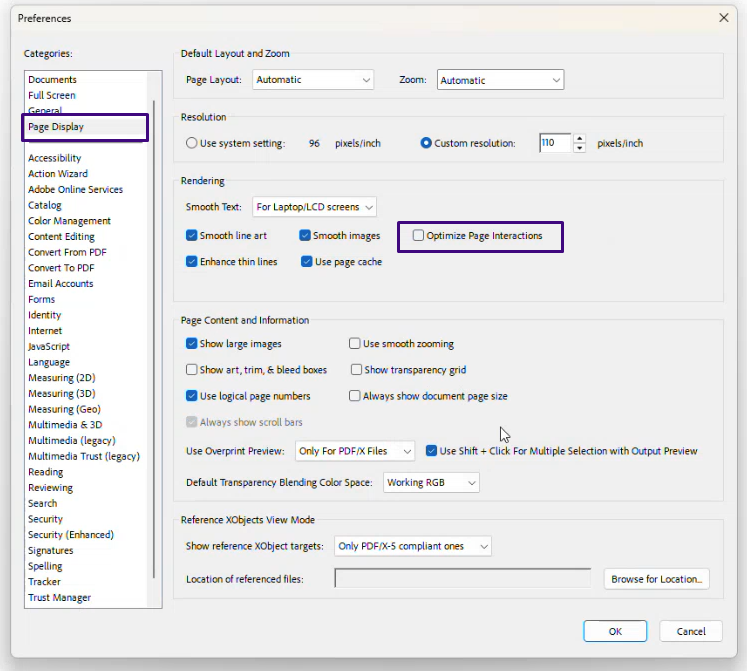
A pop-up will prompt you to restart Adobe Acrobat. Click Yes.
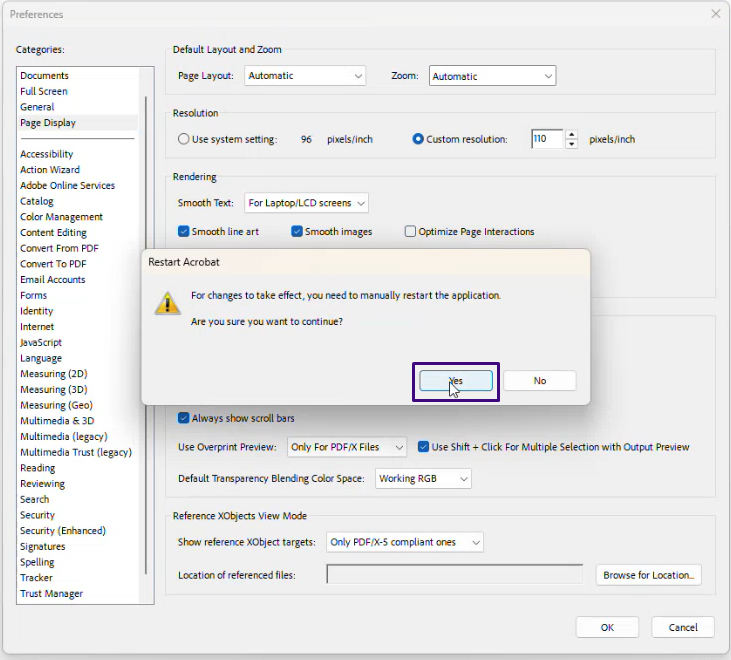
Click OK, then manually restart Adobe Acrobat.
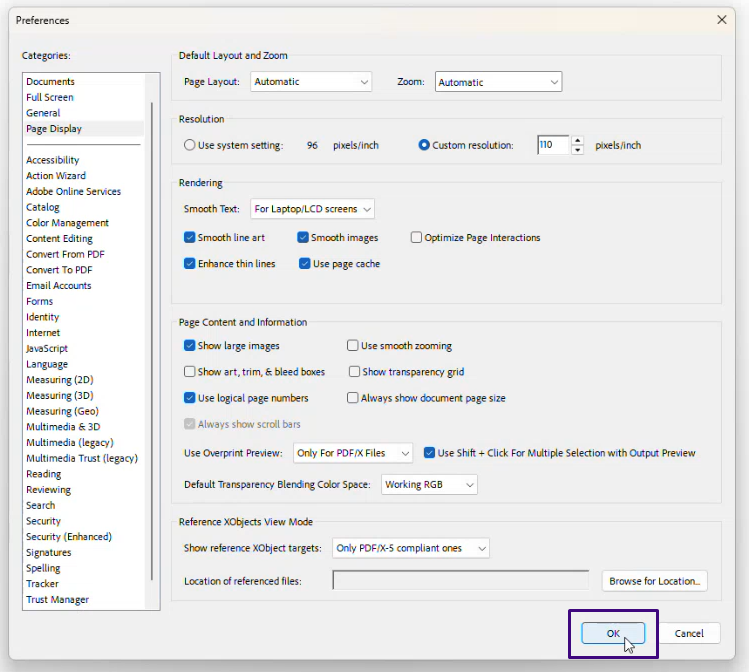
Open CommonLook PDF and check whether the issue has been resolved.
Note: In our testing, disabling Optimize Page Interactions while using the New Acrobat Experience resolved the black screen issue.
Frequently Asked Questions
Can I continue using the New Acrobat Experience?
Yes, you can try Option 2 by disabling Optimize Page Interactions instead of switching back to the Classic Acrobat Experience.
Which workaround should I try first?
If you prefer using the New Acrobat Experience, start by disabling Optimize Page Interactions. Otherwise, you can switch back to the Classic Acrobat Experience.
Is there a permanent fix available?
Our Development Team is continuing to investigate the issue and work toward a permanent solution. In the meantime, we recommend trying one of the two workarounds described above.
What should I do if neither workaround resolves the issue?
Please contact Allyant Support so our team can gather additional information and investigate further.
Was this article helpful?
That’s Great!
Thank you for your feedback
Sorry! We couldn't be helpful
Thank you for your feedback
Feedback sent
We appreciate your effort and will try to fix the article