Overview
The tag tree determines reading order
In a tagged PDF, the reading order is the sequence in which assistive technologies (such as screen readers) present the document's content to the user. For an accessible PDF, the authoritative reading order is the order of elements in the document's tag tree (structure tree)—not necessarily the visual layout on the page.
The order of the tags in the Tags tree (the logical view) should correspond to the order in which information is presented visually (the physical view).
Prerequisites
If the Logical view does not match the Physical view, then fix the reading order of the tags by moving the tag(s) to the correct location in the tag tree.
Steps to Follow
Moving tags can be achieved with the following methods:
Click and Drag.
- Select the tag to be moved.
- Click and hold then drag the tag to the correct location in the tag tree.
Note: This is perhaps the most difficult and error-prone option for moving tags. Be careful to drag and drop accurately and avoid incorrectly “nesting” text or tags inside other tags!
Cut and Paste.
- Right click on the tag to be moved and, from the context menu, choose “Cut” (keyboard shortcut Ctrl+X).
- Right-click (or otherwise open the context menu) on the tag in the tag tree where the “cut” tag will be placed. A context menu will open and there will be paste options as follows:
- “Paste as sibling” (places the tag after the selected tag in the tag tree at the same level) (Ctrl+V)
- “Paste as child” (places the cut tag as the last item inside the selected “destination” (parent) tag) (Ctrl+Shift+V)
Change Tag Order
- Right-click on the tag to be moved and, with the context menu, choose the appropriate “change tag order” option (Up or Down).
- Alternatively, select a tag and use the keyboard shortcuts Ctrl+Shift+up-arrow or Ctrl+Shift+down-arrow to move a tag up or down (respectively) in the tag tree.
Note: Changing the tag order will only move a tag up or down inside the limits of its parent tag. It may be necessary to “level up” (Ctrl+P) the tag to “un-nest” it. Level up is discussed further in the article on Creating Tags.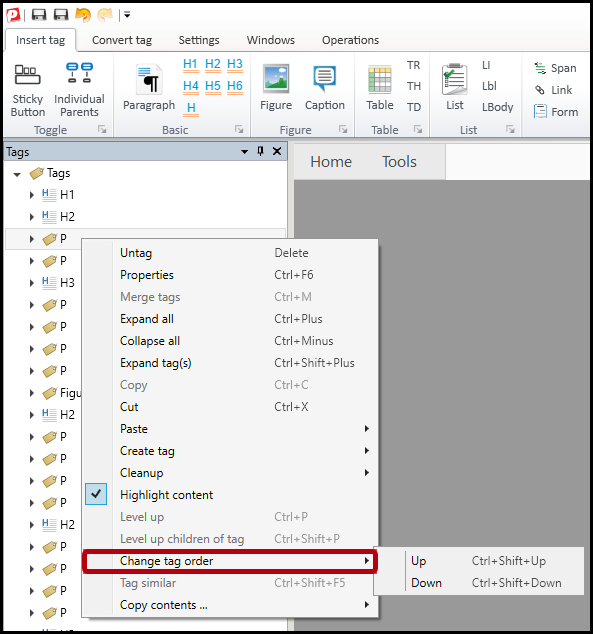
Screenshots
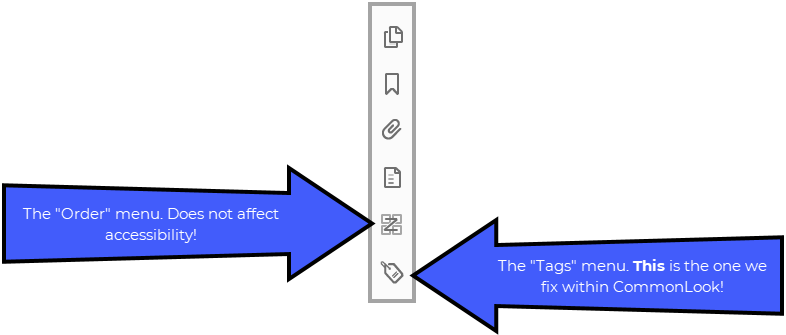
The screenshot below shows the left margin in Acrobat when a PDF is open. The “Order” menu and the “Tags” menu are both identified.
Frequently Asked Questions
How Does Acrobat's Reading Order tool fits in?
Adobe Acrobat includes a Reading Order tool, but it's important to understand its role.
- The Reading Order tool is primarily an editing aid used to create or adjust tags.
- Once a PDF is properly tagged, the tag tree is what matters for accessibility.
- Simply changing numbered regions in the Reading Order tool does not necessarily change the actual reading order if the tag tree remains unchanged.
When remediating PDFs, verify and adjust the Tags panel to ensure the structure tree reflects the intended reading sequence.
Are there any exceptions to the Logical/Physical View "Rule" - "Remediator's Choice"
Remediators often have to make decisions using their best judgment regarding whether or not content needs to be tagged, which tag to use, and when that tag should appear in the logical reading order. For example, if a footnote is referenced once in a paragraph, a remediator may choose to have the footnote read directly after the paragraph and not in its logical reading order.
Sometimes these decisions are made by managers, departments, or other governing bodies or rules, however, sometimes the decision is purely up to the remediators themselves. This is sometimes called “remediator’s choice.”
Remember, use your best judgment when making decisions so that there is a solid reason behind your choice.
Was this article helpful?
That’s Great!
Thank you for your feedback
Sorry! We couldn't be helpful
Thank you for your feedback
Feedback sent
We appreciate your effort and will try to fix the article