Product
Advanced Editor (Web-based CL PDF)
Feature
Tables
Document Element
Presentation Tables, Linearization
Overview
Tables are sometimes used in documents purely for formatting, even when there's no real data involved. The problem is that a screen reader will still announce that there's a table with a certain number of columns and rows, and then try to connect data to headers within it. When the table isn't actually holding that kind of data, this is both inaccurate and confusing for someone using assistive technology.
When a table is only being used to help lay out the document, it needs to be linearized so it doesn't convey incorrect structural information. Linearizing breaks the table apart so its content is shared as separate, accurately tagged elements, like paragraphs, instead of as one table tag.
Prerequisites
Before you begin, make sure you have:
- Confirmed that the table in question is a presentation table, not a data table. See "How to Determine Table Types in the Advanced Editor" if you haven't made that determination yet.
- Access to the Tags tree and its context menu.
Steps to Follow
Linearize the table
- Right-click the table tag in the Tags tree, or otherwise open its context menu.
- Choose Linearize table from the context menu.
- Choose either Horizontally or Vertically.
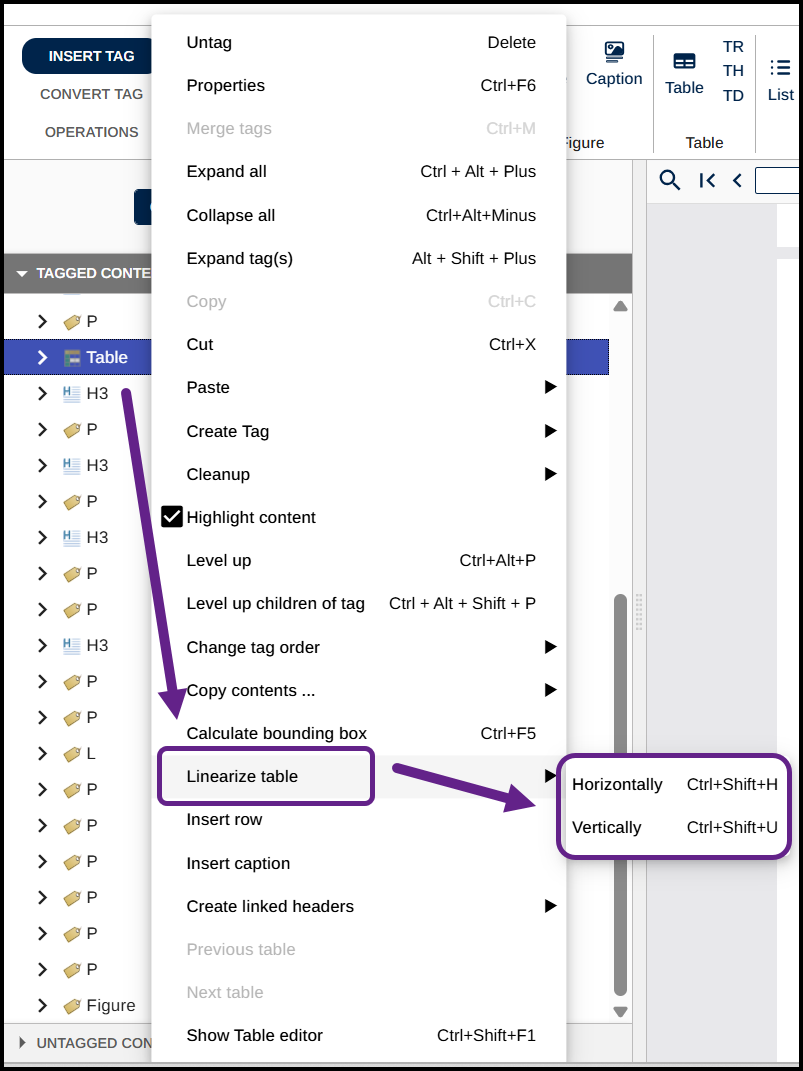
Choose a direction
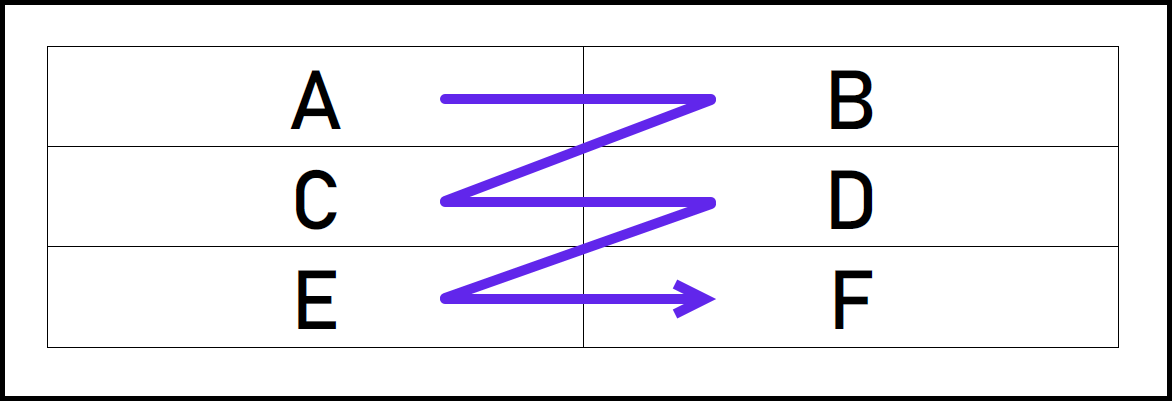
Linearizing Horizontally converts all the data cells to paragraph tags moving cell by cell from left to right across the first row, then continuing row by row down the table (left to right, top to bottom).
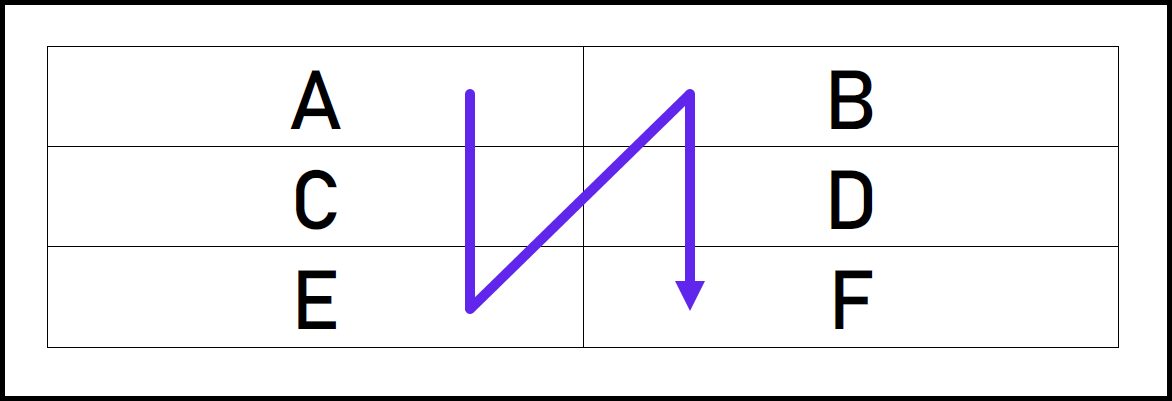
Linearizing Vertically converts all the data cells to paragraph tags moving cell by cell down the first column, then continuing column by column across the table (top to bottom, left to right).
Common Problems
I linearized the table, but the reading order still isn't right.
You can undo the linearization and try using the other directional option, or you can adjust the order directly in the Tags tree by moving the new paragraph tags into the sequence that matches how the content should actually be read.
I'm not sure whether to choose Horizontally or Vertically.
Start with Horizontally, since it is the most common table linearization direction. Try Vertically if reviewing the result shows the content reads in the wrong order, and the vertical sequence would match the intended reading order more closely.
Frequently Asked Questions
What does "linearize" mean?
Linearizing a table breaks it down so its content is shared as separate, accurately tagged elements, like paragraphs, instead of one table tag. This keeps a screen reader from announcing table structure that doesn't reflect any real data.
Why can't I just leave the table tag as it is?
A screen reader will announce table structure information, like a number of rows and columns, and try to connect headers to data. If the table doesn't actually contain that kind of data, this creates inaccurate and confusing information for the person listening.
Does linearizing delete any content?
No. It converts the existing data cells into paragraph tags. The content stays, it's just restructured into standalone tags instead of a table.
Can I fix it if I choose the wrong direction?
Yes. Reapply Linearize table and choose the other direction, or manually adjust the reading order in the Tags tree if only part of the sequence is off.
Was this article helpful?
That’s Great!
Thank you for your feedback
Sorry! We couldn't be helpful
Thank you for your feedback
Feedback sent
We appreciate your effort and will try to fix the article