Product
Advanced Editor (Web-based CL PDF)
Feature
Tables
Document Element
Table Summaries
Overview
A table summary is a short description that adds context to a table, helping explain what the table contains or how it's organized. Table summaries are not required by any accessibility standard, so you will never receive a Failure result for leaving one out. However, CommonLook still generates a result to bring the missing summary to your attention.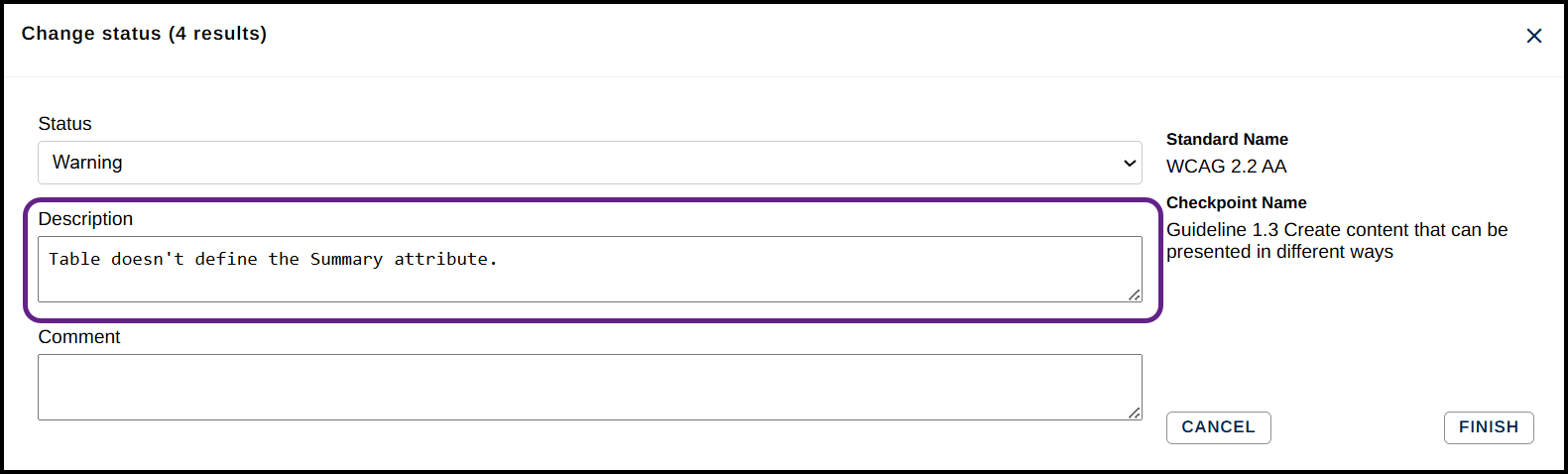
If a table doesn't have a summary, you'll see a Warning result stating that the "Table doesn't define the Summary attribute."
Prerequisites
Before you begin, make sure you have:
- A table tag already created in your document.
- Access to the table tag's Properties, or to CommonLook's Fix Wizard.
Steps to Follow
Decide if you need a summary at all
Not every table needs a summary. A few common reasons a table might not need one:
- The table is simple and easy to understand at a glance.
- The table already has a caption, which would make a summary redundant.
- The standard you're working to doesn't require one.
If any of these apply to your table, you can change the result from Warning to Passed instead of adding a summary. When you do this, it can be helpful to add a comment explaining your reasoning so the change makes sense to anyone reviewing your verification report later.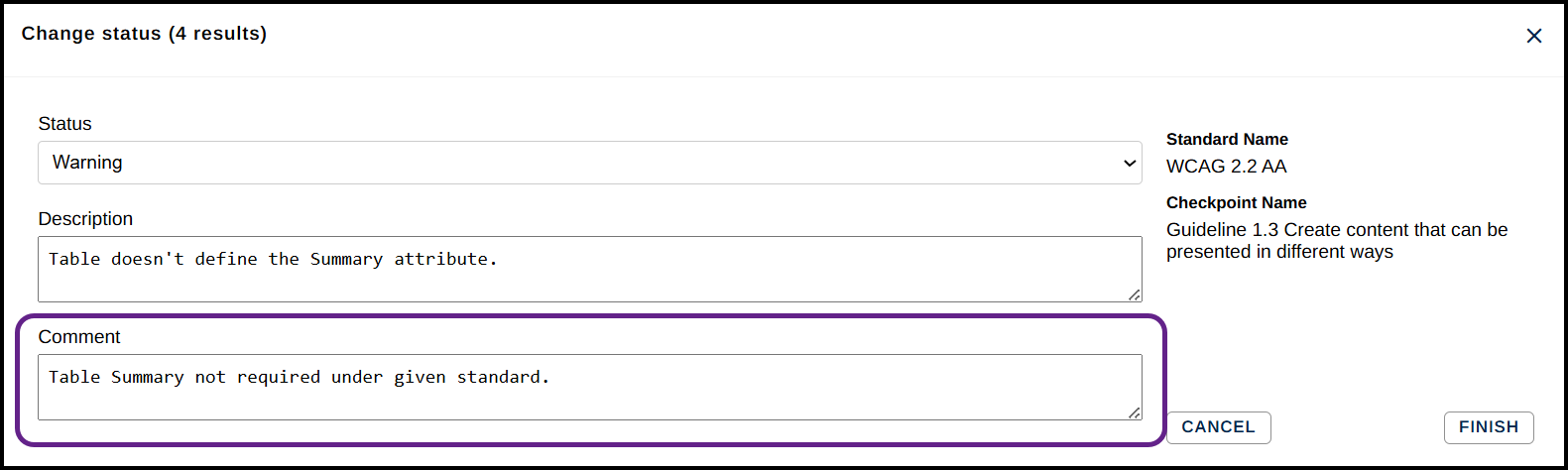
Add a table summary
You can add a table summary in either of two places.
Using the table tag's Properties:
- Select the table tag in your document.
- Open its Properties.
- Enter your summary in the Summary field.
- Save your changes.
Using the Fix Wizard:
- Find the Warning result for the table's missing summary.
- Click the three dot menu at the right end of that result.
- Select Fix. This opens the Fix Wizard.
- Enter your summary directly in the Fix Wizard.
- Apply the fix.
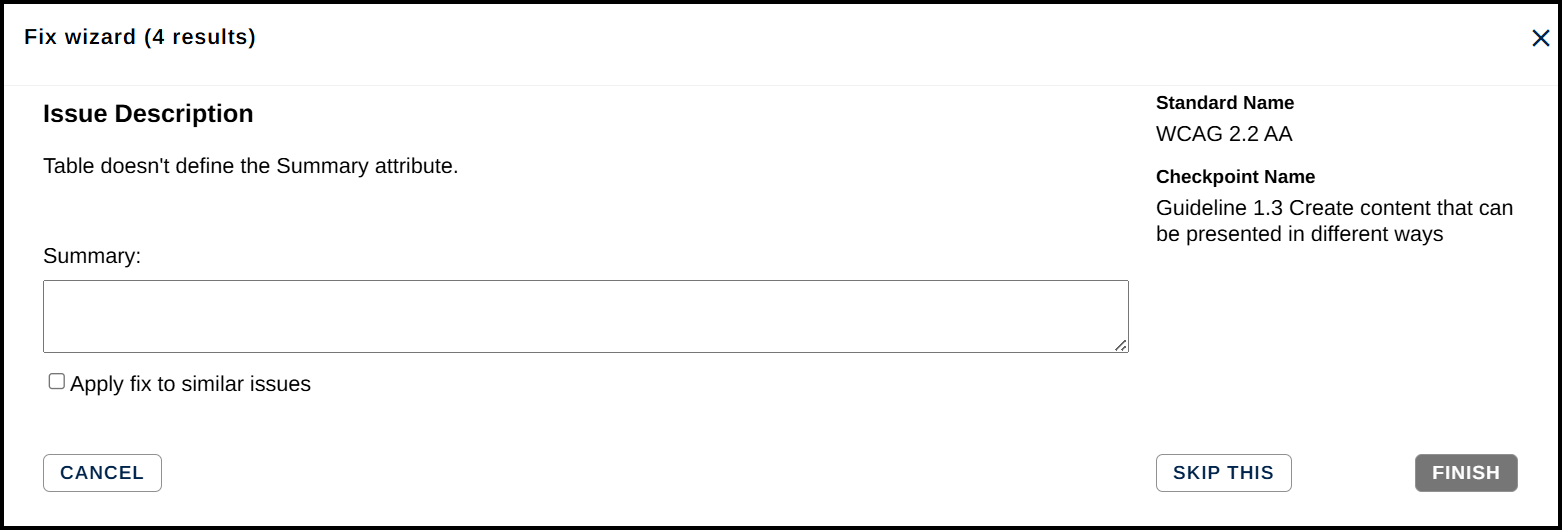
Whichever method you use, make sure your summary is well written, with correct grammar, spelling, and capitalization.
Frequently Asked Questions
Do I have to add a table summary?
No. Table summaries are not required by any accessibility standard. You'll only ever see a Warning, never a Failure, for leaving one out.
What's the difference between a table summary and a table caption?
A caption is a visible label displayed with the table. A summary is not visible on the page. It's stored in the table's properties and is used to add context, often for assistive technology.
What happens if I don't add a summary or a comment?
The table will keep a Warning result. This will not cause your document to fail a validation, but it's best practice to manually change the result to "Passed," and provide a comment explaining why one isn't needed.
How do I decide if I need a summary or not?
Only add a table summary if the table is structurally complex enough (merged cells, multi-level headers) that a screen reader user could lose context sighted users get from the visual layout. Even then, prefer authoring that context in a visible caption everyone can read, rather than a hidden attribute only assistive tech sees. Skip it for simple tables, or where proper headers and a caption already do the job. In short, a hidden summary shouldn't be patching a table that just needs cleaner markup.
Was this article helpful?
That’s Great!
Thank you for your feedback
Sorry! We couldn't be helpful
Thank you for your feedback
Feedback sent
We appreciate your effort and will try to fix the article